Build with AI
Your Free AI Agent Just Got Insanely Powerful (And NVIDIA's Paying for It)
Run a 1 trillion parameter beast like Kimi K2.5 completely free with OpenClaw. Here is how to build a 24/7 AI assistant for $0.

Contents (11)
- Key Takeaways
- What Even Is This Stack?
- Prerequisites Real Talk
- Part 1: Grabbing Your Free NVIDIA API Key
- Part 2: Installing OpenClaw (The Framework Formerly Known As Clawdbot)
- Hardware Options: Where Should This Actually Run?
- Part 3: Wiring Up Kimi K2.5 via NVIDIA API
- Part 4: Sub-Agents, Skills, and Making It Actually Useful
- Part 5: Advanced Customization & Best Practices
- Why This Matters in 2026
- The Catches (And Final Thoughts)
Quick answer: OpenClaw is an open-source agent framework that you can point at Kimi K2.5, Moonshot AI's 1 trillion parameter multimodal model, hosted free on NVIDIA's NIM inference platform. You grab an nvapi- key from build.nvidia.com with no credit card, install OpenClaw with npm install -g openclaw@latest, add NVIDIA as an OpenAI-compatible provider in ~/.openclaw/config.json, and connect Telegram, WhatsApp, or Discord. The result is a 24/7 personal assistant with browser access, sub-agents, and scheduled hooks running at $0 in inference cost.
Remember when running a personal AI agent meant either bleeding money on API calls or sacrificing your laptop's soul to local inference? Yeah, that's over.
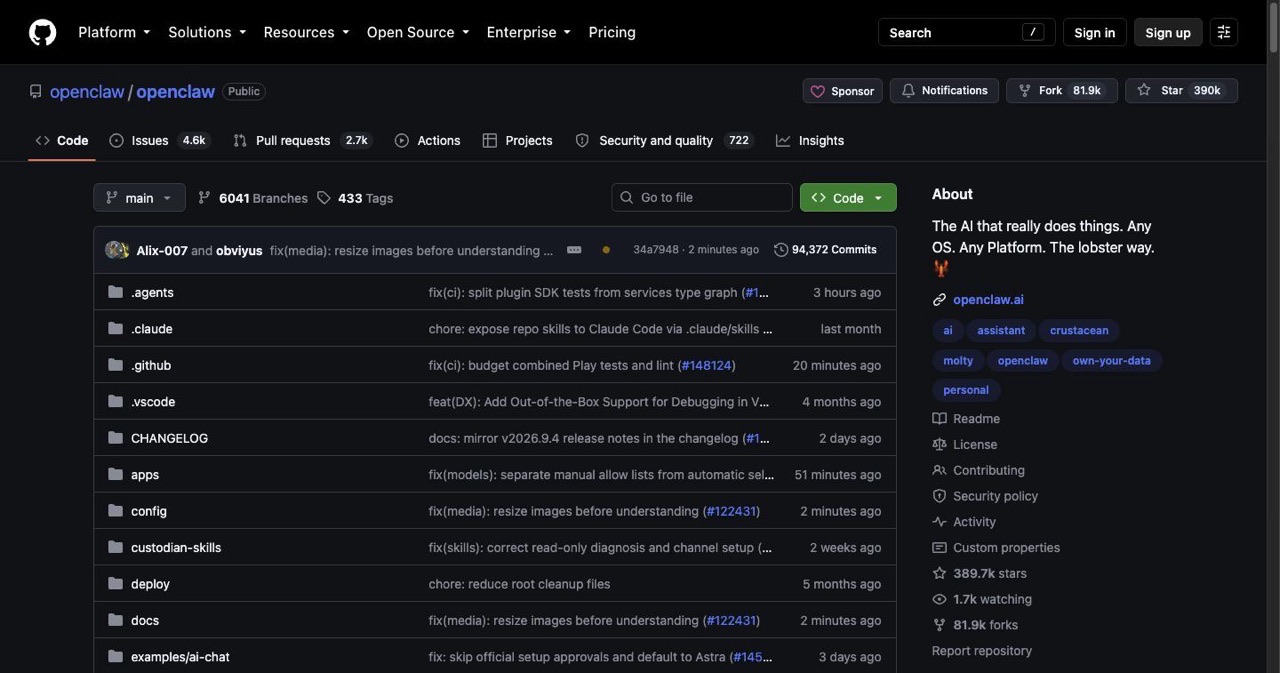
NVIDIA just opened the floodgates to Kimi K2.5—a 1 trillion parameter beast that's genuinely competing with Claude Opus—completely free through their inference platform. Pair it with OpenClaw (the scrappy open-source agent framework that's been quietly eating ChatGPT's lunch), and you've got yourself a 24/7 AI assistant that costs exactly zero dollars.
I've spent the last week stress-testing this setup. Here's the brutally honest breakdown of how to build it, what actually works, and where it falls flat.
Key Takeaways
- Free inference from NVIDIA: NVIDIA's NIM platform hosts Kimi K2.5 for free, and the API key is visible in the "View Code" snippet on build.nvidia.com after a 30-second signup.
- 1T parameters, multimodal: Kimi K2.5 is Moonshot AI's 1 trillion parameter model that handles text, images, and video, with Thinking Mode and Instant Mode as separate response styles.
- OpenClaw has had three names: It started as ClawdBot, became Moltbot after trademark issues, and is now OpenClaw, so older GitHub URLs still reference clawdbot.
- Node.js 22 is the hard requirement: Install with
npm install -g openclaw@latest, then runopenclaw onboard --install-daemonand check the result withopenclaw doctor. - The provider config is OpenAI-compatible: Point OpenClaw at
https://integrate.api.nvidia.com/v1with model idmoonshotai/kimi-k2.5and restart the gateway. - 2GB RAM beats 1GB: A 1GB droplet dies during npm install unless you add 2GB of swap first; DigitalOcean's 1GB droplet is $6/month and AWS Free Tier covers 12 months.
- The free tier is a trial: NVIDIA keys are rate limited and can be rotated or expired, so keep a fallback provider configured.
What Even Is This Stack?
OpenClaw (sometimes called Clawdbot or ClawdBot depending on which GitHub fork you're staring at) is an open-source agent platform that lets you run AI assistants that can actually do things. We're talking browser control, API integrations, multi-agent orchestration—the works. Think of it as the self-hosted cousin of Anthropic's Claude with computer use, except you control everything.
Kimi K2.5 is Moonshot AI's latest drop: a multimodal 1T-parameter model that's been dominating Chinese benchmarks and quietly impressing Western devs who've tested it. Excels at coding, reasoning chains, and handling mixed text-image inputs without losing its mind.
NVIDIA's NIM platform is the secret sauce. They're hosting inference for Kimi K2.5 (and a bunch of other models) completely free as part of their push to make developers dependent on their infrastructure. Smart play on their part. Free lunch for us.
The combination? You get Claude Opus-tier performance for automation, research, coding assistance, and chat integrations without spending a cent on compute. The catch is you need to actually configure this thing, and the docs are... let's call them "community-maintained."
Prerequisites Real Talk
You'll need:
- Basic terminal comfort (if
cdandnpmscare you, maybe bookmark this for later) - Node.js v22 or higher
- Optional but recommended: A dedicated machine for 24/7 operation (old laptop, Mac Mini, or a $5/month VPS)
The VPS route is cleanest if you want this running constantly. AWS free tier works. Cloudflare Workers can handle lightweight deployments for under $5/month. Your 2018 MacBook gathering dust also works perfectly fine.
Part 1: Grabbing Your Free NVIDIA API Key
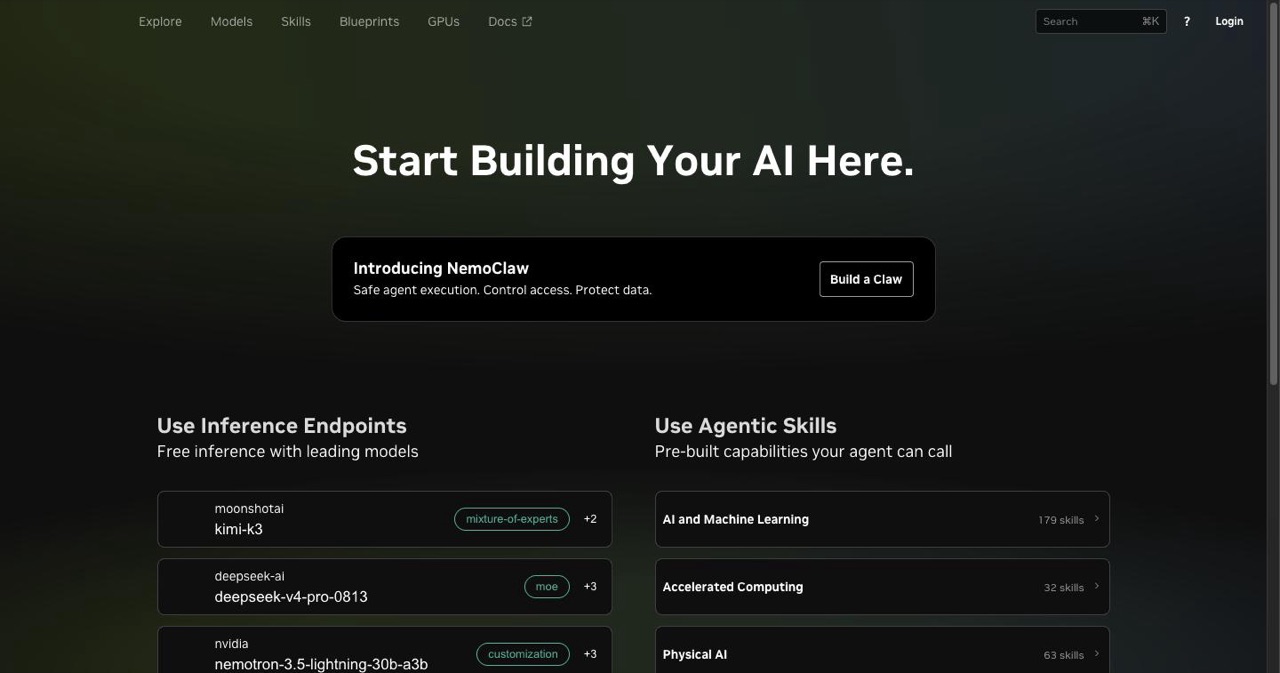
This is legitimately the easiest part. NVIDIA doesn't want your credit card or any BS verification process.
Here's the actual workflow:
- Head to build.nvidia.com (NVIDIA's developer playground)
- Search for "Kimi K2.5" in the model catalog
- Click the model card, then hit the "Experience" tab
- Start chatting with the model (try asking it something challenging to confirm it's the real deal)
- Click "View Code" in the interface
- Sign in with an NVIDIA account (create one if you don't have it—takes 30 seconds)
- Your API key appears embedded in the code snippet as a Bearer token
Copy that entire Bearer token. That's your free pass to 1T parameters of inference.
The key format looks like: nvapi-xxxxxxxxxxxxxxxxxxxxxxxxxxxxx
Pro move: NVIDIA's also hosting other models on the same platform (GLM, Minimax, various Llama variants). You can generate API keys for all of them the same way. Keep a collection if you want fallback options or want to A/B test different models for specific tasks.
Rate limits: These are "trial" keys with rate limiting, but in practice, you'll hit usage caps that are more than generous for personal agent work. I've been running multi-step research tasks, browser automation, and daily summaries for a week without issues. Your mileage depends on how aggressively you're hammering the API, but for normal personal assistant use, you won't notice the limits.
Key validity: These aren't eternal. NVIDIA can rotate or expire trial keys, but as of early Feb 2026, people are reporting keys staying active for weeks. Worst case, you regenerate a new one in 60 seconds.
Part 2: Installing OpenClaw (The Framework Formerly Known As Clawdbot)
Quick naming context: This project has gone through an identity crisis. Started as ClawdBot, became Moltbot after trademark drama, now it's OpenClaw. The GitHub URLs still say "clawdbot" in some places. Don't get confused—it's all the same thing.
OpenClaw is conversation-first, not config-first. You set it up by chatting with it, which feels weird at first but is actually genius. No YAML hell, no cryptic environment variables.
Requirements:
- Node.js 22 or higher (check with
node --version) - NPM or pnpm (pnpm is faster if you have it)
Quick install:
npm install -g openclaw@latest
If you're the type who likes one-liner curl scripts:
curl -fsSL https://openclaw.sh/install.sh | bash
First-time setup:
openclaw onboard --install-daemon
This kicks off an interactive wizard that'll:
- Set up your workspace directory (defaults to
~/.openclaw) - Configure the gateway daemon (so it runs in the background)
- Walk you through connecting messaging channels (Telegram, WhatsApp, Discord, etc.)
- Set up initial model configs
- Offer to install "skills" (pre-built capability folders)
The wizard is actually well-designed. Answer the questions honestly. When it asks about skills, you can skip them for now—we'll add what we need later.
Important: When it asks which messaging platform you want to connect, pick Telegram first if you're new to this. WhatsApp works but has more moving parts (QR scanning, session management). Discord and Slack are great if you already live there.
Hardware Options: Where Should This Actually Run?
You've got three realistic paths:
Option 1: Old laptop repurposed as a server
- Pros: Free hardware you already own, always-on capability, decent specs even on 5-year-old machines
- Cons: Power consumption, noise if the fan's dying, you need to leave it running 24/7
- Best for: Testing the waters before committing to VPS costs
Option 2: Mac Mini or dedicated local box
- Pros: Low power draw, silent, fast local inference if you add Ollama later
- Cons: Upfront hardware cost, still need to keep it running
- Best for: People who want true local-first AI and don't mind the hardware investment
Option 3: VPS (Virtual Private Server)
- Pros: Always accessible, no hardware maintenance, can start at $5/month
- Cons: Monthly cost, slightly higher latency than local
- Best for: Most people who want "set it and forget it" reliability
VPS recommendations:
- AWS Free Tier: 12 months free with a t2.micro instance (1GB RAM). Tight on memory but workable for lightweight setups.
- DigitalOcean: $6/month for 1GB droplet. Reliable, simple interface, good docs.
- Hostinger VPS: Has a literal one-click OpenClaw Docker template now. Easiest path if you don't want to configure anything.
- Cloudflare Workers/R2: Can run ultra-lightweight OpenClaw instances for under $5/month if you're clever with the config.
Real talk: 1GB RAM is the bare minimum and you'll need to add swap space to survive npm installs. 2GB is comfortable. Go with 2GB if you can afford the extra couple bucks per month.
After installation, verify everything:
openclaw doctor
This runs diagnostics and surfaces any misconfigurations or risky settings. Green checkmarks = you're good. Warnings = fix them before proceeding.
Part 3: Wiring Up Kimi K2.5 via NVIDIA API
Now for the magic: connecting your free NVIDIA API key to OpenClaw so it actually uses Kimi K2.5 for inference.
OpenClaw stores config in JSON files in your workspace directory. The exact path depends on your setup, but typically it's:
~/.openclaw/config.json
or
~/.openclaw/agents/config.json
You can also configure via environment variables or the web UI. I prefer editing the config directly because it's faster and you see exactly what's happening.
Here's what you need to add:
Open your config file and find the models or providers section. Add NVIDIA as a provider:
{
  "providers": {
    "nvidia": {
      "type": "openai",
      "baseURL": "https://integrate.api.nvidia.com/v1",
      "apiKey": "nvapi-YOUR-KEY-HERE",
      "models": {
        "kimi-k2.5": {
          "id": "moonshotai/kimi-k2.5",
          "maxTokens": 16384,
          "supportsReasoning": true
        }
      }
    }
  },
  "agents": {
    "defaults": {
      "model": {
        "primary": "nvidia/kimi-k2.5"
      }
    }
  }
}
What's happening here:
- We're telling OpenClaw that NVIDIA is an OpenAI-compatible provider (Kimi K2.5 uses OpenAI's API spec)
- Base URL points to NVIDIA's inference endpoint
- Model ID is
moonshotai/kimi-k2.5(that's how NVIDIA lists it) supportsReasoning: trueenables Kimi's thinking mode (more on that in a sec)- We set it as the default primary model for all agents
Kimi's Two Modes:
Kimi K2.5 has Thinking Mode and Instant Mode.
Thinking Mode shows you reasoning traces (the model's internal monologue). Better for complex tasks, debugging, understanding why it made certain decisions. Uses more tokens.
Instant Mode skips the reasoning output and just gives you the answer. Faster, cheaper in token consumption.
You toggle this in your prompt or via API parameters:
{
  "thinking": {"type": "enabled"}  // Thinking Mode
}
or
{
  "thinking": {"type": "disabled"}  // Instant Mode
}
For an always-on personal assistant, I default to Instant Mode for speed, then switch to Thinking for tasks like code debugging or multi-step research.
Restart the gateway after config changes:
openclaw gateway restart
Test it:
openclaw agent --message "What's 9.11 vs 9.9 and explain your reasoning" --thinking high
If Kimi K2.5 is working, you'll get a response that shows its reasoning process for comparing those decimal numbers (a classic test for whether models actually think vs. pattern-match). Kimi handles this correctly—9.9 is bigger.
Part 4: Sub-Agents, Skills, and Making It Actually Useful
Out of the box, OpenClaw + Kimi K2.5 can chat. But the real power is in sub-agents and skills.
Sub-agents are specialized instances that handle specific subtasks. Think of them like microservices for AI. Your main agent can spawn sub-agents for research, coding, data analysis, or whatever you define.
Skills are pre-built capability folders (essentially plugins). They contain prompts, tools, and workflows for common tasks.
Setting up browser access:
If you want your agent to actually browse the web, scrape data, or interact with web UIs, you need to enable browser skills. OpenClaw supports Playwright for headless browsing.
openclaw skills add browser
This installs the browser skill pack. Now your agent can:
- Search Google and parse results
- Visit URLs and extract content
- Fill out forms
- Take screenshots
Security warning: Giving an AI browser access is no joke. Use Docker isolation if you're running this on a machine with sensitive data. Configure allowlists for domains it can access. Don't give it your admin credentials "just to test."
WhatsApp/Telegram/Discord integration:
The onboarding wizard should've walked you through connecting one messaging platform. To add more:
openclaw channels add telegram
# or
openclaw channels add whatsapp
# or
openclaw channels add discord
Each has different auth flows:
- Telegram: Bot token from BotFather
- WhatsApp: QR code scan (use the web.whatsapp.com session)
- Discord: Bot token from Discord Developer Portal
Once connected, your agent lives in those apps. You can DM it, add it to group chats, ping it for tasks while you're on mobile. This is where the "personal assistant" thing actually becomes real.
Example workflow: Morning briefing
Set up a proactive hook:
openclaw hooks add morning-briefing \
  --cron "0 7 * * *" \
  --message "Give me a morning briefing: news summary, calendar for today, and any pending tasks"
Now every morning at 7 AM, Kimi K2.5 runs that prompt and sends you the results via your connected messaging channel.
Part 5: Advanced Customization & Best Practices
Multimodal inputs:
Kimi K2.5 isn't just text. It handles images and video natively. In OpenClaw, you can send images via Telegram or upload them to the web UI, and Kimi will analyze them.
Example use cases:
- Screenshot of an error → Kimi debugs the issue
- Photo of a receipt → Kimi extracts and categorizes expenses
- UI mockup → Kimi generates React code
- Video of a workflow → Kimi writes documentation
Custom workflows with chaining:
You can chain multiple agent calls together for complex automation:
openclaw workflow create research-and-summarize \
  --steps "web_search,extract_content,summarize,email_to_me"
This creates a workflow where:
- Agent searches the web for a topic
- Extracts full content from top results
- Summarizes findings
- Emails you the summary
Trigger it with:
openclaw workflow run research-and-summarize --topic "latest AI hardware benchmarks"
Security best practices:
-
Use Docker for isolation: Run OpenClaw in a container so it can't accidentally trash your system. The official repo has Docker configs.
-
Control browser access: If you enable browser skills, use domain allowlists. Don't let it navigate to arbitrary URLs from untrusted input.
-
Monitor API usage: Even though NVIDIA's giving you free access, check your usage occasionally. If you hit rate limits unexpectedly, someone might be abusing your API key.
-
Pairing mode for DMs: Set
dmPolicy: "pairing"in your config. Unknown senders get a pairing code before the bot processes their messages. Prevents random people from spamming your agent if your number leaks.
Common pitfalls:
-
Setup circles: If the onboarding wizard keeps looping, you probably have a stale config. Delete
~/.openclawand start fresh. -
Memory issues on small VPS: 1GB droplets will die during npm install. Add 2GB swap before installing.
-
WhatsApp session dying: WhatsApp aggressively kills linked sessions it considers suspicious. Use a secondary number or dedicated SIM if possible. Don't rely on your primary WhatsApp for production setups.
-
Model not responding: Check that you copied the full NVIDIA API key including the
nvapi-prefix. Also confirm the base URL is exactlyhttps://integrate.api.nvidia.com/v1.
Why This Matters in 2026
We're at an inflection point. A year ago, running a capable AI agent meant either:
- Paying $20/month for ChatGPT Plus and living inside their walled garden
- Paying $0.01–0.03 per 1K tokens on API calls that added up fast
- Running local models that were genuinely useless for anything complex
Now you can run a 1 trillion parameter multimodal model—competitive with the best commercial offerings—completely free, on infrastructure you control, accessible from any messaging app you already use.
The implications are wild:
- Personal automation that actually works
- Research assistants that don't cost a fortune
- Coding help that's always available
- Integration with your actual workflow (not a separate app you have to remember to check)
OpenClaw's bet is that agents belong in the background of tools you already use, not in yet another standalone app. Kimi K2.5's bet is that open-source models can genuinely compete with closed frontier models. NVIDIA's bet is that free inference today builds ecosystem lock-in tomorrow.
We benefit either way.
The Catches (And Final Thoughts)
This isn't purely production-ready for mission-critical stuff. OpenClaw is evolving fast. Config formats change. Features break. The community is amazing but you're not getting enterprise SLAs here.
NVIDIA's free tier is a trial. They could pull it, add restrictions, or start charging anytime. Enjoy it while it lasts, but have a backup plan.
Security is on you. An AI agent with browser access and API credentials is a powerful tool. It's also a risk if misconfigured. Don't blindly give it access to everything and assume it'll behave.
Setting this up took me about an hour, including messing around with different config options and breaking things twice. If you follow this guide, you should be chatting with your free Kimi K2.5-powered agent in 30 minutes or less.
Is it perfect? No. Will it replace every tool in your workflow? Also no. But it's legitimately useful, costs nothing, and gives you a taste of where personal AI is heading.
Try it. Break it. Report bugs to the OpenClaw repo. Share what workflows you build.
And if you get it working, ping me on X or drop a note in the OpenClaw Discord—curious to hear what people are using this for beyond the usual "summarize my emails" demo.
The future's weird. Might as well have a free 1T-parameter lobster helping you navigate it. 🦞
Get your SaaS in front of founders
List your product on the SaaSCity live city map - a permanent listing, real discovery, and a backlink from a high-DR directory. Free to start; upgrade for a dofollow link and a building on the map.