Build with AI
How to Connect Google Antigravity with Google Stitch: The Complete 2026 Setup Guide
Google just dropped two experimental tools that turn app development into something your non-technical founder could actually do—and when you wire them together, things get wild.


Contents (10)
Quick answer: Google Antigravity is an AI IDE built on VS Code with Gemini 3 agents, shipped November 2025. Google Stitch is a Google Labs UI generator that turns a text prompt into React/Tailwind or HTML/CSS code in under 60 seconds. You connect them through the Stitch MCP Server: create a Stitch API key, run npx @_davideast/[email protected] proxy, add a stitch entry to mcp_config.json, then register the server in Antigravity. Both are free during preview.
Google just dropped two experimental tools that turn app development into something your non-technical founder could actually do—and when you wire them together, things get wild.
Here's what happened when I connected Google Antigravity (an AI-powered IDE that shipped in November 2025) with Google Stitch (a UI generator from Google Labs): I built a fully functional habit-tracking app with authentication, database integration, and deployment in 23 minutes. No, that's not a typo.
This isn't vaporware or another overhyped demo. Both tools are free right now, and the integration actually works. I'm going to show you exactly how to set this up, what works, what breaks, and why this matters if you ship code for a living.
Key Takeaways
- Antigravity is a VS Code fork: It shipped in November 2025 with a Mission Control interface for Gemini 3 agents that plan, code, debug, and browse the web.
- Stitch generates real code: Prompts return production-ready HTML/CSS or React/Tailwind in under 60 seconds, plus responsive layouts, clickable prototypes, and Figma exports.
- MCP is the bridge: The Stitch MCP Server exposes Stitch Generate and Stitch Fetch as agent skills inside Antigravity, so designs move without browser tab copying.
- Setup is four steps: Create a Stitch API key, run the npm proxy, add a stitch entry to mcp_config.json, then test with a prompt in Antigravity chat.
- Both are free in preview: Antigravity's free tier covers Gemini Pro, Deep Think, and Flash; a $7 per month Google Fi tier unlocks larger models. Stitch is unlimited during beta.
- Real build time was 23 minutes: A Zen-style habit tracker went from Stitch prompt to deployed app with a PostgreSQL database and Clerk authentication, including an agent-found streak counter bug.
- Known rough edges: MCP config is finicky, Google account is required, offline use is limited, and Stitch's web designs are weaker than its mobile output.
What Are These Tools Actually Doing?
Google Antigravity: Your AI Development Partner
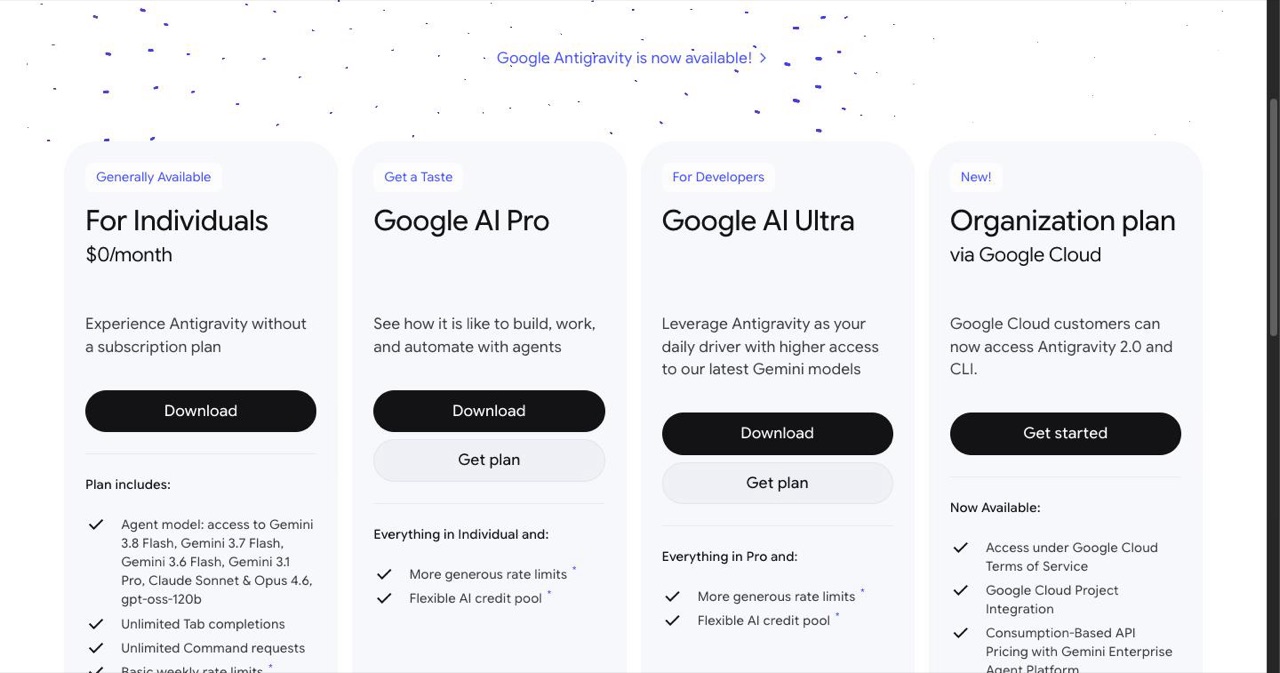
Think VS Code, but the AI doesn't just autocomplete—it takes over entire tasks. Antigravity is Google's fork of Visual Studio Code that shipped with what they call "Mission Control," a task management interface for AI agents powered by their Gemini 3 models.
The agents can plan, code, debug, browse the web, and iterate on complex projects with minimal babysitting. You tell it "build this," and it actually does. During the free preview, you get access to Gemini Pro, Gemini Deep Think, and Gemini Flash without hitting API limits every five minutes.
Download it from antigravity.google. You'll need a Google account, but that's it. For $7/month through Google Fi, you can unlock even beefier models, but the free tier handles most use cases.
Google Stitch: UI Generation That Doesn't Suck
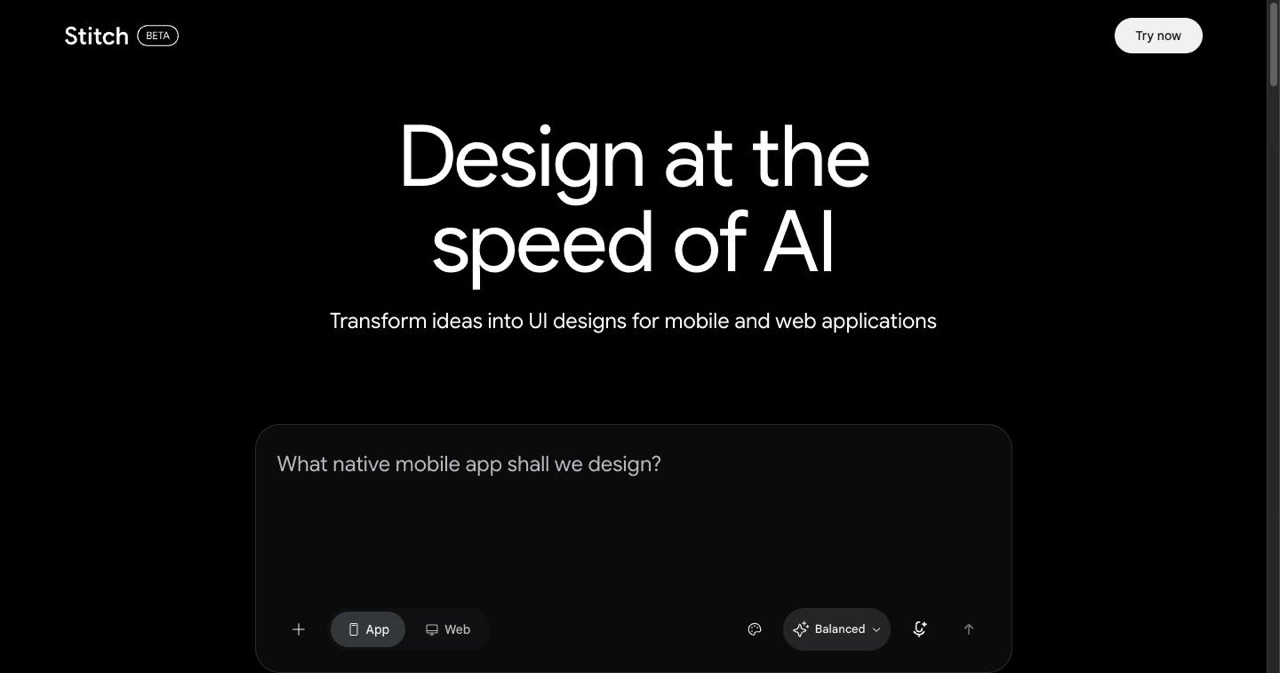
Stitch came out of Google Labs in May 2025. You type a prompt like "minimalist habit tracker with dark mode," and it generates production-ready UI code in under 60 seconds. Not wireframes. Not mockups. Actual HTML/CSS or React/Tailwind code you can deploy.
It runs on Gemini 2.5 Flash in standard mode, or you can flip to experimental mode for Gemini 2.5 Pro or Gemini 3.0 Pro if you need higher fidelity. The output includes responsive designs, clickable prototypes, and Figma exports if you're still doing handoffs to designers.
Access it at stitch.withgoogle.com. It's unlimited during beta, though Google will probably add rate limits once the hype train shows up.
Why Bother Connecting Them?
On their own, these tools are useful. Together, they're a different workflow entirely.
Stitch handles the design. Antigravity handles everything else. When you connect them, the Antigravity agent can pull UI designs directly from Stitch, inject that visual context into its task planning, and build functional apps without you manually copying code between browser tabs.
Here's a real example: I prompted Stitch to generate a multi-screen UI for a habit tracker. Exported the code. Opened Antigravity. Told the agent, "Take this Stitch design and add Clerk authentication plus a Convex database." It did. Then it opened a browser, tested the app, found a bug in the login flow, and fixed it. All in one go.
Without the integration, you're context-switching between tools, losing momentum, and manually wiring things together. With it, you're describing what you want and watching AI agents execute.
What You Need Before Starting
Quick checklist:
- Google account (for both Antigravity and Stitch)
- Antigravity installed from antigravity.google
- Stitch access at stitch.withgoogle.com
- Node.js and npm (check with
node --versionin terminal) - Basic command-line comfort (you'll run a few terminal commands)
If you're missing Node.js, grab it from nodejs.org. Everything else is free during the preview period.
Step-by-Step: Connecting Antigravity and Stitch
The connection happens through the Stitch MCP Server. MCP stands for Model Context Protocol—it's basically a bridge that lets Antigravity's AI agents call Stitch skills like "generate a new screen" or "fetch this code."
Step 1: Generate Your Stitch API Key
Open Stitch at stitch.withgoogle.com. Head to settings and create an API key for MCP access. Copy it somewhere safe—you'll need it in a second.
Step 2: Install the Stitch MCP Server
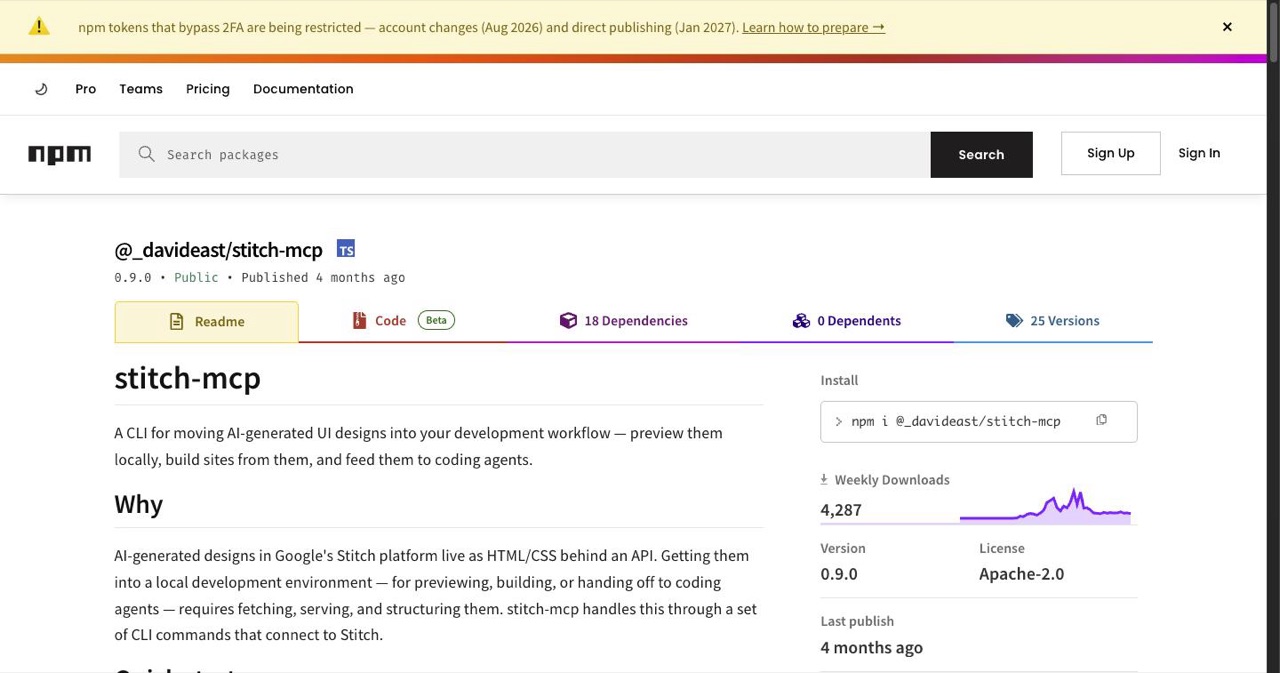
Open your terminal and run:
npx @_davideast/[email protected] proxy
This spins up the proxy that Antigravity will talk to. If you see errors, pin the version or check for updates on npm.
Now configure it in your mcp_config.json file. Add an entry for "stitch" with the command path. If you're not sure where this file lives, check Antigravity's documentation or look in your user settings directory.
Step 3: Link Stitch to Antigravity
Open Antigravity. In the chat interface, you can add the MCP server through extensions or just type a command to connect the Stitch agent. The interface should show "Stitch Generate" and "Stitch Fetch" as available skills once it's connected.
Alternatively, you can install Stitch skills directly from the GitHub command in Antigravity chat. This skips some manual config, but the MCP route gives you more control.
Step 4: Test the Connection
In Antigravity's chat, try this prompt: "Generate a UI for a minimalist habit tracker using Stitch."
If it works, the agent will fetch the design from Stitch, pull the code, and start integrating it into your project. If it doesn't, check the MCP store in Antigravity's settings, verify your API key, and make sure the proxy is still running.
Common Setup Issues
- MCP server won't start: Check your Node.js version. Some users report needing specific npm versions.
- Skills not showing up: Restart Antigravity after adding the MCP config.
- Authentication errors: You might need to run
gcloud authfor some manual installs.
How to Actually Use This
Once you're connected, the workflow is straightforward:
- Prompt Stitch with your UI idea ("dark mode dashboard with analytics widgets")
- Export the code or Figma file if you want to tweak it manually
- In Antigravity, tell the agent to import the Stitch design and add functionality (database, auth, API calls, whatever)
- Let the agent test it—it'll open a browser, verify the UI, and debug errors
- Deploy to Netlify, Vercel, or wherever you host
Example 1: Building a Habit Tracker
I prompted Stitch: "Create a Zen-style habit tracker with daily check-ins and streak visualization."
It generated a multi-screen UI in 45 seconds. I grabbed the React/Tailwind code and told Antigravity, "Add a PostgreSQL database and Clerk authentication."
The agent set up the database schema, wired Clerk's login flow, and connected everything. When it tested the app, it found a bug where the streak counter wasn't incrementing. Fixed it automatically. Total time: 23 minutes from prompt to deployed app.
Example 2: Redesigning a Landing Page
Uploaded a rough sketch to Stitch with the prompt: "Redesign this as a modern SaaS landing page."
Stitch interpreted the sketch and generated a clean, responsive design. Piped it into Antigravity with instructions to add a contact form and email integration via SendGrid. The agent handled all of it, including form validation and error states.
Advanced Moves
- Combine with other tools: You can chain Convex for real-time databases, or Flutter if you're targeting mobile.
- Vibe-coding: Just describe what you want in casual language—the full vibe coding workflow applies here too. The agents figure out the technical details.
- Skip the empty folder: If you're building a SaaS, point the agent at a Next.js + Supabase AI boilerplate instead of starting from scratch—auth, billing, and AI plumbing come pre-wired, so the agent only builds what's unique to your app.
- Iterate with the agent: If something doesn't work, tell it. The agents will debug, refactor, and try again.
What Works Great, What Needs Work
The Good:
- Speed: Idea to deployed app in under 30 minutes is not a gimmick. It's real.
- Accessibility: Non-technical people are building functional apps. That's wild.
- Cost: Everything's free during preview. Even the paid tier is $7/month.
- Agent autonomy: Antigravity's agents actually handle complex tasks. No constant hand-holding.
The Not-So-Good:
- Experimental bugs: MCP setup can be finicky. Expect some trial and error.
- Google ecosystem lock-in: You need a Google account, and offline use is limited.
- Stitch is better for mobile: Web designs can feel generic. Mobile UIs are where Stitch shines.
- Highly creative designs need polish: If you want something super unique, you'll still need manual tweaks.
Tips from Actually Using This
- Be specific with Stitch prompts: "Minimalist dark mode habit tracker" works better than "make it look good."
- Use experimental mode in Stitch for higher fidelity: The Pro models generate cleaner, more polished UIs.
- Let Antigravity agents debug: Don't jump in too fast. The agents often fix their own mistakes if you wait.
- Combine with AI Studio: If you need CLI tasks or data processing, Gemini CLI pairs well with this workflow.
- Check the MCP store regularly: New skills and integrations are being added as the beta evolves.
Where This Is Headed
Google's roadmap hints at deeper integrations. Stitch 2.0 is expected to support Gemini 3 models across the board, which means better accuracy and faster generation times. Antigravity is getting more MCP servers, so you'll be able to chain together even more tools.
The big shift here is that app development is becoming more conversational. You're describing outcomes, not writing implementation details. That doesn't mean developers are obsolete—it means we're moving up the stack to problems that AI can't solve yet.
If you're skeptical, I get it. But try the setup. Build something small. See if the workflow clicks. For prototyping, client demos, or side projects, this is already faster than traditional development. Not sure what to build first? Steal something from our AI coding project ideas list—most of them translate directly to this stack.
Getting Started
Head to antigravity.google and stitch.withgoogle.com. Set up your accounts, run through the MCP installation, and test the connection with a simple project. The documentation at stitch.withgoogle.com/docs/mcp/setup covers edge cases I didn't hit here.
If you run into issues, check Reddit threads or Google's forums. The community is small but active, and people are sharing workarounds for common setup problems.
This workflow won't replace your entire development process. But for rapid prototyping, client work, or just messing around with ideas, it's the fastest thing I've used. And it's free. Try it. And if you end up shipping something real, submit it to the SaaSCity directory—launches built with these tools do well there.
Get your SaaS in front of founders
List your product on the SaaSCity live city map - a permanent listing, real discovery, and a backlink from a high-DR directory. Free to start; upgrade for a dofollow link and a building on the map.