AI
Claude Code for Beginners: Install, Your First Project, and the Habits That Matter (2026)
A no-fluff getting-started guide to Claude Code: the exact install commands for every OS, what to type in your first ten minutes, and the four habits that separate people who get great results from people who fight the tool.


Contents (9)
Quick answer: Claude Code is a terminal-native AI agent that reads your whole project, plans changes across files, runs commands, and edits code with your approval at each step. Install it with curl -fsSL https://claude.ai/install.sh | bash on macOS, Linux, or WSL, or irm https://claude.ai/install.ps1 | iex in Windows PowerShell. Then cd into a project, run claude, log in with a Claude subscription or Console account, and ask it what the project does.
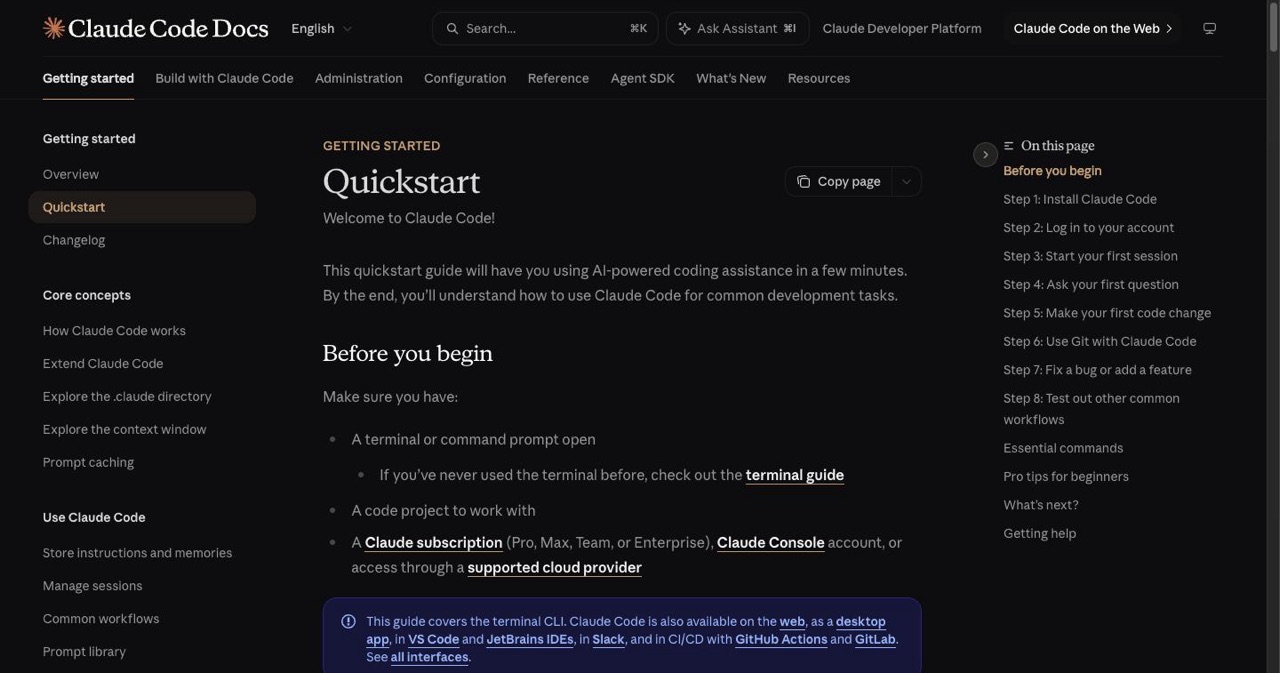
Claude Code isn't autocomplete. It's a terminal-native AI agent that reads your whole project, plans changes across multiple files, runs commands, and edits code — with your approval at each step. That makes the first session feel different from anything you've used, so here's exactly how to start without flailing.
This is the getting-started guide. When you're ready to pick something to build, jump to 15 project ideas with copy-paste prompts.
Key Takeaways
- Native installer: One command on each OS, no Node or npm, and it auto-updates in the background. Homebrew and winget installs do not auto-update.
- Requirements: macOS 13+, Ubuntu 20.04+/Debian 10+, or Windows 10 (1809+) with WSL, plus a Claude subscription (Pro, Max, Team, Enterprise) or a Console account.
- The core loop: Describe, review, approve. Claude Code shows every proposed edit and waits for your approval before writing.
- Plan Mode first:
Shift+Tabcycles to it, or start withclaude --permission-mode plan. It outlines what changes and why before touching files. - CLAUDE.md is project memory: Claude Code reads it from the project root at the start of every session, so your stack and run/test commands stop being re-explained.
- Context hygiene: The context window holds the whole conversation and fills fast. Run
/clearbetween unrelated tasks instead of one sprawling session. - Give it a pass/fail signal: A test, build, or script it can run closes the verification loop without you acting as the checker.
Step 1: Install it (under 5 minutes)
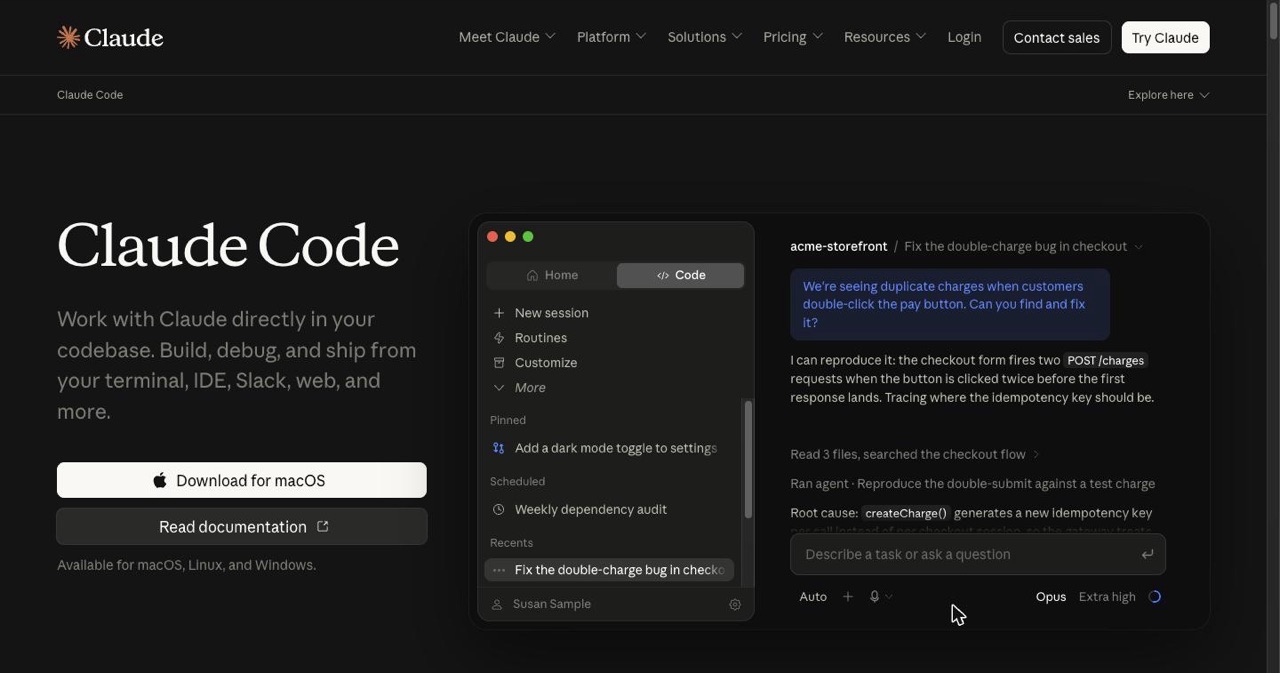
The native installer is the recommended method — no Node, no npm, and it auto-updates in the background.
macOS, Linux, or WSL:
curl -fsSL https://claude.ai/install.sh | bash
Windows (PowerShell):
irm https://claude.ai/install.ps1 | iex
Prefer a package manager? brew install --cask claude-code on macOS, or winget install Anthropic.ClaudeCode on Windows (note: those don't auto-update — you'll run brew upgrade / winget upgrade yourself).
You'll need macOS 13+, Ubuntu 20.04+/Debian 10+, or Windows 10 (1809+) with WSL, plus a Claude subscription (Pro, Max, Team, or Enterprise) or a Claude Console account. The official quickstart has the full matrix if you hit a snag.
Step 2: Log in and open your first project
Claude Code needs an account. Drop into any project folder and start it:
cd /path/to/your/project
claude
On first launch you'll pick a text style, then authenticate in the browser. You can log in with a Claude subscription, a Console account (pre-paid API credits), or an enterprise cloud provider like Bedrock or Vertex. Credentials are stored, so you only do this once. To switch later, type /login inside a session.
You'll see the prompt with your version, current model, and working directory above it. Type /help anytime to see commands.
Step 3: Your first ten minutes
Resist the urge to ask for a whole app. Build the muscle first. Let Claude explore, then make one tiny change.
Let it read the project:
what does this project do?
It reads your files and summarizes — you don't manually add context. Follow up with what technologies does this project use? or where is the main entry point?
Make your first edit:
add a hello world function to the main file
Claude Code finds the file, shows you the proposed change, and waits for your approval before editing. Approve it. That loop — describe, review, approve — is the whole job. You just did it.
Try Git, conversationally:
commit my changes with a descriptive message
That's a real first session. Everything else is variations on it.
Step 4: The four habits that make you good fast
Most beginners get mediocre results not because the tool is weak, but because they skip these. Each one is a 30-second habit.
1. Plan before you build (Plan Mode).
The most common mistake is jumping straight into implementation. Press Shift+Tab to cycle permission modes until you reach Plan Mode (or start with claude --permission-mode plan). Claude then lays out what it will change, in what order and why, and waits for your sign-off before touching anything. Read the plan, correct it, then let it run. This alone prevents most "it went off the rails" moments.
2. Give the project a memory (CLAUDE.md).
Claude Code automatically reads a CLAUDE.md file in your project root at the start of every session. Put your stack, your run/test commands, and your preferences in it. Now you stop re-explaining your project every time. It's the most underused beginner feature and the most powerful pro habit — ask Claude to "create a CLAUDE.md for this project" and edit from there.
3. Keep context clean (/clear).
Claude Code's context window holds your entire conversation — every message, every file it read, every command output — and it fills fast. When it's full, it starts forgetting earlier instructions. The fix: run /clear between unrelated tasks. Don't run a "kitchen sink" session that drifts from a bug fix to a new feature to a refactor — clear and start fresh for each.
4. Give it a way to check itself. Without a test or a command it can run, "looks done" is the only signal, and you become the verification loop. Give Claude something that produces a pass or fail — a test, a build, a script — and tell it to run it. The loop closes on its own and the quality jumps.
Beginner mistakes to skip
- Vague prompts. "Fix the bug" gets you guesses. "Fix the login bug where users see a blank screen after entering wrong credentials" gets you a fix.
- One giant request. Break complex work into numbered steps and let it do them in order.
- Over-correcting in a polluted session. If you've corrected Claude twice and it's still wrong, the context is poisoned with failed attempts.
/clear, then write a better opening prompt that bakes in what you learned. - Never planning. See habit #1.
Essential commands cheat sheet
| Command | What it does |
|---|---|
claude | Start an interactive session |
claude "task" | Run a one-time task |
claude -p "query" | One-off query, then exit |
claude -c | Continue the most recent conversation |
claude -r | Resume a previous conversation |
/clear | Clear conversation history (use between tasks) |
/help | Show available commands |
/login | Switch or re-authenticate accounts |
Shift+Tab | Cycle permission modes (reach Plan Mode) |
Now build something real

You know the loop, you've got the habits. Pick a first project and go:
- 15 Claude Code project ideas with copy-paste prompts — sorted beginner to advanced, each with a starter prompt.
- The wildest Claude Code projects going viral — for a sense of the ceiling.
- Going past prototypes? The Claude Code projects hub covers production structure (.claude/, skills, MCP) and how real apps get shipped.
- New to building with AI in general? The vibe coding guide covers the mindset.
And when you ship something: list it free on SaaSCity — a product page, a backlink, and your first eyes from other builders, in about two minutes.
FAQ
How do I install Claude Code?
Native installer: curl -fsSL https://claude.ai/install.sh | bash (macOS/Linux/WSL) or irm https://claude.ai/install.ps1 | iex (Windows PowerShell). Then cd into a project, run claude, and log in.
Do I need to know how to code? Not to start — you describe and approve. But being able to read the output makes you far more effective, so treat it as a way to learn rather than a way to avoid learning.
What is Plan Mode?
It makes Claude outline its plan and wait for approval before editing. Reach it with Shift+Tab or claude --permission-mode plan. Use it before any non-trivial task.
Why does it forget what I said?
The context window fills up. Run /clear between unrelated tasks instead of letting one session sprawl.
Get your SaaS in front of founders
List your product on the SaaSCity live city map - a permanent listing, real discovery, and a backlink from a high-DR directory. Free to start; upgrade for a dofollow link and a building on the map.