Reviews
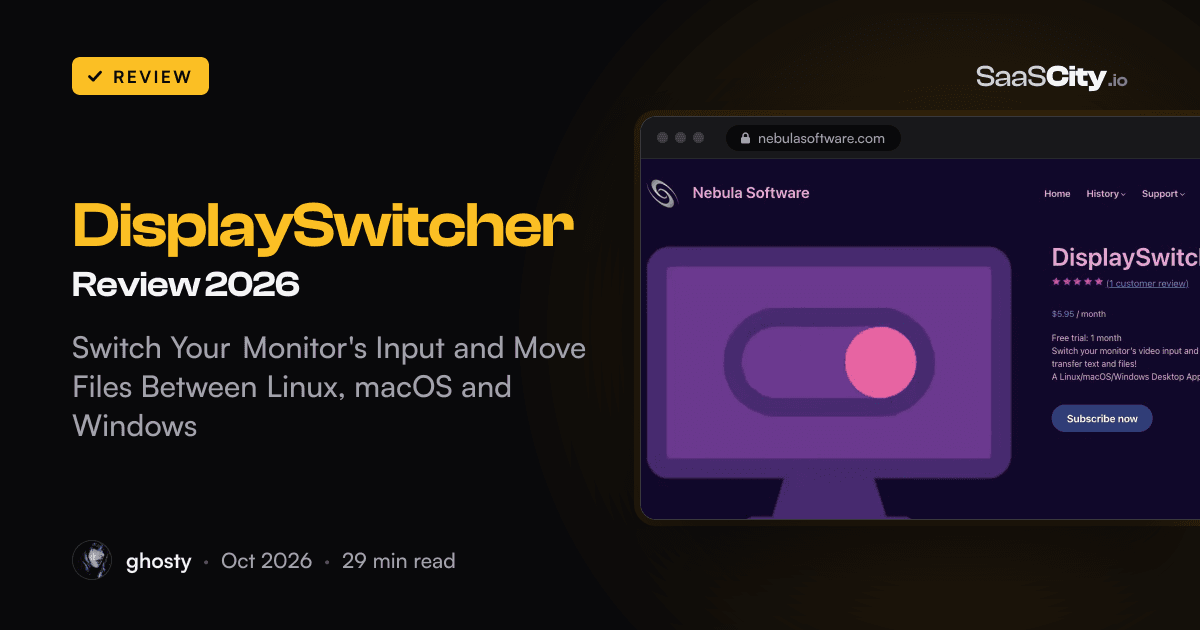
DisplaySwitcher Review 2026: Switch Your Monitor's Input and Move Files Between Linux, macOS and Windows
DisplaySwitcher is a desktop app from Nebula Software that switches an external monitor's video input from Linux, macOS or Windows over DDC/CI, so you stop reaching for the buttons under the screen. It also moves text, images, files and folders between your computers. We went through the setup on each system, the remote switching feature, Computer Transfers, the $5.95 price and who it suits.

Contents (18)
- DisplaySwitcher at a glance
- What is DisplaySwitcher?
- The problem it fixes
- How does DisplaySwitcher switch a monitor's input?
- A look at the app
- Setting up Monitor Inputs
- Remote switching: when one computer can't do it alone
- Computer Transfers: moving text and files between machines
- Settings that keep it out of your way
- Requirements on Linux, macOS and Windows
- How much does DisplaySwitcher cost?
- DisplaySwitcher vs other ways to share one monitor
- Who makes DisplaySwitcher?
- What we liked and what to keep in mind
- Who is DisplaySwitcher for?
- How to set up DisplaySwitcher on a shared monitor
- Is DisplaySwitcher worth it?
- FAQ
Disclosure: this is a sponsored review.
Product details checked against nebulasoftware.com (the DisplaySwitcher product page, the End User License Agreement and the about and portfolio pages), the DisplaySwitcher documentation (installation, Monitor Inputs, Computer Transfers and the settings articles) and the DisplaySwitcher video channel on October 28, 2026. Every screenshot was captured in Google Chrome from those live pages the same day. The views of the app come from Nebula Software's own documentation.
Quick answer: DisplaySwitcher is a desktop app for Linux, macOS and Windows that switches your external monitor's video input from a button on your screen. It sends the monitor a standard DDC/CI "switch video input" command through the video cable, so it works with most modern monitors whatever the brand, and on a monitor with a built-in KVM your keyboard and mouse move with the picture. Because you install it on every computer at your desk, it also moves text, images, files and folders between them, with no network or firewall setup. A computer that can't switch the monitor itself can ask another one to do it. It costs $5.95 a month after a one-month free trial, and you cancel from your account page. Nebula Software is the one-person company of Boyd Edmondson, a software engineer who has been delivering commercial software since 1992.
If two or three computers share one good monitor on your desk, you know the routine. You lean over, feel for the buttons under the bezel, open the on-screen menu, scroll to the input list and pick the right port, and an hour later you do it all again. Monitor makers sell software to skip that, but it usually covers one or two operating systems, and the one you're sitting at isn't always on the list. DisplaySwitcher puts the same switch on Linux, macOS and Windows. Below is how it works, what setup looks like on each system, what the Computer Transfers panel adds, what it costs and who will get the most out of it.
DisplaySwitcher at a glance
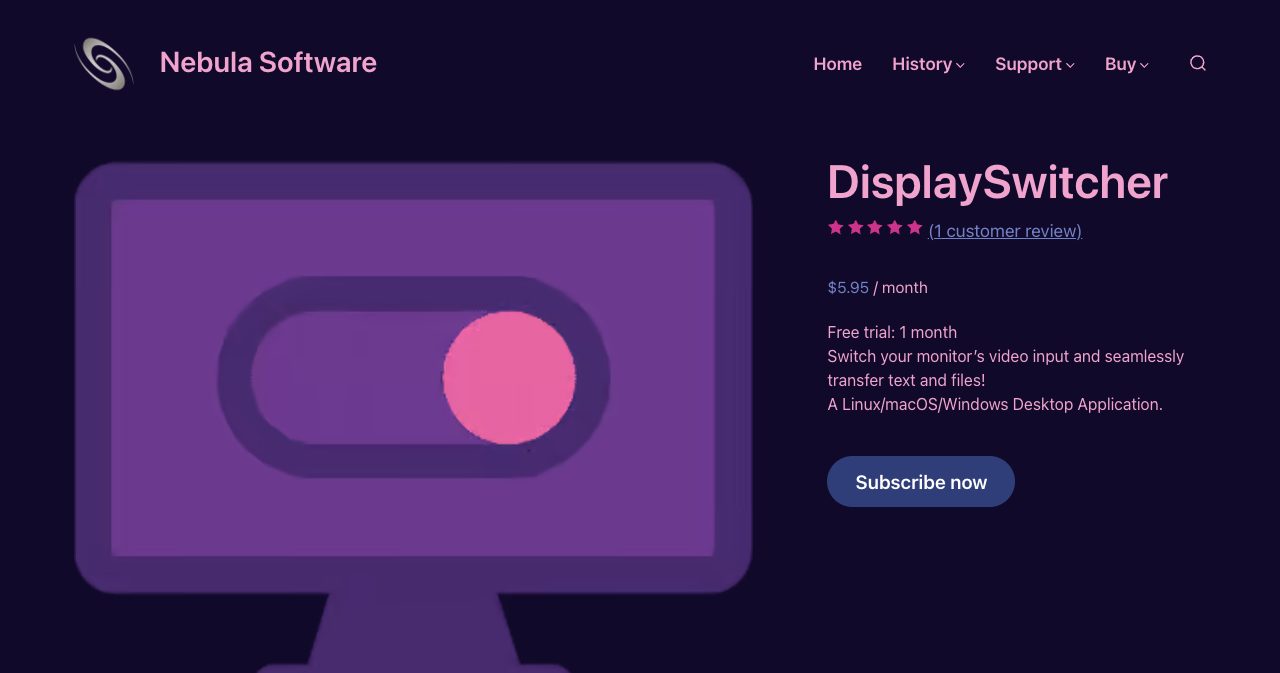
- A desktop app from Nebula Software that switches an external monitor's video input with one click, using the DDC/CI standard over the video cable.
- Runs on Linux (64-bit x86_64, officially tested on Ubuntu), on macOS 11 Big Sur or later with Apple Silicon, and on 64-bit Windows 10 or later.
- Works with any monitor that supports DDC/CI, which most modern monitors do. Some need it turned on in the monitor's on-screen menu.
- Keyboard and mouse follow the switch on monitors with a built-in KVM.
- Remote monitor targets let a computer that can't switch the monitor ask another computer running DisplaySwitcher to do it.
- Computer Transfers moves text, images, files and folders between your computers by paste, drag and drop or a file chooser, with no networking, firewall or permission setup.
- The installers and the app update themselves. The app starts at logon by default and can start with its window hidden.
- $5.95 a month with a one-month free trial, cancelled from your account page without contacting anyone.
- Documentation with a screenshot for nearly every step, plus 19 short videos on installing, setting up and using each feature.
What is DisplaySwitcher?
DisplaySwitcher turns your monitor's input menu into buttons on your screen. You make one shortcut for each input, name it after the computer plugged into that port, and click it when you want that computer on the screen. The app sends the monitor a "switch video input" command through the cable, the monitor changes its source, and the buttons under the screen stay untouched.
The same app has a second job. Since it runs on every computer that shares the monitor, the copies can pass things to each other. Type a note on the Windows PC, paste it into DisplaySwitcher, and a copy appears on the Mac and the Linux box. The same goes for screenshots, files and whole folders. Nebula Software calls this Computer Transfers.
DisplaySwitcher is sold as a subscription through Nebula Software's store, next to Quasar, a desktop photo and video viewer, DonutHole, a component for Java developers on macOS, and a few channels for Roku TV. The license is short and written in plain English, and there's more on it in the pricing section below.
The problem it fixes
The product page explains the problem with an example from the developer's own desk. Monitors, operating systems, ports and cables are all supposed to follow the standard for switching inputs, "but they often do not and just fail to work, or your Monitor manufacturer doesn't support software for your OS." Boyd Edmondson's Dell monitor could KVM switch from Windows to macOS but not back again, because, as the page puts it, "Dell doesn't offer software for macOS." Every trip back to Windows meant the buttons under the monitor.
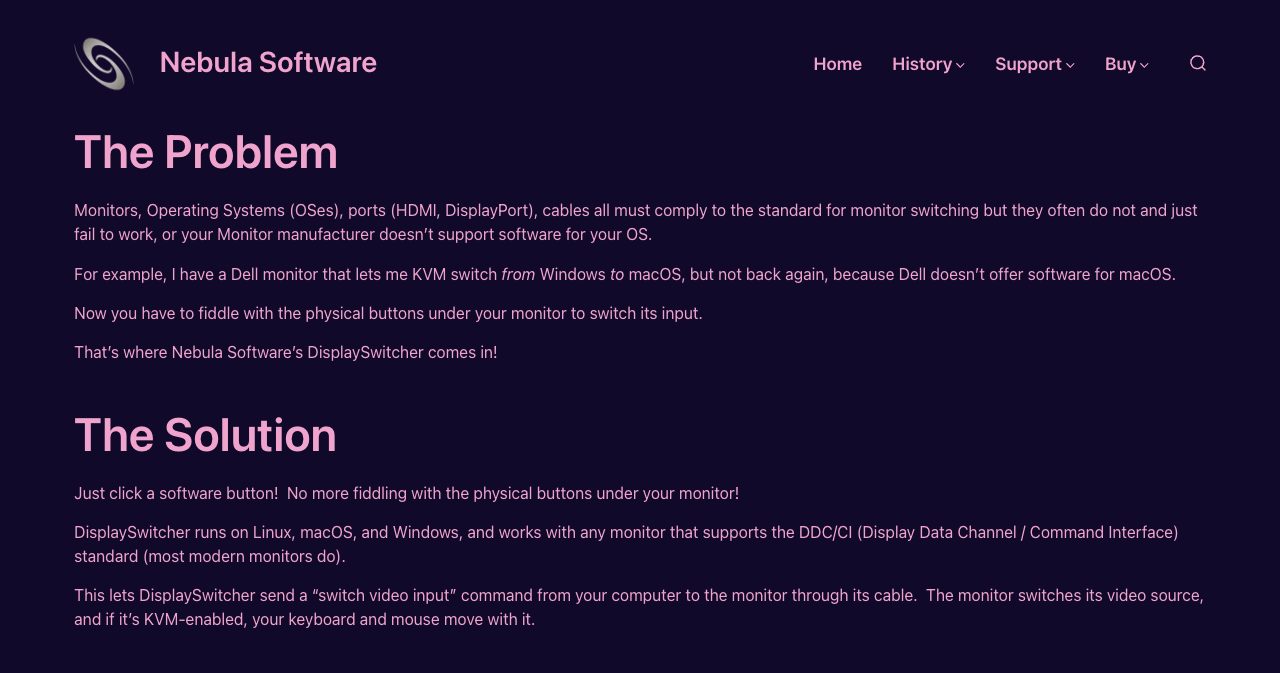
That gap is common. Most monitor utilities are written for Windows first, some come to macOS, and few ever reach Linux. If your desk mixes systems, at least one machine is left pressing buttons. DisplaySwitcher runs the same app on all of them and talks to the monitor directly, without the maker's software in between.
How does DisplaySwitcher switch a monitor's input?
It uses DDC/CI. DDC/CI (Display Data Channel Command Interface) is a VESA standard that lets a computer send commands to a monitor over the same cable that carries the picture. Apps that change a monitor's brightness from the desktop use it, and it includes a command for choosing the active video input. When you click a shortcut, DisplaySwitcher sends that input command, the monitor switches to the port you chose, and the computer on that port appears on screen.
Two things follow from that design. DisplaySwitcher doesn't depend on a monitor brand or its firmware, since DDC/CI is a shared standard. It also needs no box between your computers and the monitor, so each computer stays plugged straight into its own input.
If your monitor has a built-in KVM switch (a USB hub that hands your keyboard and mouse to whichever computer is on screen), the keyboard and mouse move with the input. On a monitor without one, the picture still switches, and the keyboard and mouse stay with whichever computer they're plugged into.
What is DDC/CI, and does my monitor support it?
DDC/CI is a two-way channel between computer and monitor that travels alongside the video signal on HDMI, DisplayPort, USB-C in DisplayPort mode, DVI and VGA connections. VESA's Monitor Control Command Set (MCCS) defines the commands. Input selection is VCP code 0x60, with standard names for each port: VGA, DVI, Composite, S-Video, Tuner, Component, DisplayPort and HDMI, each numbered 1, 2 and so on. Those are the names you'll see when you pick an input for a DisplaySwitcher shortcut.
Most monitors sold in recent years support DDC/CI, though some ship with it turned off. Look for a DDC/CI setting in the monitor's on-screen menu and turn it on. The connection matters as much as the monitor. According to the DisplaySwitcher docs, USB-to-HDMI adapters, some docking stations and DisplayPort-to-HDMI converters often block DDC/CI, so a direct cable is the safest bet. DisplaySwitcher works with external monitors only, so built-in laptop, MacBook and iMac screens aren't supported.
The quickest compatibility test is the free month: install DisplaySwitcher on two computers, make one shortcut on each and click.
A look at the app
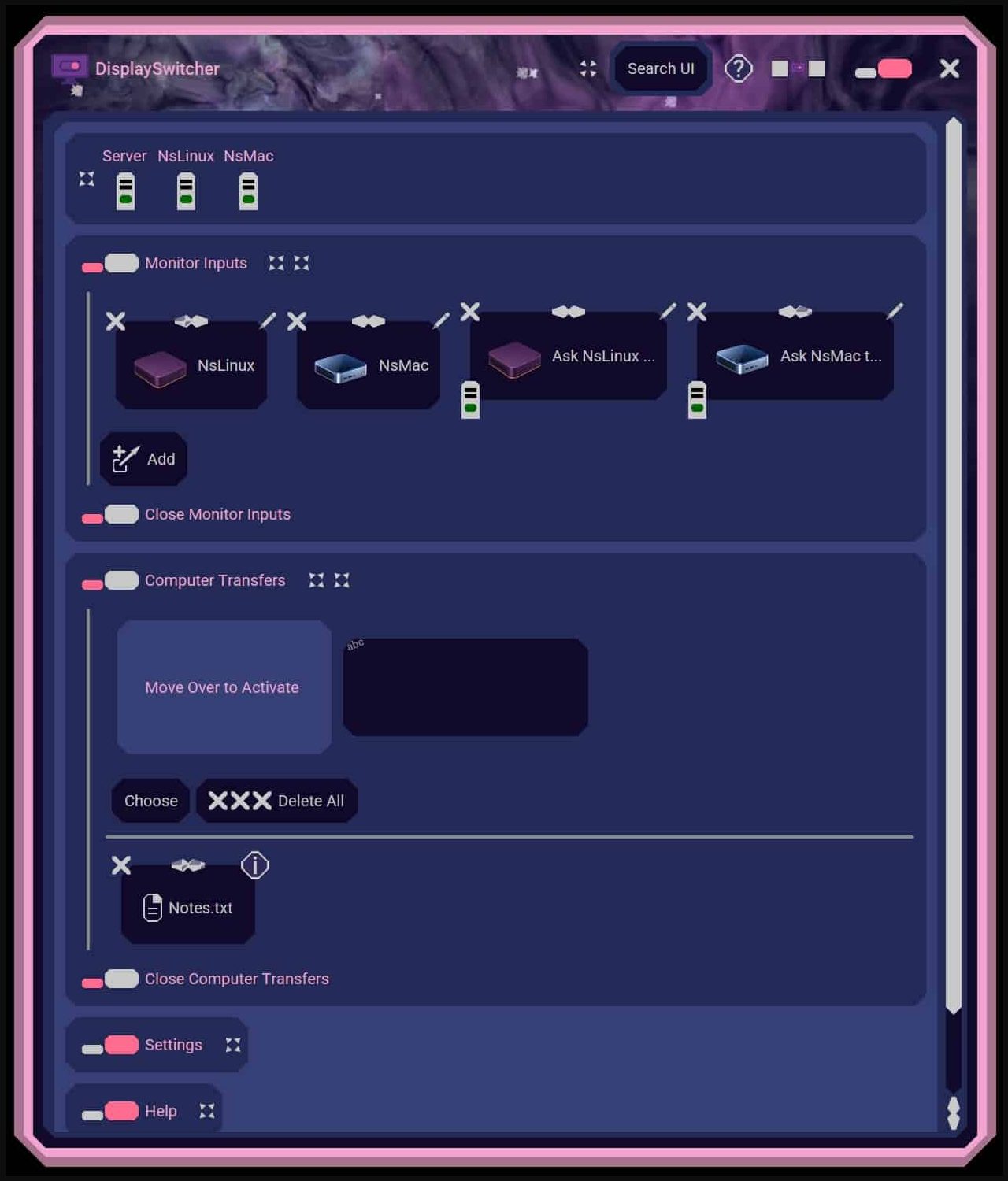
The DisplaySwitcher window is a stack of panels you open and close: Monitor Inputs, Computer Transfers, Settings and Help, with a Search UI field and a help button in the title bar. A strip along the top lists connections (Server, NsLinux and NsMac in Nebula's screenshot), each with a status light. The look is playful, with pink and purple panels, small computer icons on the shortcuts and an animated nebula background you can turn off in Settings.
Setting up Monitor Inputs
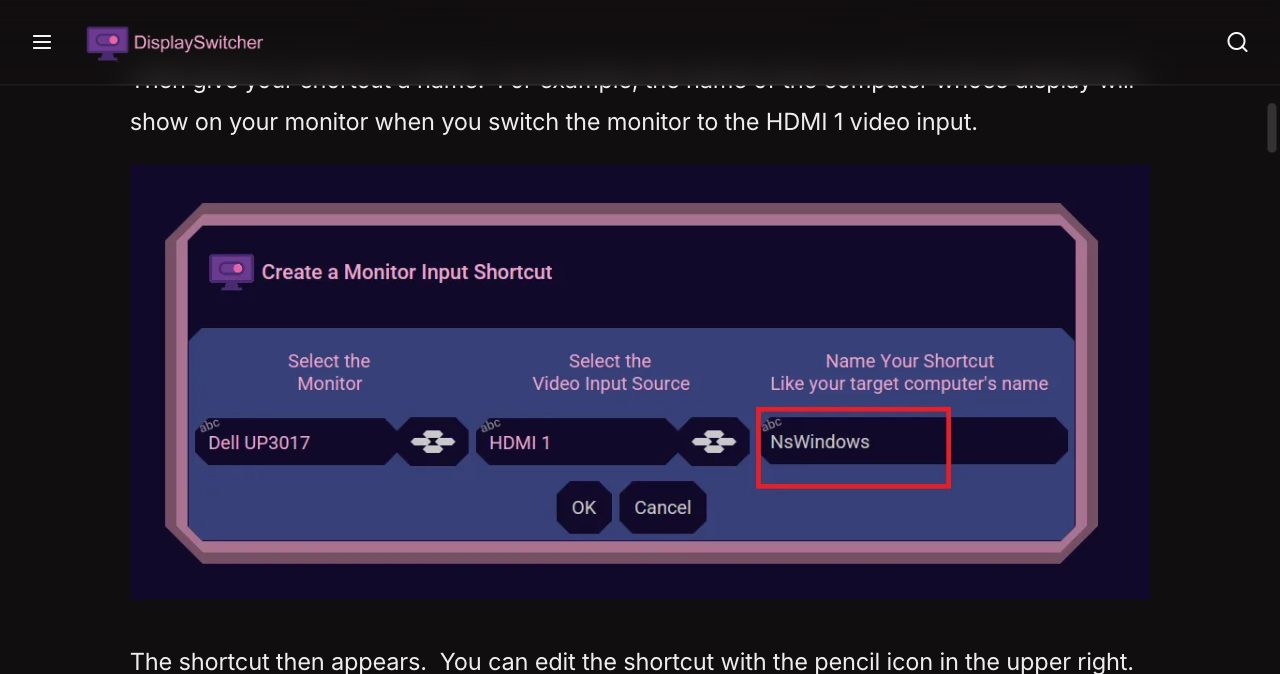
Monitor Inputs is where the switching happens. Setup is short, and the docs show a screenshot for every click:
- Click Add Monitor Target.
- Choose the monitor the command should go to. In the docs example it's a Dell UP3017, the only monitor on that desk.
- Pick the video input source, such as HDMI 1.
- Name the shortcut. The docs suggest the name of the computer whose picture you'll see on that input, like NsWindows.
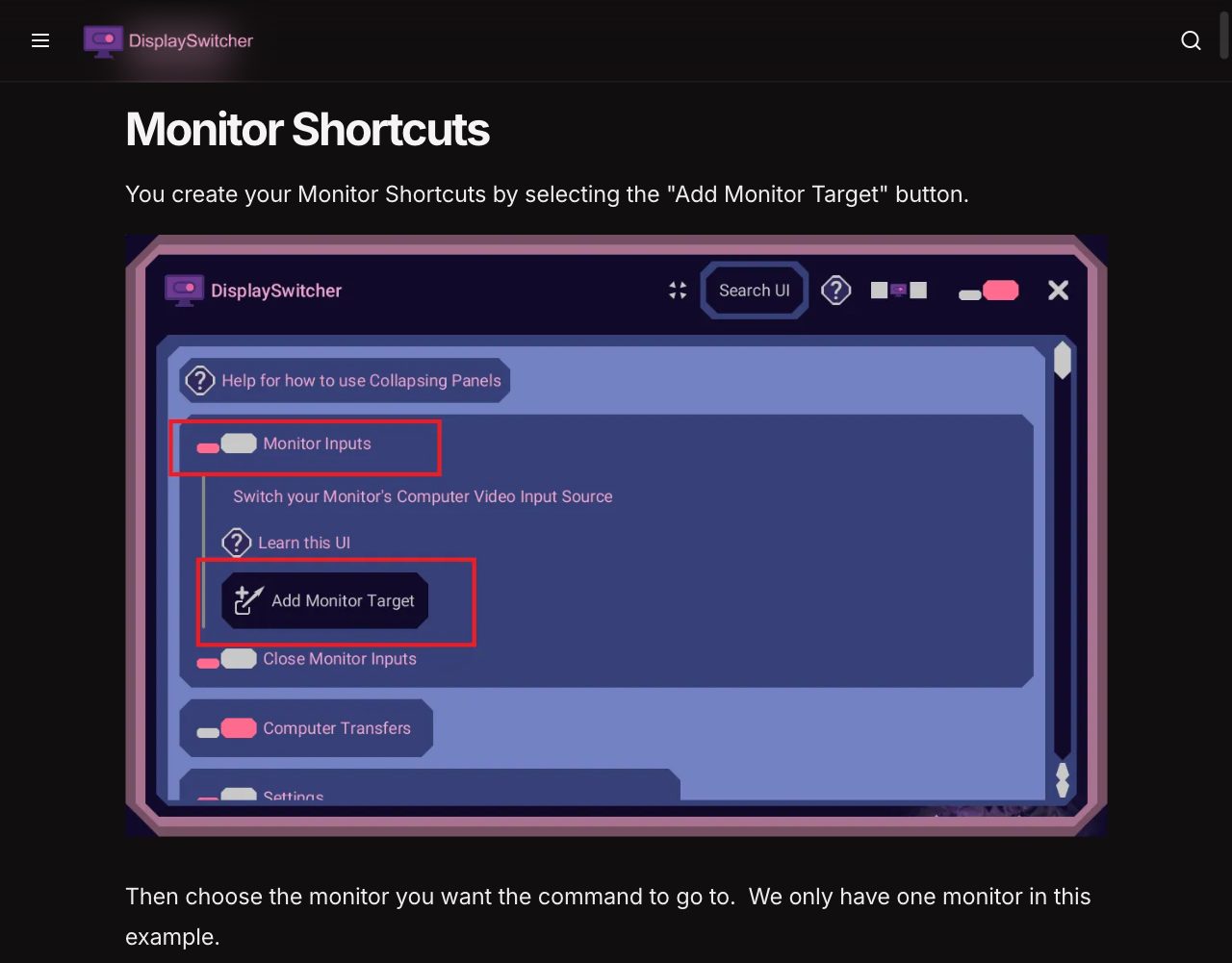
The shortcut then appears as a button with a computer icon. A pencil in the upper right edits it, an X in the upper left deletes it, and arrows along the top move it left or right, so you can line your shortcuts up in the same order as the computers on your desk. Click a shortcut and the monitor switches. You can have the DisplaySwitcher window hide itself after each switch, which suits people who only open it to change inputs, or keep it open if you switch often or want Computer Transfers within reach.
Shortcut icons are yours to change. Pick one of the built-in images or upload any image file, and DisplaySwitcher scales it to the icon's size. If you delete an uploaded image that a shortcut still uses, the shortcut falls back to a default icon.
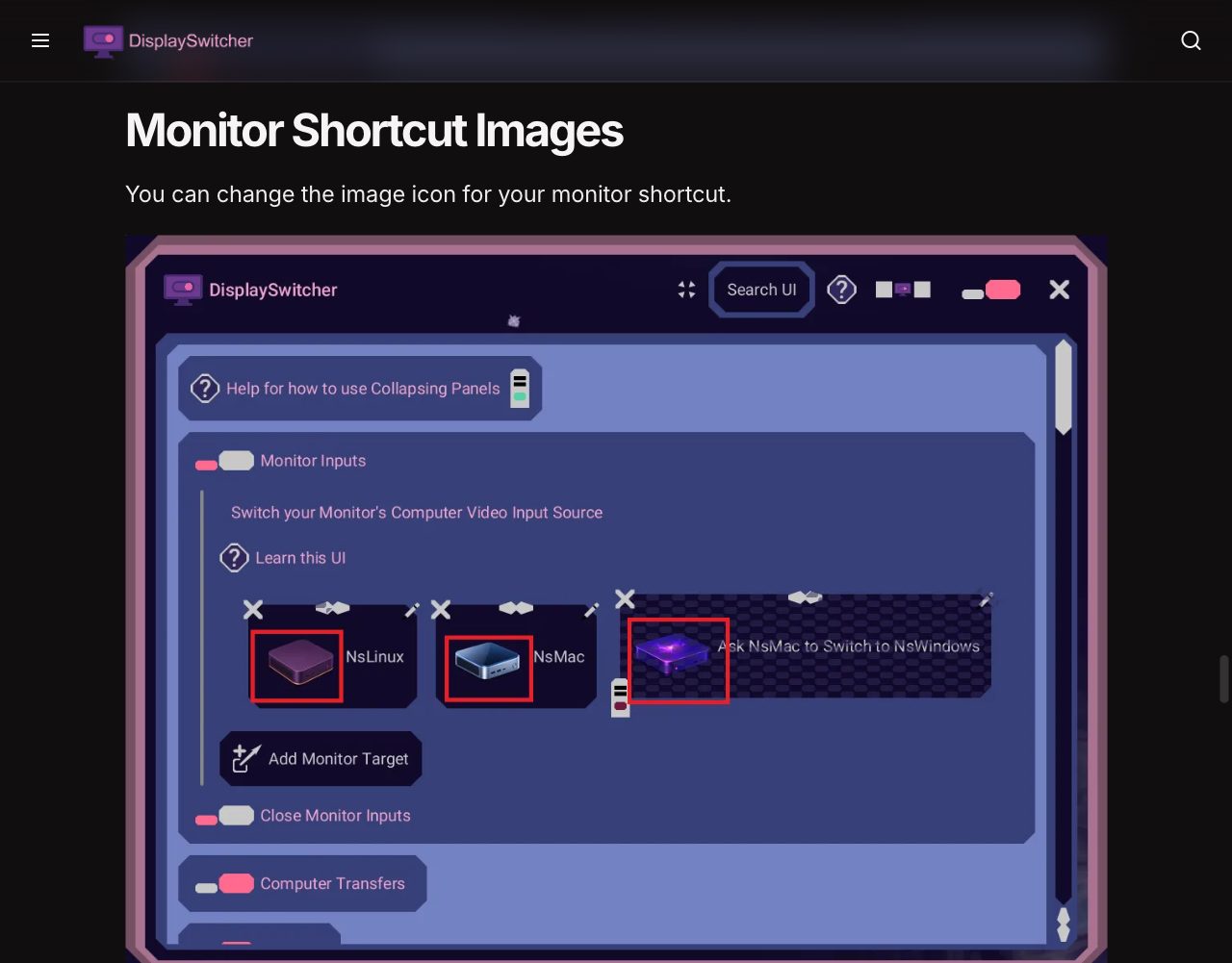
The panel flows its shortcuts into whatever space the window has. Size the window down to a single row or column of shortcuts and park it at the edge of the screen, or press the Make Small button in the title bar to hide everything else. DisplaySwitcher remembers that choice the next time it opens.
Remote switching: when one computer can't do it alone
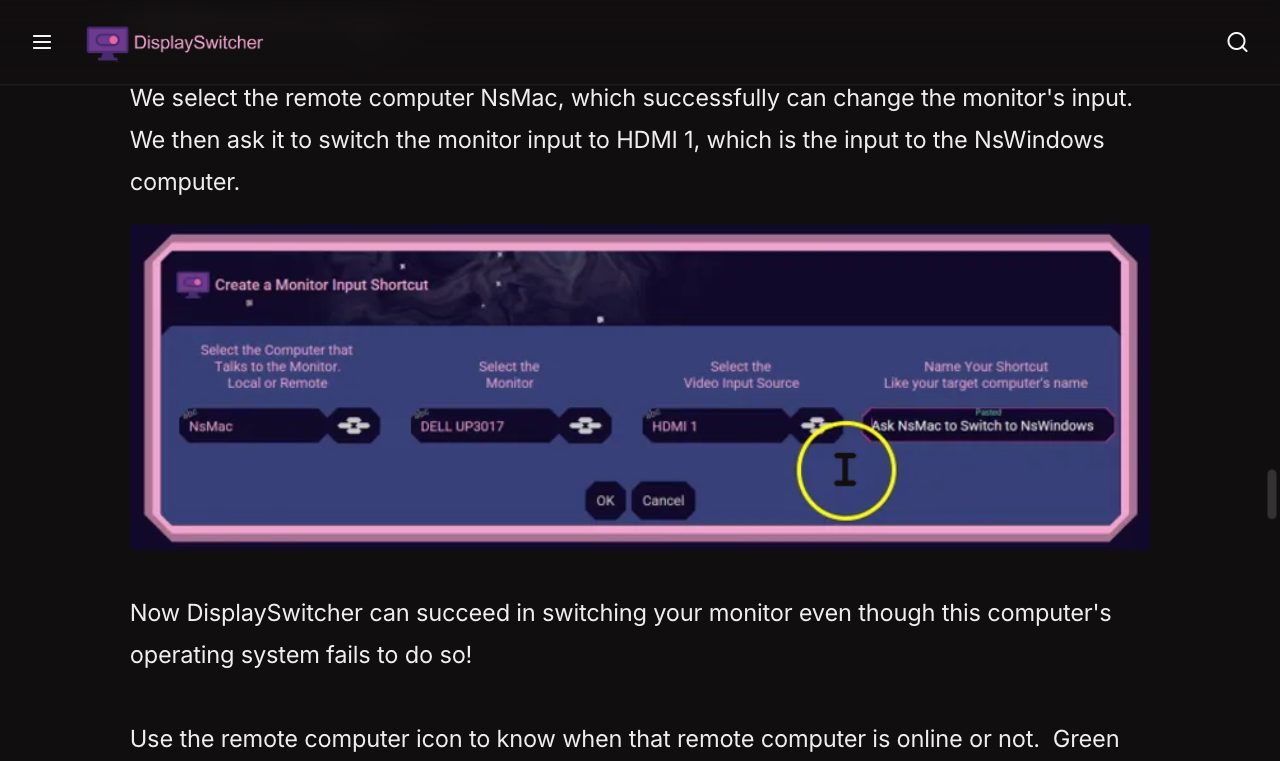
Remote switching is for the computer that can't switch the monitor at all. The docs put it plainly: "Some operating systems do not implement the monitor switching standard correctly and thus fail to switch the monitor's input when requested." It can also be a port or an adapter that doesn't pass the command. Either way, a click on that computer does nothing to the monitor.
DisplaySwitcher's answer is the remote monitor target. When you create a shortcut, the first field asks which computer talks to the monitor, local or remote. Choose another computer running DisplaySwitcher that can switch the monitor, and the shortcut becomes a request. In the docs example, a computer whose own switch fails gets a shortcut named "Ask NsMac to Switch to NsWindows". NsMac, which can switch the monitor, sends the command for HDMI 1, the input the NsWindows computer is plugged into.
Each remote shortcut carries a small computer icon that shows whether the helper machine is reachable, green for connected and red for disconnected, and a status label spells it out.
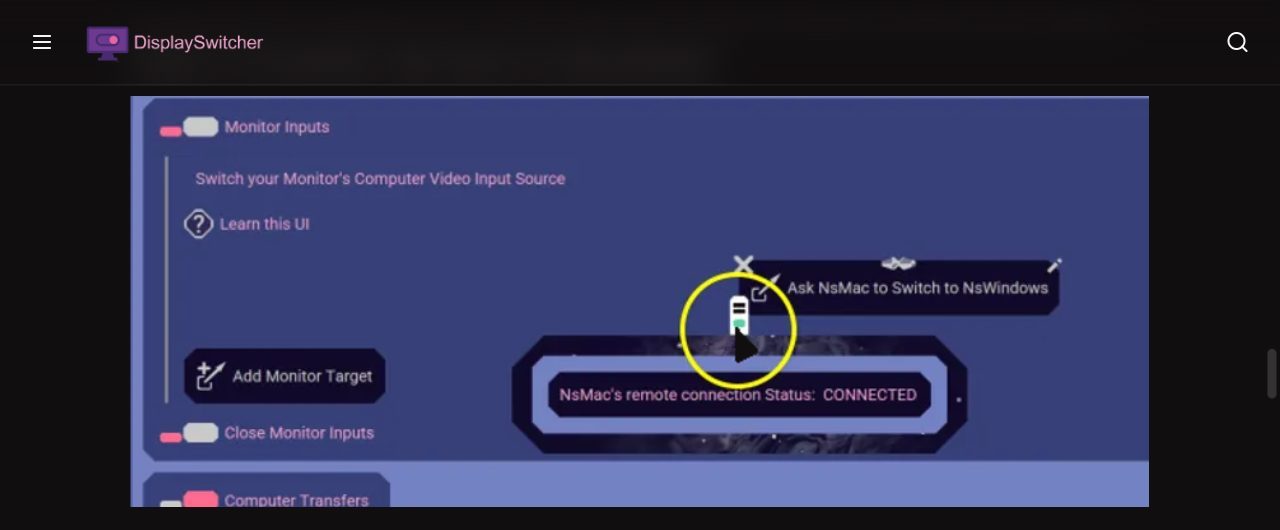
In practice, if one computer at your desk can switch the monitor, every computer can, as long as that one is on and running DisplaySwitcher. That's a good reason to install the trial on every computer that shares the monitor, including the one that gives you trouble.
Computer Transfers: moving text and files between machines
Computer Transfers is the other half of the app. It shares text, images, files and folders between your computers running DisplaySwitcher, across Linux, macOS and Windows. The docs say you don't need to set up any networking, firewall rules or permissions to use it. You run DisplaySwitcher on each computer and transfer.
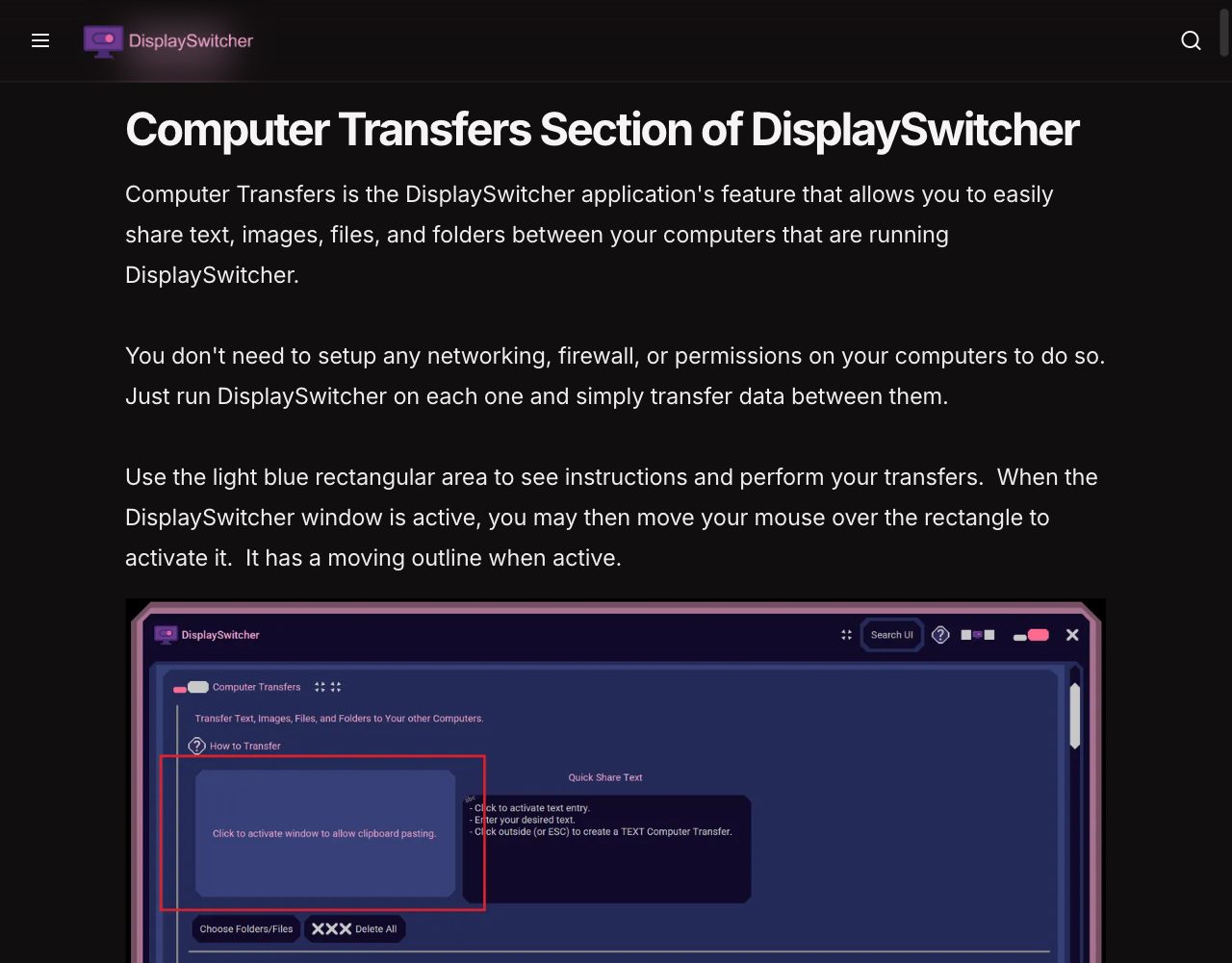
There are four ways to put something in:
- Paste it. Copy anything as usual, move the mouse over the light blue area until it activates and shows a moving outline, and press Ctrl+V or Cmd+V, or right-click and paste.
- Drag and drop text, an image, a file or a whole folder onto the panel. Folders can be empty or hold any number of files and subfolders. If the window is hidden behind something, drag over DisplaySwitcher's icon in the taskbar or Dock to bring it forward.
- Pick files and folders with the file chooser.
- Type a note into the Quick Share Text box (Enter adds a new line), then click outside it to save and send it.
Each item lands on every other connected copy of DisplaySwitcher. To use it on another computer, click the item to put it on that computer's clipboard and paste it where you need it, or drag it out into another app. Text, images, files and folders all work this way, one at a time.
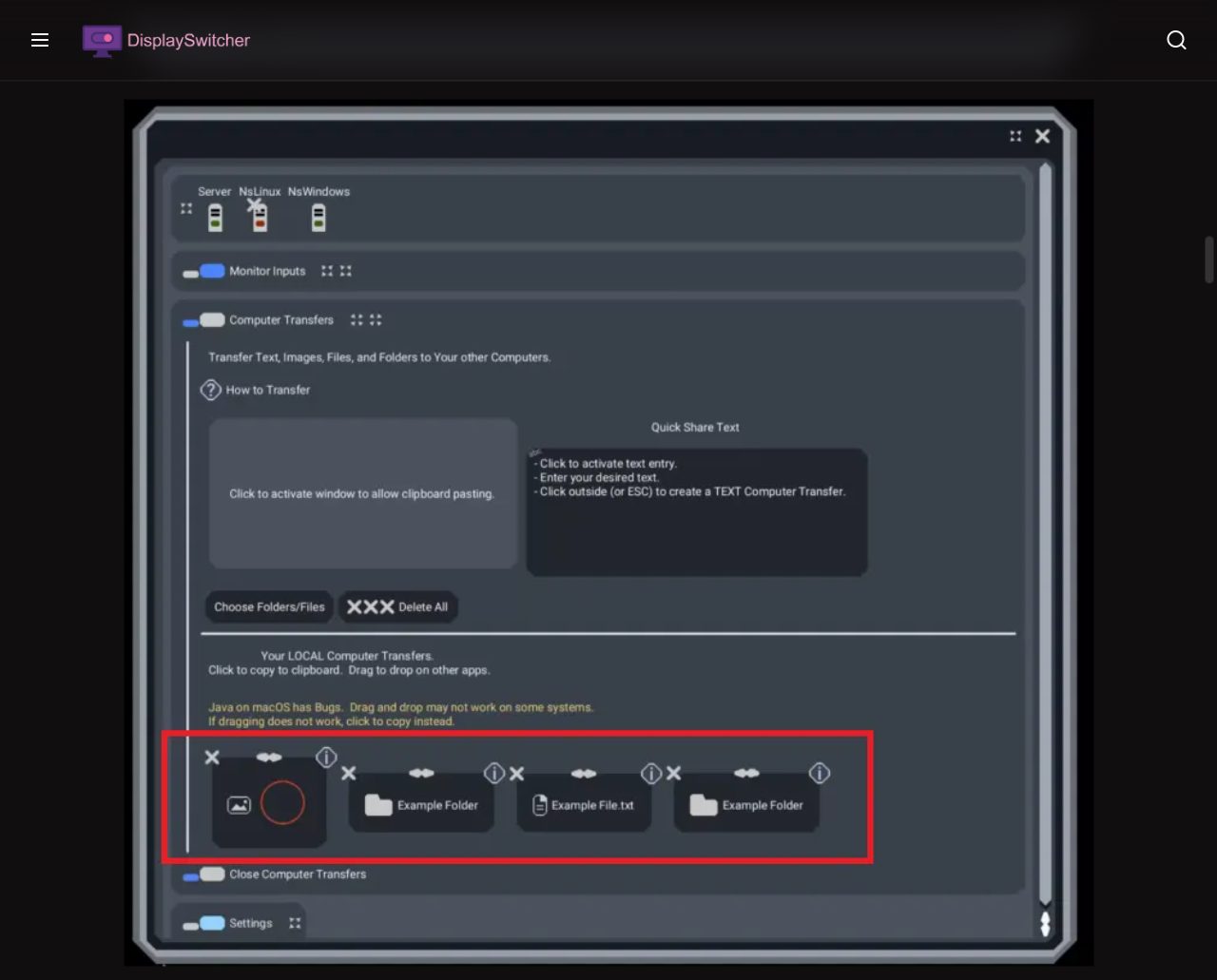
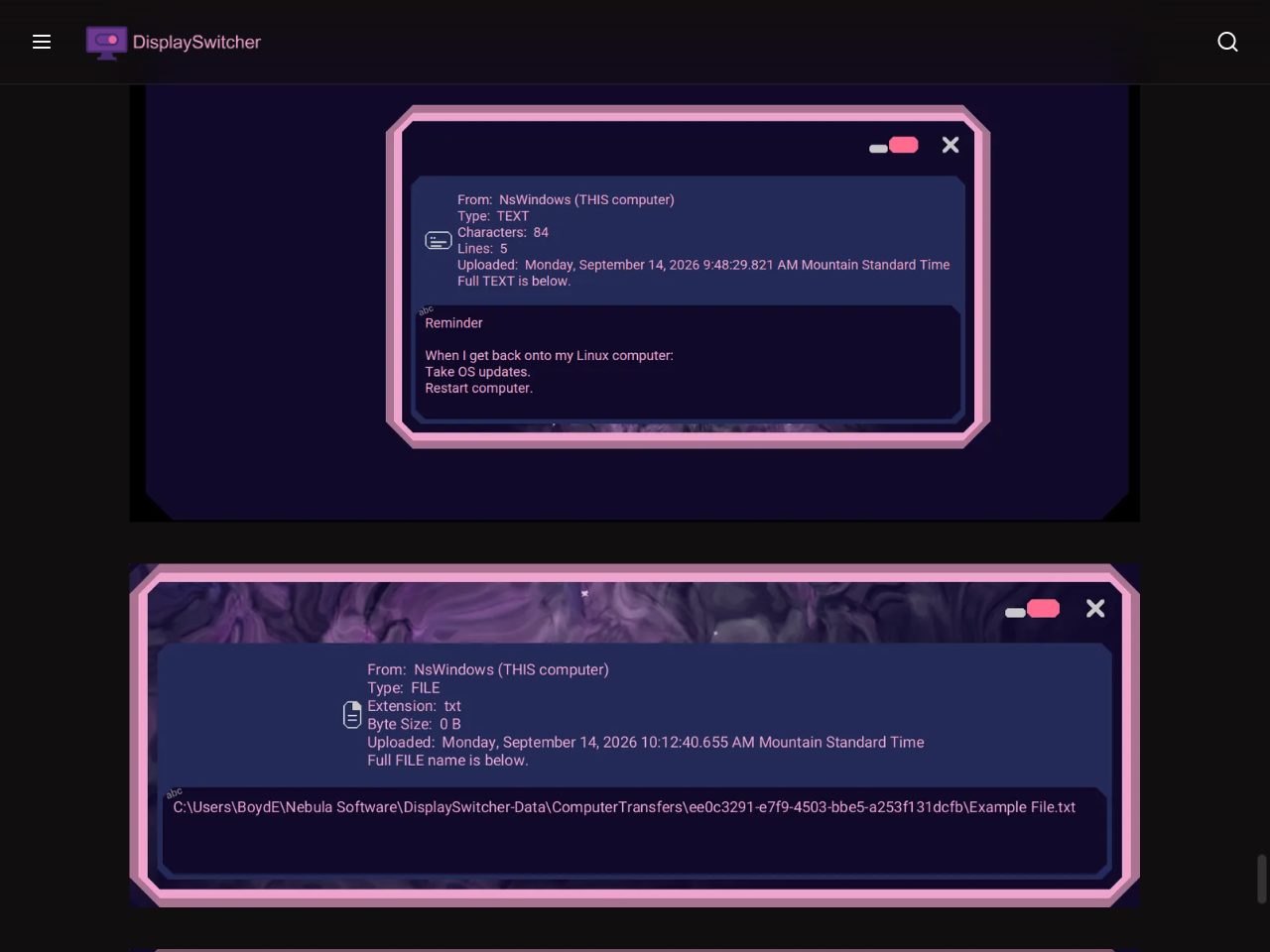
A transfer never overwrites an older one with the same name or contents. DisplaySwitcher always makes a new, unique copy, on the sending computer and on the others. You can drop the next item while the previous one is still importing. Each item has an info button that shows which computer it came from, its type and size, the date and time it was uploaded, and the full text or the full path of the file or folder.
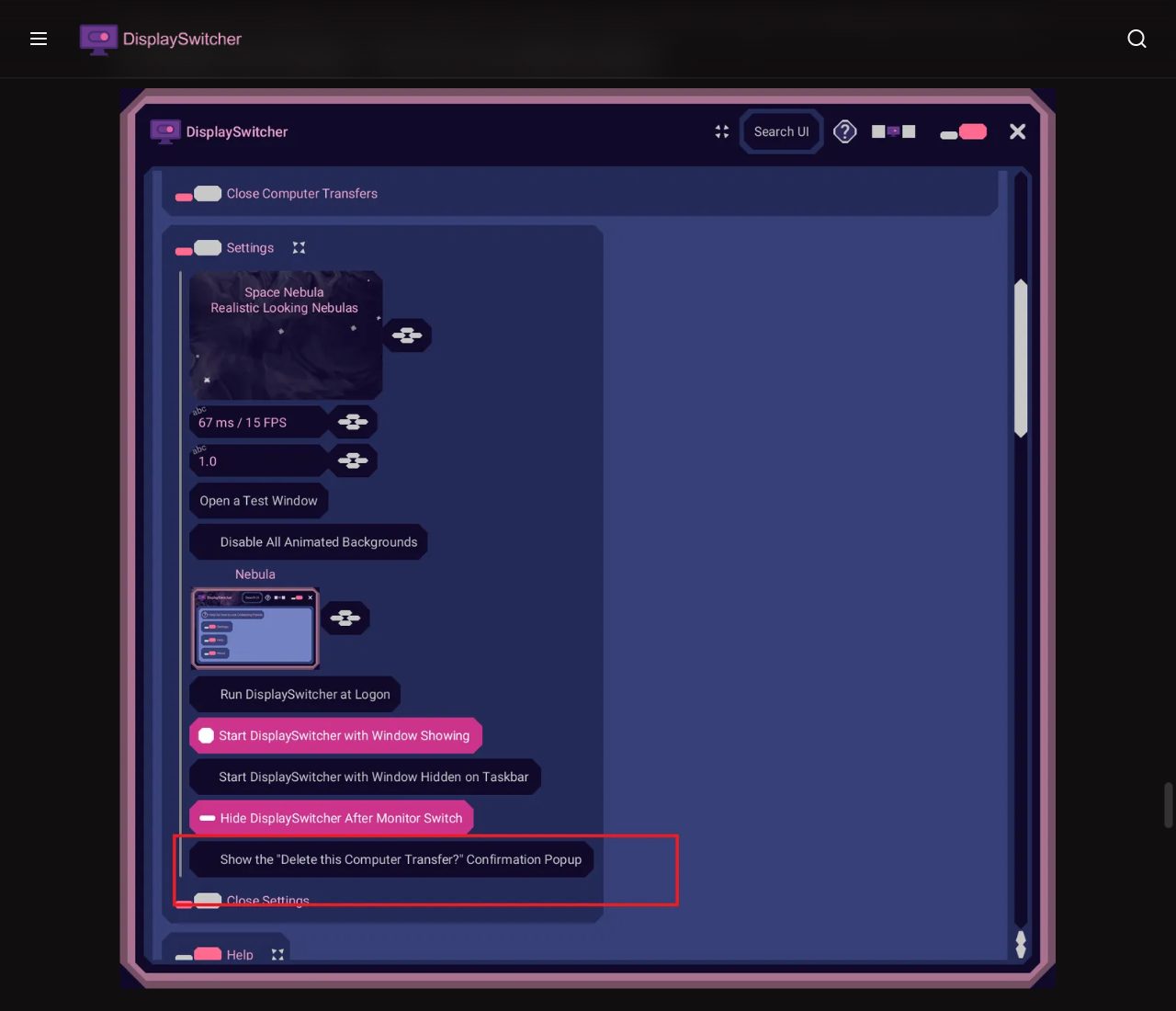
Cleaning up is quick. An X on each item deletes it after a confirmation, and you can turn the confirmation off in Settings when you're clearing a lot. Delete All removes everything at once and always asks first, even with single-item confirmations off. Arrows reorder the items, and two Make Small buttons shrink the help text and the items once you know your way around.
The app is open about one limit. A yellow note in the Computer Transfers panel says that Java on macOS has bugs, that drag and drop may not work on some systems, and that you should click to copy if dragging fails. Click to copy works for every item type, so you always have a fallback.
Settings that keep it out of your way
Settings is short. You choose whether DisplaySwitcher runs at logon, whether it starts with its window showing or hidden on the taskbar, whether the window hides after each monitor switch and whether deleting a transfer asks for confirmation. There's also an animated nebula background, with a button that turns all animated backgrounds off.
The main window remembers its last size and position, so you can tuck it into a corner of the screen. Run at logon is on after a fresh install on all three systems. The docs add a candid warning: operating system updates often change how apps register to run at logon, and the app may not have the administrator rights the installer had when it set this up. For that case there are manual steps for each system, through Apps settings on Linux, Login Items & Extensions on macOS and Startup apps on Windows.
Requirements on Linux, macOS and Windows
| Linux | macOS | Windows | |
|---|---|---|---|
| System | 64-bit x86_64, tested on Ubuntu | macOS 11 or later on Apple Silicon | 64-bit Windows 10 or later |
| Monitor | External, with DDC/CI | External, with DDC/CI | External, with DDC/CI |
| Best connection | A direct cable | DisplayPort or USB-C | A direct cable |
| Extra setup | i2c group and a udev rule | Allow the install prompts | None |
| Installer | .sh script, run as root | Signed, notarized .dmg | .exe |
Linux
DisplaySwitcher should run on virtually any 64-bit x86_64 Linux distribution from the past five years or so. Ubuntu is the only one Nebula Software officially tests, and the docs list Ubuntu 18.04 and newer, Debian 10 and newer, Linux Mint, Pop!_OS, Fedora, Arch Linux, Manjaro, Zorin OS, elementary OS and openSUSE. USB-to-HDMI adapters and docking stations often block DDC/CI, so use a direct cable where you can.
Linux needs one extra step. DDC/CI goes through the kernel's I²C devices (/dev/i2c-*), so your user needs permission to use them. The docs give the command:
sudo adduser $USER i2c
On distributions without adduser, sudo usermod -aG i2c $USER does the same job. Log out and back in afterwards. To keep the permission across reboots, save this udev rule as /etc/udev/rules.d/90-ddc-i2c.rules and restart:
KERNEL=="i2c-[0-9]*", GROUP="i2c", MODE="0660"
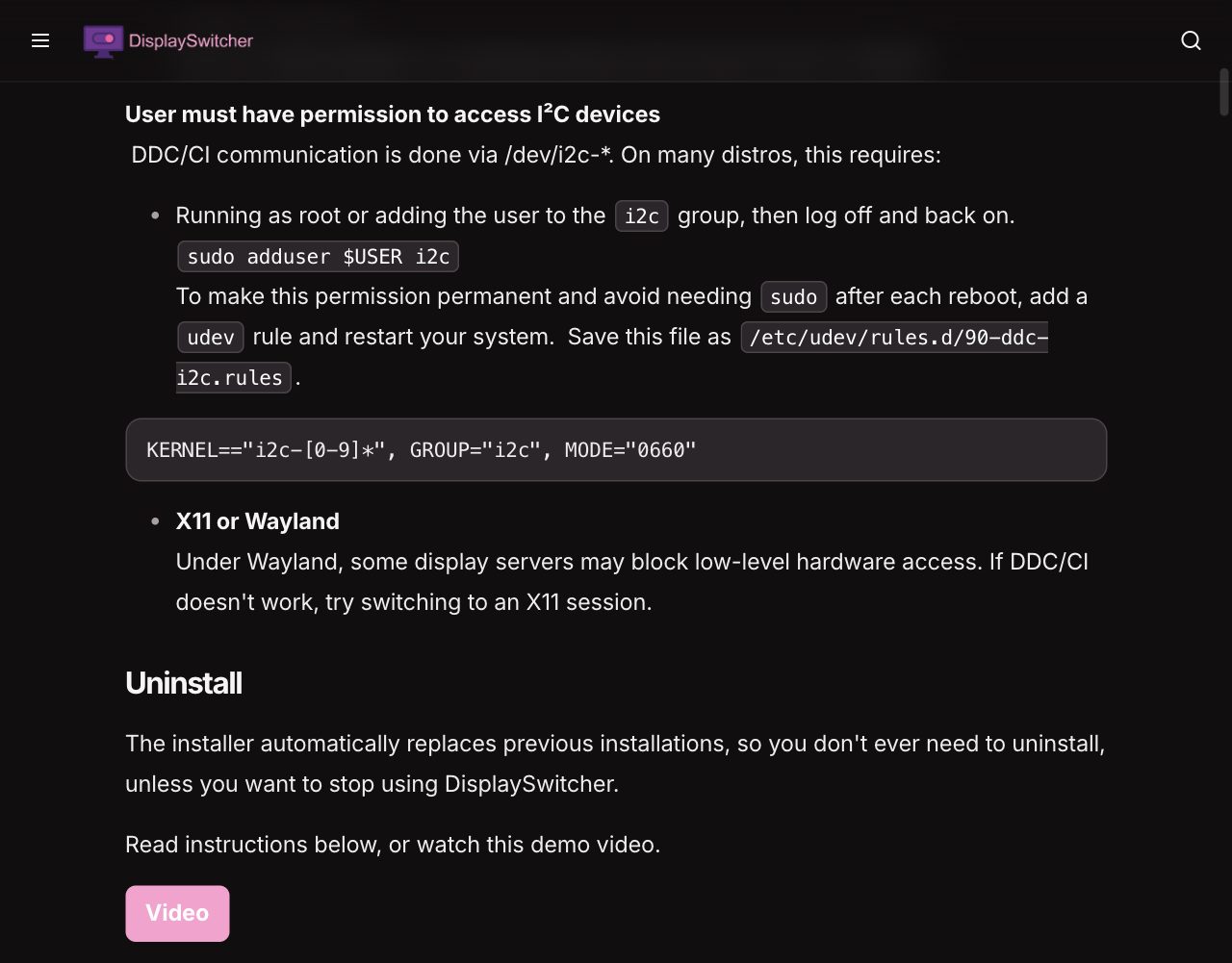
The installer is a self-extracting script. Make it executable with chmod +x ./Install_DisplaySwitcher.sh, run it, enter your sudo password, and delete the script when the terminal prompt comes back. The app installs to /opt/DisplaySwitcher, and the uninstaller sits in the same folder. Under Wayland, some display servers block low-level hardware access, so if a switch does nothing, log into an X11 session and try again.
macOS
DisplaySwitcher needs macOS 11 Big Sur or later on an Apple Silicon Mac. Intel Macs aren't supported. The installer is a signed and notarized .dmg. Open it, double-click the installer inside, choose Open when macOS asks about an app downloaded from the internet, and enter your administrator password. macOS may then ask for a few permissions, and the docs say to allow them. Their install screenshots include a prompt to let DisplaySwitcher find devices on local networks and one to let the installer control System Events. Afterwards, eject and delete the .dmg and dismiss the Background Items Added notice. To remove the app later, run uninstall.app from /Applications/DisplaySwitcher rather than dragging the folder to the Trash, which leaves the login item and the desktop icon behind.
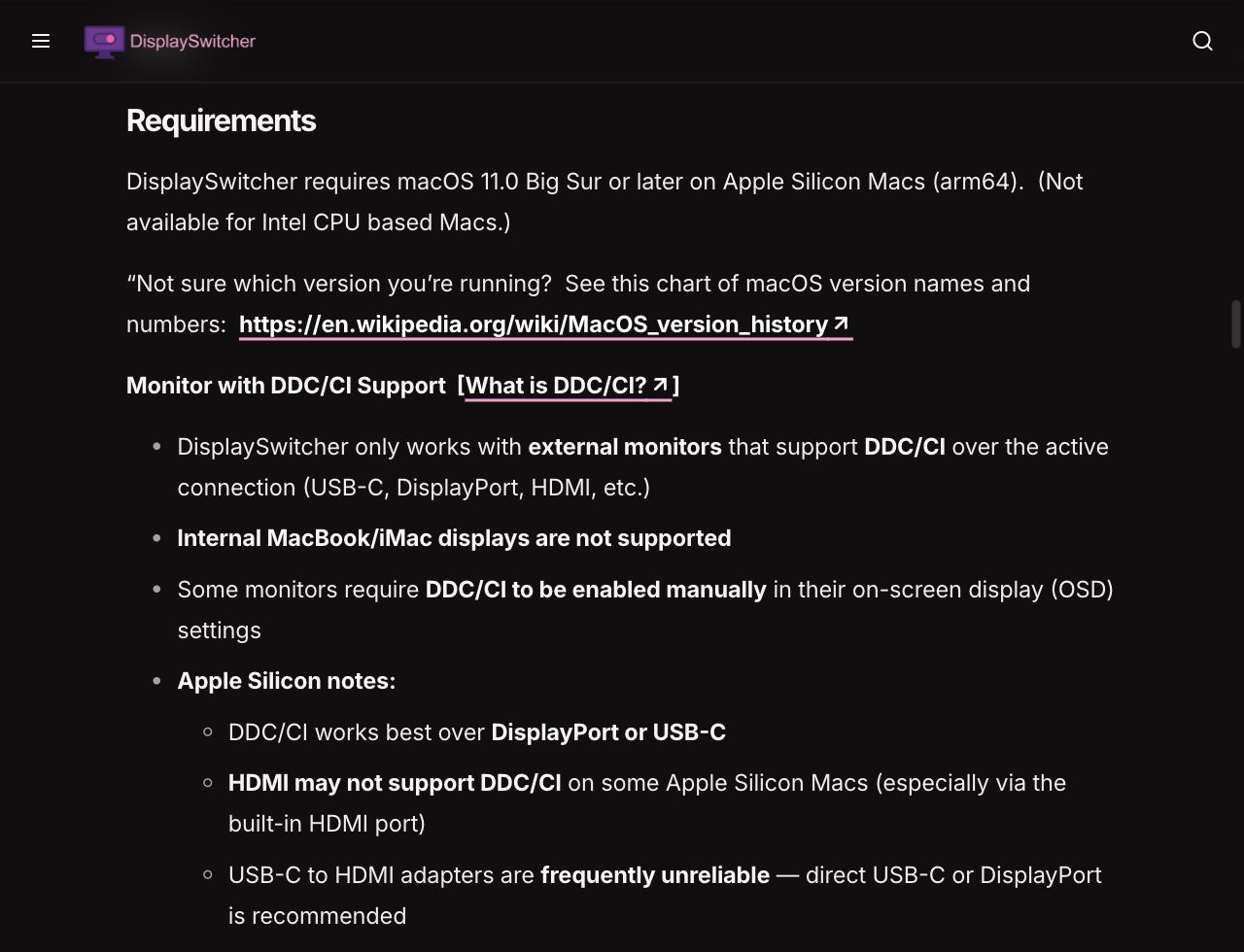
Apple Silicon Macs are the fussiest about cables. The docs recommend DisplayPort or USB-C, warn that the built-in HDMI port on some Apple Silicon Macs may not pass DDC/CI, and call USB-C-to-HDMI adapters "frequently unreliable". If your Mac reaches the monitor through one of those, remote switching gets you around it: let another computer send the command.
Windows
Windows is the simplest of the three. DisplaySwitcher needs 64-bit Windows 10 or later on x86_64, and built-in laptop screens aren't supported. Run Install_DisplaySwitcher.exe, delete it when it finishes, and pin the app to the taskbar if you like. To uninstall, go to Settings, Apps, Installed apps. The cable advice is the same as elsewhere: USB-to-HDMI adapters often block DDC/CI, some docking stations interfere with it, and DisplayPort-to-HDMI converters are unreliable.
On every system the installer replaces any earlier version, and the installers and the app update themselves. The full instructions, with a video for each install, pin, run at logon and uninstall step on each system, are in the DisplaySwitcher documentation.
How much does DisplaySwitcher cost?
DisplaySwitcher costs $5.95 a month, and the first month is free. If it doesn't work with your monitor or cables, or you decide you don't need it, you cancel the subscription from your account page. The product page says there's no need to contact anyone.
| DisplaySwitcher | |
|---|---|
| Price | $5.95 a month, or $71.40 over a year |
| Free trial | 1 month |
| Cancelling | From your account page, no contact needed |
| Updates | The installers and the app update themselves |
| Systems | Linux, macOS on Apple Silicon and Windows |
| License | Per individual, while your trial or subscription is active |
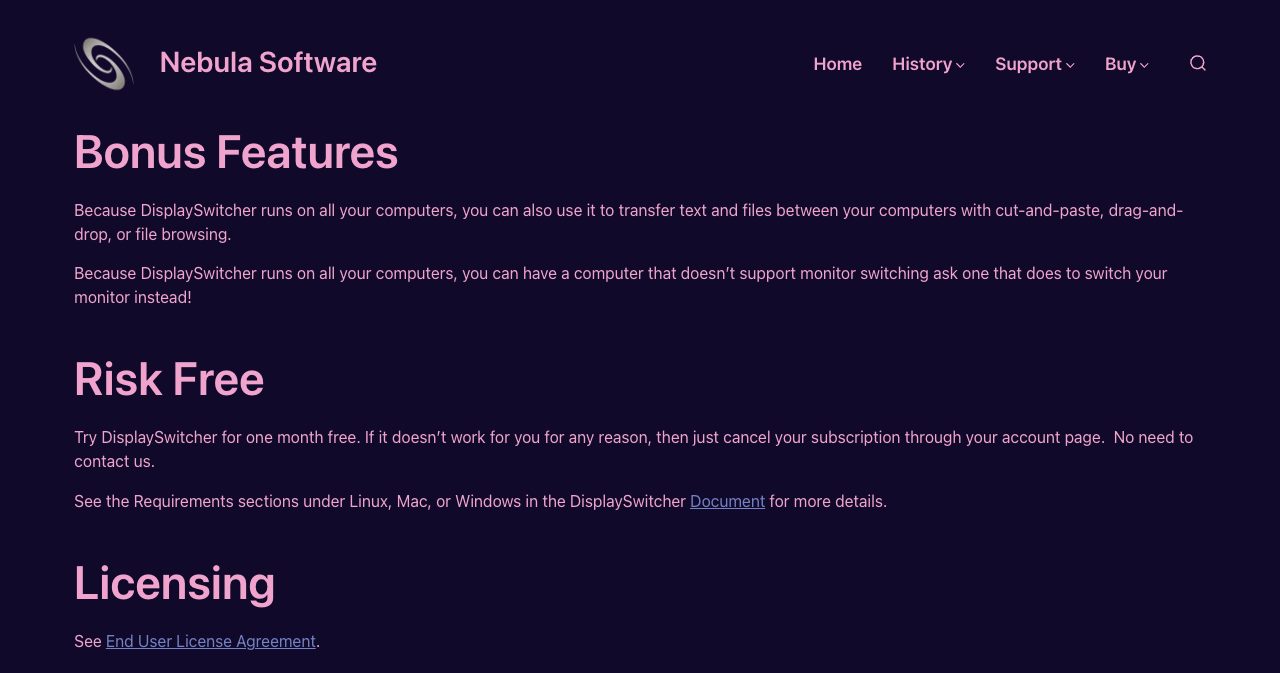
The End User License Agreement is one of the shortest you'll read, and it opens with "This license is short, fair, and easy to understand." Every Nebula Software product comes with a one-month free trial. After that, the app checks in regularly with Nebula's licensing servers and stops working if the subscription is inactive. You can use the software while your trial or subscription is active, reverse engineering and tampering are off limits, and licenses are granted per individual and can't be shared or transferred. The software comes as-is.
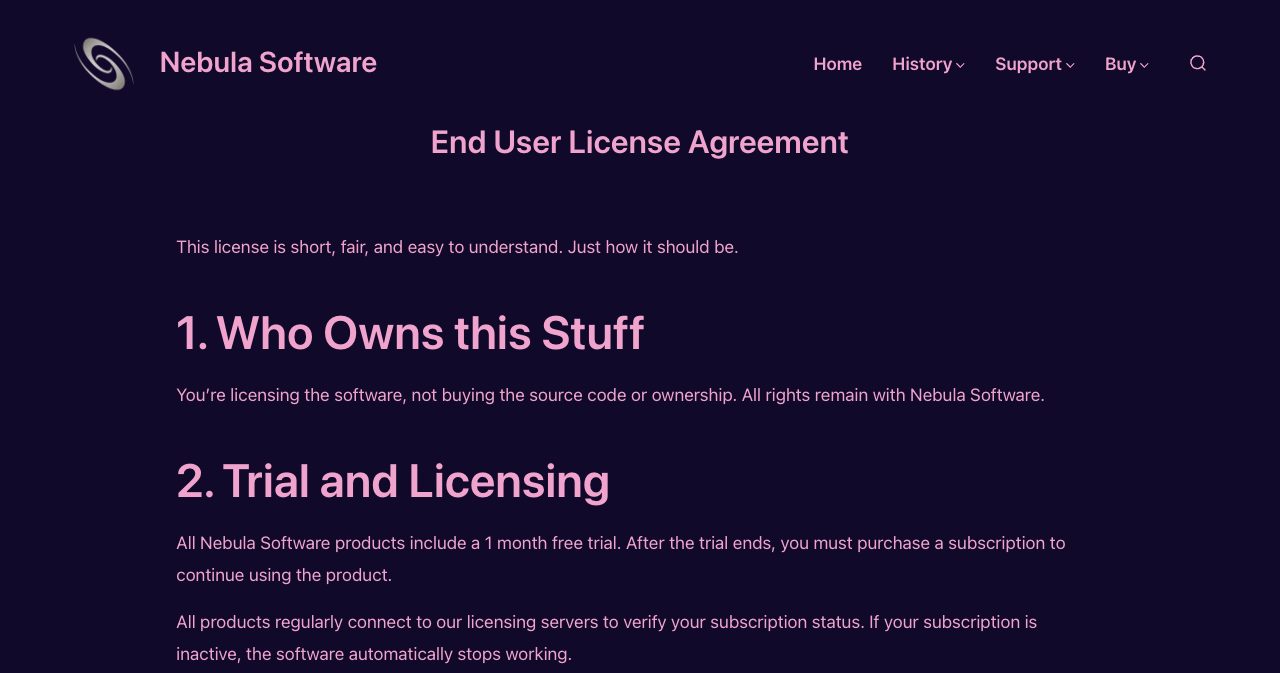
For someone who switches inputs a few times a day, $5.95 a month is a small price for skipping the reach under the monitor every time. A hardware KVM switch has no subscription, but it's another box on the desk with its own cables, and it doesn't move files between your computers.
DisplaySwitcher vs other ways to share one monitor
| Option | Input switch | Keyboard and mouse | Text and files | Setup |
|---|---|---|---|---|
| Monitor buttons | By hand | On KVM monitors | No | None |
| Hardware KVM switch | Yes | Yes | No | A box and extra cables |
| Monitor maker's app | Where supported | On KVM monitors | Varies | One app per system |
| Input Leap and similar | No | Over the network | Clipboard | Server and clients |
| DDC/CI command-line tools | Yes | On KVM monitors | No | A tool per system |
| DisplaySwitcher | One click | On KVM monitors | Yes | Same app everywhere |
Each of these solves part of the job. A hardware KVM switch is the classic fix, at the cost of a box between every computer and the monitor and a set of cables for each machine. Keyboard and mouse sharing apps such as Input Leap work well when each computer has its own screen, but they don't change what a single monitor shows. If you're happy in a terminal, you can script input changes yourself with ddcutil on Linux, m1ddc on Apple Silicon Macs or NirSoft's ControlMyMonitor on Windows, learning a different tool and syntax for each system.
DisplaySwitcher puts the whole job in one app with the same buttons on every machine. You get one-click switching, remote switching for the computer that can't do it alone, and Computer Transfers on top, with a documented step and a video for nearly everything.
Who makes DisplaySwitcher?
Nebula Software, LLC is Boyd Edmondson. The about page calls it "a single person company", and Edmondson handles the design, development, sales and maintenance personally. Nebula Software has existed since January 1992, mostly as a consulting business, and since November 2024 it has focused entirely on its own products.
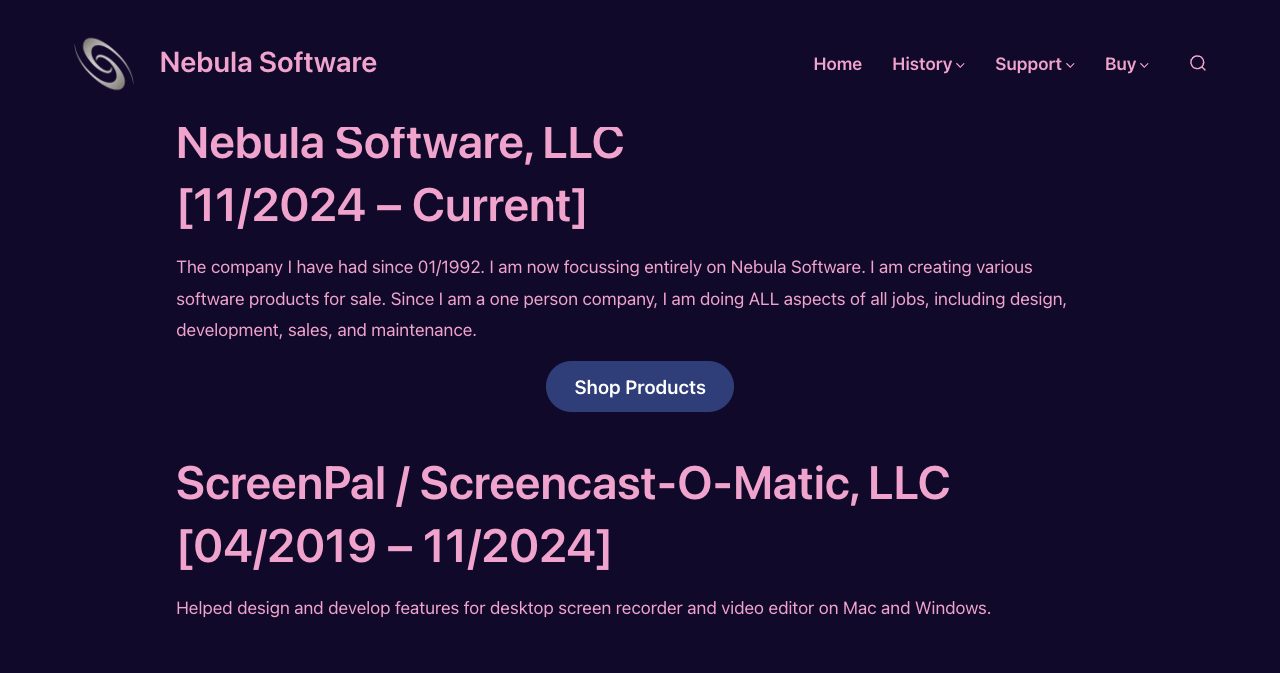
The portfolio page reads like preparation for a tool like this. From April 2019 to November 2024, Edmondson worked at ScreenPal, formerly Screencast-O-Matic, on its desktop screen recorder and video editor for Mac and Windows. Before that came MoxyDox, a paperless-office app written in Java with JavaFX interfaces, built as owner, CEO and CTO. At Verasonics, a maker of ultrasound research systems, Edmondson was the first member to join the team, wrote hardware abstraction software for six operating system platforms and built automated installers for variants of Linux, Mac and Windows. Earlier still came years of ultrasound software work at ATL Ultrasound, later bought by Philips, and a patent (No. 6,450,958) for a portable ultrasound system with efficient shutdown and startup. Edmondson holds a BS in computer science from Southwest Texas State University.
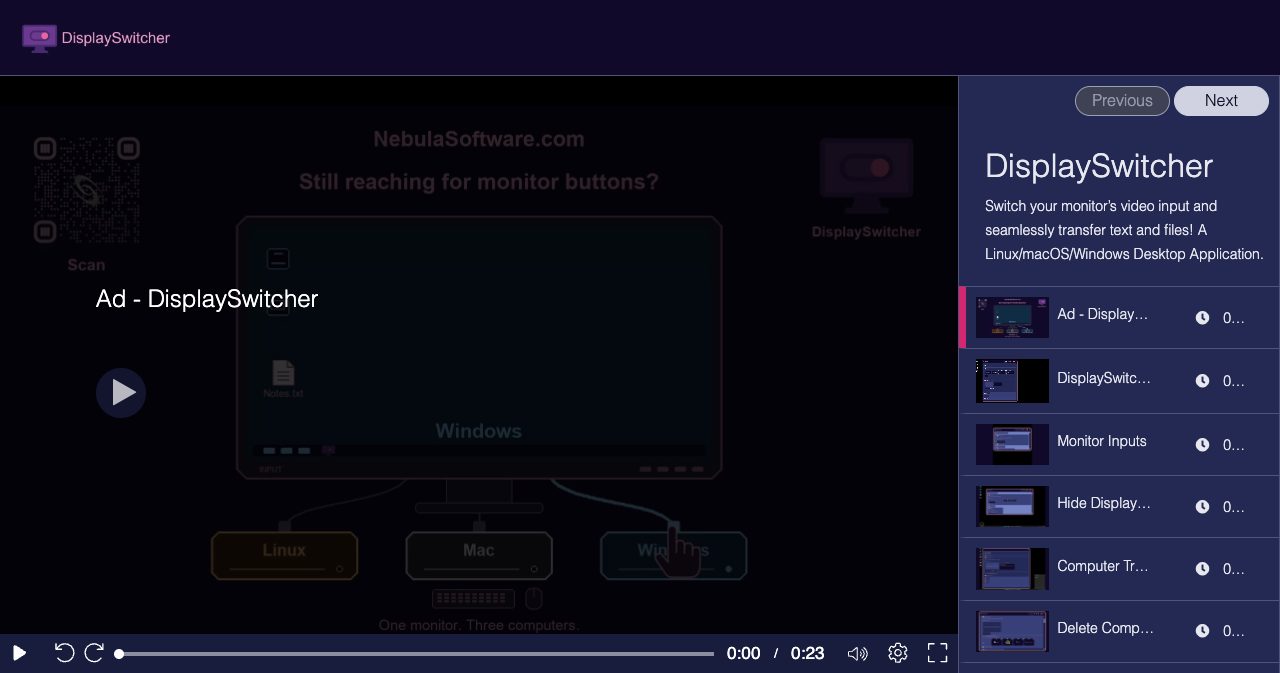
Software that talks straight to hardware and installers for several operating systems are things Edmondson has built for years, and DisplaySwitcher draws on both. The documentation shows the same habit. Every feature has its own article, nearly every step has a screenshot, and the DisplaySwitcher video channel has 19 videos: an ad, a demo and walkthroughs of each feature, plus install, pin, run at logon and uninstall videos for each system. Most run under a minute, and the DisplaySwitcher demo video shows the actual product doing a computer transfer and a monitor switch.
Nebula Software's other products are Quasar, a photo and video viewer for Linux, macOS and Windows, DonutHole, a JAR that lets Java desktop apps on macOS pass mouse and keyboard input through translucent pixels, and the UMyStuff, UPhotoView, UScreenSaver and UVideoView channels for Roku TV.
What we liked and what to keep in mind
What works well
- One click replaces the trip to the monitor's input menu, and it's the same click on Linux, macOS and Windows.
- It works with any monitor that supports DDC/CI, with no need for the maker's software.
- Remote monitor targets rescue the computer whose own switch fails, which is often the reason people go looking for a tool like this.
- Computer Transfers moves text, images, files and whole folders between machines without network setup, and it never overwrites an earlier transfer.
- Linux gets first-class treatment, with the I²C permissions and the udev rule spelled out.
- The window can shrink to a strip of shortcuts, start hidden and hide itself after each switch.
- The docs show nearly every click, and each install step on each system has a video.
- A free month and cancelling from your account page make it cheap to find out whether your monitor and cables cooperate.
What to know before you start
- You need an external monitor with DDC/CI and a clean path to it. Adapters, some docks and converters can block the command, and built-in laptop screens aren't supported.
- On a Mac, DisplaySwitcher needs Apple Silicon and macOS 11 or later.
- Keyboard and mouse follow the switch only on monitors with a built-in KVM. Otherwise you switch the picture and keep separate input devices.
- On Linux, expect to add yourself to the i2c group, and to try X11 if your Wayland session blocks DDC/CI.
- It's a subscription, and the app checks its license regularly, so it stops working if you cancel.
- Drag and drop in Computer Transfers may not work on some systems, according to the note in the app. Click to copy is the fallback.
- Public reviews are still few, so let a month on your own desk decide.
Who is DisplaySwitcher for?
- Developers who keep a Linux workstation, a Mac and a Windows test machine on one good monitor.
- IT and support people who hop between an admin PC and the systems they look after.
- Home offices where a work laptop and a personal computer share a screen.
- Anyone whose monitor maker ships switching software for one operating system and not the other.
- People whose Mac or PC reaches the monitor through a dock or adapter that blocks DDC/CI, as long as another computer on the same monitor can do the switching.
- Anyone who still emails files to themselves to get them from one computer to the next.
It's a weaker fit if you use a single computer, work only on a laptop's built-in screen or rely on an Intel Mac.
How to set up DisplaySwitcher on a shared monitor
- Check your monitor and cables. Turn on DDC/CI in the monitor's on-screen menu if it has the setting, and connect each computer directly, preferably over DisplayPort or USB-C, without USB-to-HDMI adapters or converters in the way.
- Start the trial and install DisplaySwitcher everywhere. Start the one-month free trial on the DisplaySwitcher product page, then install the app on every computer that shares the monitor: the .sh script on Linux, the .dmg on an Apple Silicon Mac and the .exe on Windows.
- Give your Linux user access to I²C. On Linux, run
sudo adduser $USER i2c, log out and back in, and save the udev rule from the docs as/etc/udev/rules.d/90-ddc-i2c.rulesso the permission survives a reboot. - Create a shortcut for each input. In Monitor Inputs, click Add Monitor Target, choose the monitor, pick the input each computer is plugged into, such as HDMI 1, and name the shortcut after that computer.
- Test every switch. Click each shortcut from each computer. If one computer can't switch the monitor, give it a remote shortcut that asks a computer that can.
- Try Computer Transfers. Paste or drop a note, a file or a folder into Computer Transfers on one computer, then click the item on another computer to copy it to that computer's clipboard.
- Tune it and decide. Set DisplaySwitcher to start hidden or to hide after each switch, then decide before the trial ends whether to keep it at $5.95 a month or cancel from your account page.
Is DisplaySwitcher worth it?
If computers running different systems share your monitor, DisplaySwitcher is well worth a trial. One click replaces a small annoyance you'd otherwise repeat all day, including on the operating system your monitor maker skipped. Remote switching covers the stubborn computer that simpler tools can't fix, and Computer Transfers adds a second use, since moving a snippet or a folder between machines becomes a paste and a click.
The one thing to settle is compatibility, because DDC/CI depends on your monitor, your ports and your cables, and the free month is there for exactly that. Install DisplaySwitcher on every computer at your desk, make a shortcut for each input and click. If the monitor answers, $5.95 a month is a fair price to stop reaching for the buttons under the screen.
FAQ
What is DisplaySwitcher?
DisplaySwitcher is a desktop app from Nebula Software that switches an external monitor's video input from a button on your screen, using the DDC/CI standard over the video cable. It runs on Linux, macOS on Apple Silicon and Windows. It also transfers text, images, files and folders between computers running DisplaySwitcher, and it lets a computer that can't switch the monitor ask another computer to do it.
How does DisplaySwitcher switch my monitor's input?
It sends a switch video input command from your computer to the monitor through the display cable, using DDC/CI (Display Data Channel Command Interface). The monitor changes its video source to the input you picked, such as HDMI 1 or DisplayPort 1. If the monitor has a built-in KVM, your keyboard and mouse move to that computer too.
Does my monitor need to support DDC/CI?
Yes. DisplaySwitcher works with external monitors that support DDC/CI over the active connection, which most modern monitors do. Some monitors ship with DDC/CI turned off, so check the on-screen menu. USB-to-HDMI adapters, some docking stations and DisplayPort-to-HDMI converters can block DDC/CI, and built-in laptop, MacBook and iMac screens are not supported.
Does DisplaySwitcher work on a Mac?
Yes, on Apple Silicon Macs running macOS 11 Big Sur or later. Intel Macs are not supported. The app is signed and notarized by Apple. DDC/CI works best over DisplayPort or USB-C. The built-in HDMI port on some Apple Silicon Macs may not pass it, and USB-C-to-HDMI adapters are often unreliable.
Does DisplaySwitcher work on Linux?
Yes, on 64-bit x86_64 distributions from roughly the past five years. Nebula Software tests on Ubuntu and lists Ubuntu 18.04 and newer, Debian 10 and newer, Linux Mint, Pop!_OS, Fedora, Arch Linux, Manjaro, Zorin OS, elementary OS and openSUSE. Your user needs access to the I²C devices, usually by joining the i2c group, and an X11 session can help if Wayland blocks DDC/CI.
Will my keyboard and mouse switch with the monitor?
Only if your monitor has a built-in KVM switch. On a KVM monitor, the keyboard and mouse plugged into the monitor follow the video input to the next computer. On other monitors, DisplaySwitcher still switches the picture and transfers files, and the keyboard and mouse stay with whichever computer they're connected to.
Can DisplaySwitcher transfer files between a Mac and a Windows PC?
Yes. Computer Transfers shares text, images, files and folders between any computers running DisplaySwitcher, across Linux, macOS and Windows. You paste, drag and drop or choose files on one computer, and the item appears on the others, where you click it to copy it to the clipboard or drag it into another app. Nebula Software says no networking, firewall or permission setup is needed.
What if one of my computers can't switch the monitor?
Create a remote monitor target. When you make the shortcut, choose another computer running DisplaySwitcher that can switch the monitor, and the shortcut asks that computer to send the command for you. A green icon on the shortcut means the helper computer is connected, and red means it is disconnected.
How much does DisplaySwitcher cost?
DisplaySwitcher costs $5.95 a month after a one-month free trial. You can cancel the subscription from your account page on nebulasoftware.com without contacting anyone. The app checks its subscription with Nebula Software's licensing servers and stops working when the subscription is inactive. The installers and the app update themselves.
Who makes DisplaySwitcher?
Nebula Software, LLC, the one-person company of software engineer Boyd Edmondson, who has run it since 1992. Before focusing on Nebula's own products in November 2024, Edmondson worked on ScreenPal's desktop screen recorder and video editor, built the MoxyDox paperless-office app and wrote cross-platform hardware and installer software at the ultrasound company Verasonics.
If you build desktop apps or developer tools, SaaSCity is a free, human-reviewed startup directory with a live city map, where your listing is a permanent page that other founders browse.
Get your SaaS in front of founders
List your product on the SaaSCity live city map - a permanent listing, real discovery, and a backlink from a high-DR directory. Free to start; upgrade for a dofollow link and a building on the map.