Build with AI
App Store Connect 'In-App Purchases and Subscriptions' Section Missing? The Complete Fix for Guideline 2.1 IAP Rejections (2026)
Your first subscription has to ship with the binary — but the section that links them has vanished from your version page, and Apple keeps rejecting you for 'no plans available.' Here's exactly why it happens and the step-by-step fix that actually works.

Contents (9)
- Key Takeaways
- The symptoms, in Apple's own words
- Why this actually happens
- The "fixes" that don't work (so you stop burning days on them)
- The fix that actually works
- The required-fields checklist (save this)
- Automate it with the App Store Connect API
- The RevenueCat gotcha that silently breaks your paywall
- The mental model worth keeping
App Store Connect 'In-App Purchases and Subscriptions' Section Missing? The Complete Fix for Guideline 2.1 IAP Rejections
Quick answer: App Store Connect only renders the "In-App Purchases and Subscriptions" section on a version page when at least one product sits in the Ready to Submit state. If every product is in Missing Metadata, Developer Action Needed, or Rejected, the control is hidden because nothing is eligible to link. The fix is to complete every required field (availability and the App Review screenshot are the two most commonly missed), replace any rejected product with a new product ID since rejected localizations cannot be edited or deleted, reject the in-flight build, upload a clean one, then link products and binary in a single submission.
Key Takeaways
- The section is conditional, not broken: it appears only when a product reaches Ready to Submit.
- First products ship with the binary: a brand-new app cannot submit its first subscription standalone, which produces the "required binary was not submitted" return.
- Rejected localizations are locked: App Store Connect refuses both edits and deletion, so replacement is usually faster than rescue.
- Deleted product IDs are gone forever: a replacement needs a new ID, which means a code change and a new build.
- Two fields cause most Missing Metadata cases: territory availability and the App Review screenshot.
- An incomplete free-trial offer blocks submission just as effectively as a missing price.
- Do not tap Release until every product reads Approved, or the purchase button will be dead for real users.
- RevenueCat needs the same update: new product, entitlement, and offering package, then verify the app-facing offering because the response is CDN-cached.
- The API beats the dashboard: scripting state diagnosis and submission through the App Store Connect API sidesteps the hidden control entirely.
You built the app. You configured your subscription. You pushed the build. And then App Store Connect handed you one of the most circular, soul-draining loops in indie development: the reviewer rejects you under Guideline 2.1 because the subscription screen shows "no plans available," you go to link the subscription to your build, and the "In-App Purchases and Subscriptions" section is nowhere on the version page.
It's documented. Apple's own help text tells you to "select it in the In-App Purchases or Subscriptions section of the app's version page." That section does not exist on your screen. You refresh. You try Safari, then Chrome. You check that your Paid Applications agreement is signed. Nothing. Meanwhile the clock on your launch keeps ticking and the rejection emails keep coming.
If that's where you are, take a breath. This isn't a mistake you made. It's a known App Store Connect behavior — part platform rule, part state-machine quirk, part genuine UI bug — and there's a clean way through it. This guide walks the entire thing: the exact error messages, why they happen, the "fixes" that waste your time, and the sequence that actually ships your in-app purchases to review with your binary.
The symptoms, in Apple's own words
You're probably seeing one or more of these. They're all the same underlying problem wearing different hats.
The returned-products email:
Guideline 2.1(b) - Performance - App Completeness We have returned the In-App Purchase products as the required binary was not submitted.
The reviewer rejection:
Guideline 2.1 - Information Needed. The subscription screen did not display any available plans for purchase.
The note on the Subscriptions page:
Your first subscription must be submitted with a new app version. Create your subscription, then select it from the app's In-App Purchases and Subscriptions section on the version page before submitting the version to App Review.
And the thing that makes it impossible to follow that instruction: the In-App Purchases and Subscriptions section simply isn't rendered on your "Prepare for Submission" page.
Put those together and you get the trap thousands of developers hit on a first release: Apple won't review the subscription without the binary, the only way to attach them is the version page, and the version page won't show you the control to do it.
Why this actually happens
Three separate things stack up here. Understanding all three is what lets you fix it instead of flailing.
1. The "first product ships with the binary" rule
For a brand-new app whose first version has never been approved, Apple requires your first in-app purchase or subscription to be reviewed together with an app binary. This is deliberate — they want to see the purchase work inside a real build before anything goes live.
The practical consequence catches everyone: you cannot submit that first subscription on its own. If you do, you get the "returned the In-App Purchase products as the required binary was not submitted" email. Standalone submission only becomes available after your first version (with at least one product) has cleared review.
2. The section is hidden unless a product is "Ready to Submit"
This is the part almost nobody tells you. The "In-App Purchases and Subscriptions" section on the version page is conditionally rendered. App Store Connect only shows it when you have at least one product in the Ready to Submit state.
If your products are sitting in any of these states, the section disappears entirely:
- Missing Metadata — you haven't filled in every required field yet
- Developer Action Needed — a previous review bounced it back to you
- Rejected — a localization or the product itself was rejected
So the section "missing" is frequently a symptom, not a bug: there's literally nothing eligible to link, so App Store Connect hides the control. Get one product to a clean Ready to Submit, refresh the inflight build page, and it reappears.
3. The genuine state-machine bug
On top of the two rules above, App Store Connect has a real defect that's been reported repeatedly through 2026: even with products in a valid state, the section sometimes stays hidden, or a subscription that was previously linked silently detaches itself after a build rejection. Apple has acknowledged investigating it. When you hit this layer, the fix is to reset the products into a guaranteed-clean state so the UI has no excuse — which is exactly what the steps below do.
The "fixes" that don't work (so you stop burning days on them)
Before the working sequence, here's what to skip. Every one of these feels right and wastes hours.
Submitting the subscription on its own. On a first release this gets returned for "no binary" every single time. The Subscriptions page may even let you click submit, then bounce it minutes later. Don't rely on it until your first version is live.
Editing the rejected localization. Once a subscription localization is rejected, App Store Connect locks it. Try to edit it and you get Cannot edit SubscriptionLocalization when it is in REJECTED state. There's no force-save.
Deleting the rejected localization. Same wall from the other side — the API and UI both refuse, often with a generic server error. You also can't delete the last remaining localization on a product.
Deleting the stuck product to start over in place. Approved and in-review products can't be deleted at all (You cannot delete the in-app purchase / You cannot delete the subscription). And even when a product is deletable, its product ID is gone forever — Apple never lets you reuse a deleted in-app purchase identifier on the same app.
That last point is the one that reshapes the whole fix, so let's make it loud:
Deleted App Store Connect product IDs are permanent. If you abandon a broken product, the replacement needs a new product ID — which means a code change and a new build.
The fix that actually works
The goal is simple to state: get your products into a clean "Ready to Submit" state, then submit them together with a fresh build through the version page. Here's the full sequence.
Step 1 — Decide: salvage or replace
Look at the state of each product.
- Missing Metadata → salvageable. You just haven't finished the required fields. Go to Step 2.
- Developer Action Needed / Rejected localization that won't clear → replace it. The rejected state can't be edited or deleted, so you create a fresh product with a new ID. Go to Step 3.
A subscription that's merely incomplete is far easier than one that's been rejected. Most "stuck forever" cases are the rejected kind, and replacement is the honest fastest path.
Step 2 — Complete every required field (this is what flips it to Ready to Submit)
A product reports Missing Metadata until every required field is set. The list is longer than the dashboard makes obvious. For a subscription you need:
- A localization with both a display name and description
- A price in your base territory
- Availability in at least one territory (this one is silently required and easy to miss)
- An App Review screenshot (required — the reviewer needs to see the paywall)
- Your subscription group localization (shared across the group)
- If you advertise a free trial, a complete introductory offer (type Free, duration e.g. 1 week, no end date so it applies to every new subscriber)
For a non-consumable (lifetime) in-app purchase:
- Localization (display name + description)
- A price (set the price schedule for your base territory)
- Availability in at least one territory — the same gotcha that quietly keeps the product in Missing Metadata
- An App Review screenshot
Fill all of them and the product flips to Ready to Submit. In our most recent first-release fix, the single field standing between a fully-configured monthly subscription and "Ready to Submit" turned out to be an incomplete introductory (free-trial) offer. The lifetime product's blocker was missing availability. Both are invisible unless you go looking — which is why the automation angle below is worth your time.
Step 3 — Replace a genuinely stuck product
If a product is rejected and won't clear:
- Create a new product with a new product ID (e.g.
pro_monthly_v2). Reference names and display names must be unique across the app, so if the old name collides, vary it. - Configure it fully per Step 2 until it's Ready to Submit.
- Update your StoreKit / RevenueCat product IDs in code to the new identifier (more on RevenueCat below — skip it and your paywall breaks).
- Cut a new build that references the new product IDs.
- Leave the old stuck products alone. You usually can't delete them (approved/in-review), but that's fine — remove them from sale and from your paywall, and they sit harmlessly ignored.
Step 4 — Reject the in-flight build, upload a clean one
If a build is currently in review (or stuck), reject it yourself so the version returns to Prepare for Submission and becomes editable again. Then upload your fresh build and let it finish processing to Valid.
Step 5 — Link products to the build and submit together
With at least one product now Ready to Submit, go back to the version page and refresh. The In-App Purchases and Subscriptions section reappears. Click Edit, tick the products you want included, confirm they're attached alongside your build, then Add for Review → Submit to App Review.
That single submission now carries the binary and the products — exactly what a first release needs, and the thing that was impossible while the section was hidden.
Step 6 — Do not release until the products are Approved
Critical, and easy to forget in the relief of a green submission: don't tap Release until each in-app purchase shows "Approved." If the app goes live while a product is still in review, that purchase button is dead for real users — they'll tap it and nothing happens. Wait for the products, then release.
The required-fields checklist (save this)
The fastest way to never hit Missing Metadata again is to treat product setup as a checklist, not a vibe.
Auto-renewable subscription
- Reference name + product ID
- Subscription duration
- Localization: display name and description
- Price (base territory)
- Availability (≥ 1 territory)
- Subscription group localization
- App Review screenshot (the paywall)
- Introductory offer complete (if you promise a trial)
- Review note covering how the reviewer reaches/tests the purchase
Non-consumable (lifetime) in-app purchase
- Reference name + product ID (unique)
- Localization: display name + description
- Price schedule (base territory)
- Availability (≥ 1 territory)
- App Review screenshot
Two fields cause the overwhelming majority of "why is this still Missing Metadata" tickets: availability and the review screenshot. Check those first.
Automate it with the App Store Connect API
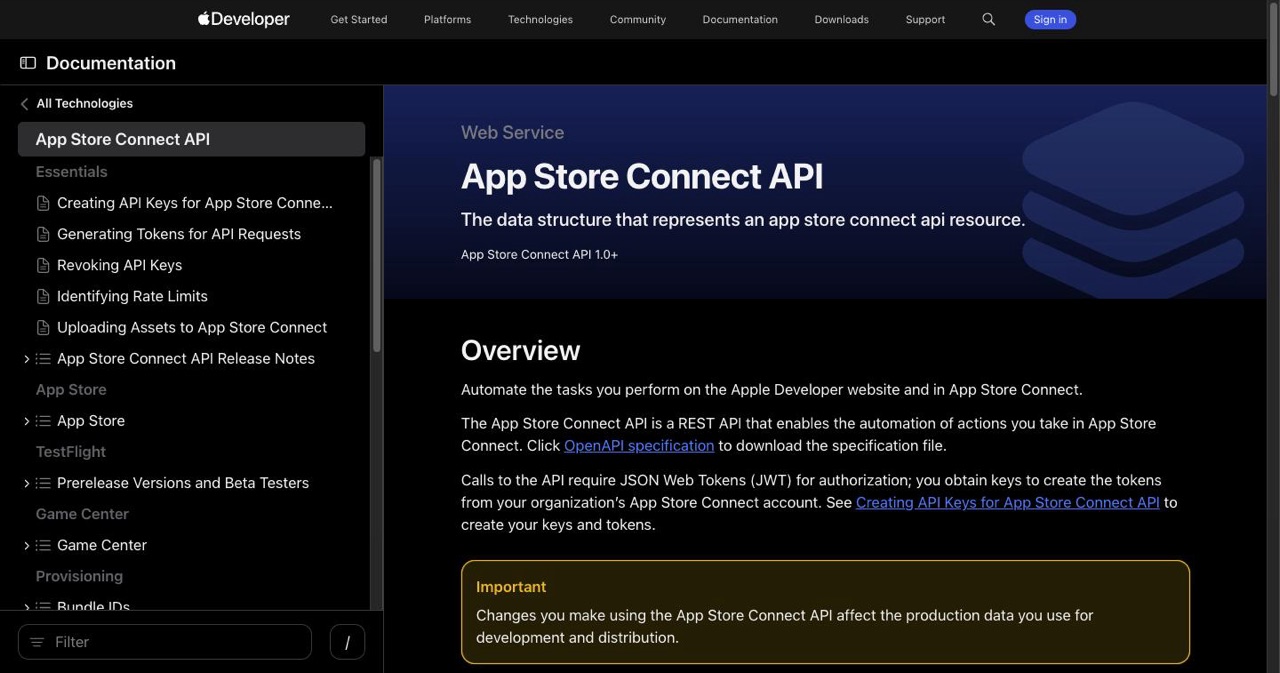
Here's the part that turns a two-day ordeal into a fifteen-minute one. Almost everything above can be scripted through the App Store Connect API instead of hand-clicking a buggy dashboard.
The API lets you:
- Read the true state of every product, build, and version (so you can see which field is missing instead of guessing)
- Create products, set localizations, pricing, availability, and introductory offers
- Upload review screenshots
- Submit the version with its products bundled in one call
There are community CLIs that wrap the App Store Connect API into one-line commands — listing your in-app purchases with their states, setting availability, attaching a review screenshot, and running the final review submission. When the web UI hides the linking section or refuses to cooperate, driving the same operations through the API sidesteps the broken control entirely. You authenticate once with an App Store Connect API key (Issuer ID + Key ID + the .p8 file), then script the diagnosis-and-fix loop.
The high-leverage move is the diagnosis: a single command that prints each product's state and the specific missing fields tells you in seconds what the dashboard makes you reverse-engineer over hours. Pair that with a scripted "set availability + upload screenshot + submit" and the whole class of problem stops being scary.
The RevenueCat gotcha that silently breaks your paywall
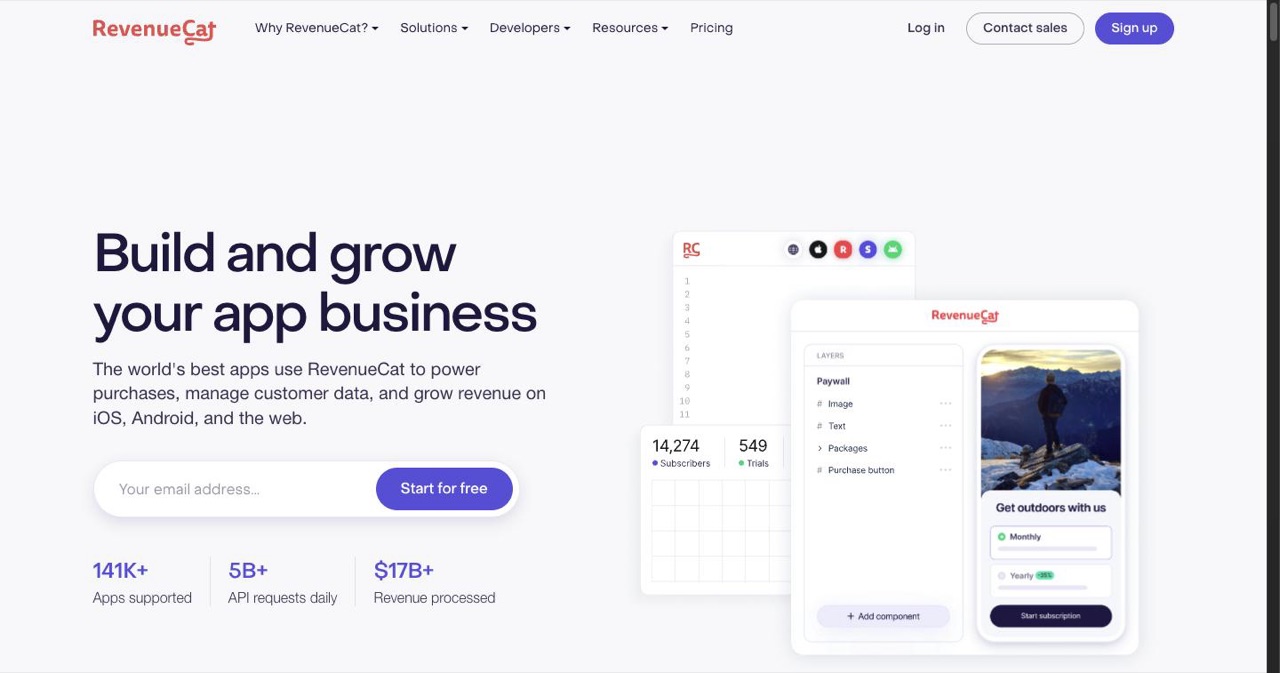
If you use RevenueCat (or any StoreKit abstraction), changing product IDs in Step 3 has a second half that's easy to forget and impossible to see until users complain.
Your app fetches the current offering and matches packages by product ID. If you mint a new product ID in App Store Connect and update your code, but don't update RevenueCat's products, entitlement, and offering, then:
- App Store Connect approves the new product ✅
- Your code asks for the new product ✅
- RevenueCat's offering still points at the old, dead product ❌
- The paywall renders with a missing or broken button, and conversions quietly go to zero
So when you replace a product, do all four:
- Create the new product in RevenueCat pointing at the new store identifier
- Attach it to your entitlement (e.g.
premium) - Point the offering package at the new product
- Confirm the app-facing offering actually resolves to the new ID (RevenueCat's offerings response is CDN-cached, so allow a few minutes for it to propagate)
The RevenueCat dashboard handles this, and so does the RevenueCat v2 REST API if you'd rather script it. Either way, verify the app-facing offering after the change — not just the config — because the cache lag will fool you into thinking you're done when the old IDs are still being served.
The mental model worth keeping
Apple's in-app purchase flow punishes ad-hoc clicking and rewards clean state. Almost every "App Store Connect won't let me submit my IAP" story comes down to the same root cause: a product in a not-quite-ready state that the UI then refuses to surface. You don't beat it by reloading the page harder. You beat it by getting every product to an honest Ready to Submit, by accepting that rejected and approved products are often easier to abandon than to rescue, and — when the dashboard fights you — by driving the App Store Connect API directly.
Treat product setup like a deployment, not a form. Checklist the required fields. Verify state from the API, not the screen. Bundle products with the binary on a first release. And never release until the products read Approved. Do that and the loop that ate your week becomes a routine you run in minutes.
Shipped through this one yourself? Tell us which field was the silent blocker for you — availability and review screenshots are our bet, but the introductory-offer trap is climbing the charts.
Launching a new app or SaaS and want the rest of the playbook? Browse SaaSCity.io for practical, battle-tested launch and growth guides — or list your product to get in front of buyers while your build is in review.
Related Reading:
- Best AI iOS App Store Screenshot Generators in 2026 — generate store-ready (and review-ready) screenshots in minutes
- Launching a SaaS in 2026 — the end-to-end launch sequence
- The Startup Launch Checklist for 2026 — everything to line up before you ship
- How to Get Your First 100 Users — what to do the moment you're approved
Note: App Store Connect behavior, error wording, and required fields described here reflect the platform as of June 2026 and are based on hands-on first-release submissions. Apple changes the review flow frequently — always confirm current requirements in App Store Connect and Apple's official App Review guidelines before you submit.
Get your SaaS in front of founders
List your product on the SaaSCity live city map - a permanent listing, real discovery, and a backlink from a high-DR directory. Free to start; upgrade for a dofollow link and a building on the map.