Reviews
OLVA Review 2026: The Bot-Free AI Meeting Assistant That Helps While the Call Is Still Live
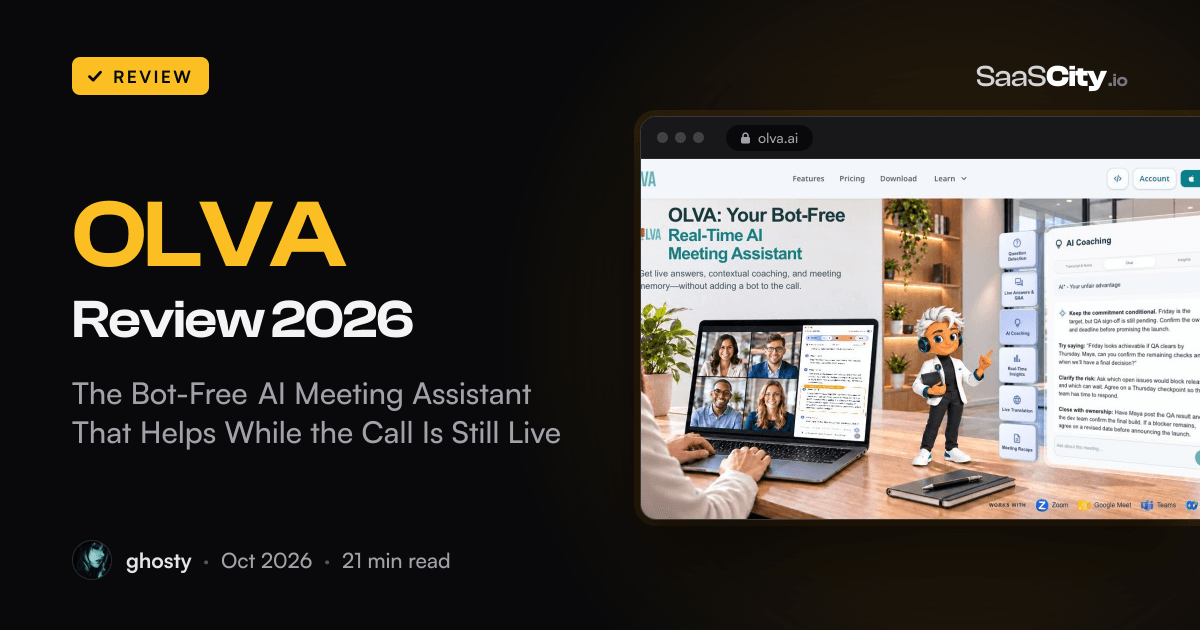
OLVA (olva.ai) is a real-time AI meeting assistant from Toronto's Mindle Inc. that runs on your own Mac, PC or phone instead of joining Zoom, Google Meet or Teams as a bot. It detects questions as they're asked, drafts private answers from your documents and writes the minutes afterwards. We went through every feature, the five plans, the privacy model and how it compares with Granola, Otter, Fireflies and Fathom.

Contents (15)
- OLVA at a glance
- What is OLVA?
- How does OLVA work without joining the call?
- What does OLVA do during a meeting?
- What happens after the meeting?
- Does OLVA work for in-person meetings?
- Can people see OLVA during a screen share?
- How much does OLVA cost?
- How does OLVA handle privacy?
- How does OLVA compare with Granola, Otter, Fireflies and Fathom?
- What we liked and what to keep in mind
- Who should use OLVA?
- How to set up OLVA for your first meeting
- Is OLVA worth it?
- FAQ
Product details checked against olva.ai (the homepage and pricing, product facts, FAQ, download, What's New, privacy and comparison pages), the App Store, Google Play and Product Hunt listings on October 25, 2026. Every screenshot was captured in Google Chrome from those live pages the same day.
Quick answer: OLVA is a real-time AI meeting assistant that runs on your own Mac, Windows PC, iPhone or Android phone instead of joining the call as a bot. While the meeting is still going, it transcribes, spots the questions people ask and drafts a private answer from the conversation and your own documents. When the call ends it writes the summary, the minutes and the action items. It's made by Mindle Inc. in Toronto. There's a free trial with 2 hours of meeting time, and paid plans run from $2.99 to $49.99 a month, with unlimited meetings from $24.99.
Most AI notetakers are built for the moment after the call, when you want a transcript and a tidy list of next steps. OLVA spends most of its effort on the call itself, the minute when a client asks something you half-know and the conversation won't wait while you look it up. It also never shows up on the participant list. Here's what it does, what each plan includes and where it fits next to Granola, Otter, Fireflies and Fathom.
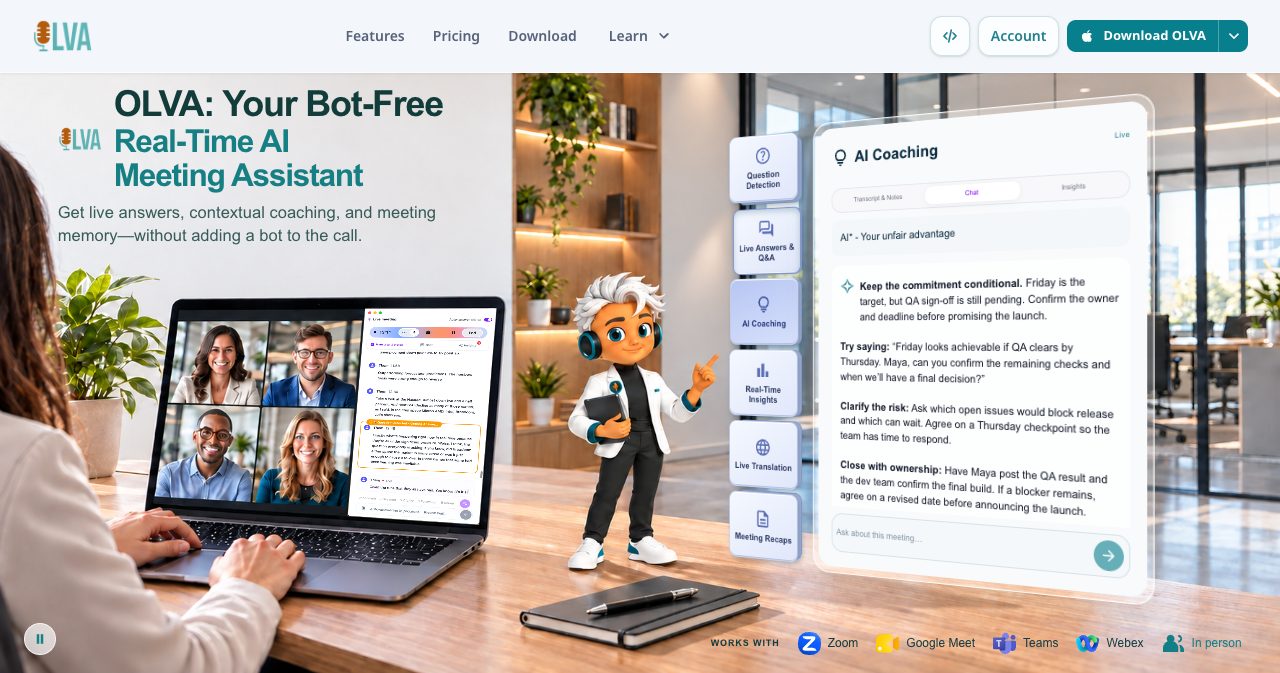
OLVA at a glance
- A real-time AI meeting assistant from Mindle Inc., Toronto. Desktop version 2.1.8 when we checked.
- Runs on macOS (Apple Silicon and Intel), Windows (x64, ARM64 and a portable build), iOS and Android.
- Works next to Zoom, Google Meet, Microsoft Teams, Slack huddles, Webex and in-person conversations, without a meeting bot.
- Live: transcription with speaker separation, question detection, answers, coaching, insights and translation.
- Afterwards: summaries, minutes, action items, searchable memory across meetings, exports and editable PowerPoint decks.
- Transcribes 60 spoken languages with the default Soniox provider and doesn't store meeting audio.
- Free trial with 2 hours of meeting time. Paid plans cost $2.99, $14.99, $24.99 or $49.99 a month.
What is OLVA?
OLVA is a companion app that listens on your side of a conversation and helps you while it's happening. On a laptop it hears your microphone and your computer's audio, so it picks up both sides of a Zoom or Teams call without asking the host to admit anything. On a phone it uses the microphone, which makes it handy for meetings across a table.
The company calls it an invisible partner for conversations. You get context and a draft answer privately, and because nobody new joins the call, the meeting feels the same to everyone else. That matters in sales and client calls, where a recording bot can change the tone before anyone has spoken.
OLVA is the first product from Mindle Inc., an applied AI company in Toronto founded around 2018. Its president, Nima Shahbazi, is a Kaggle Competitions Grandmaster and was one of the three members of team ChaNJestimate, which won the $1 million Zillow Prize for beating the Zestimate. Co-founder Hamed Shafiee launched OLVA on Product Hunt, where it had a 5.0 rating from five reviews when we checked.
How does OLVA work without joining the call?
The workflow has four steps. You open OLVA, pick or build a meeting context, join your meeting the normal way and let OLVA work beside it. When the call ends, OLVA processes the transcript into minutes and keeps it in your meeting history.
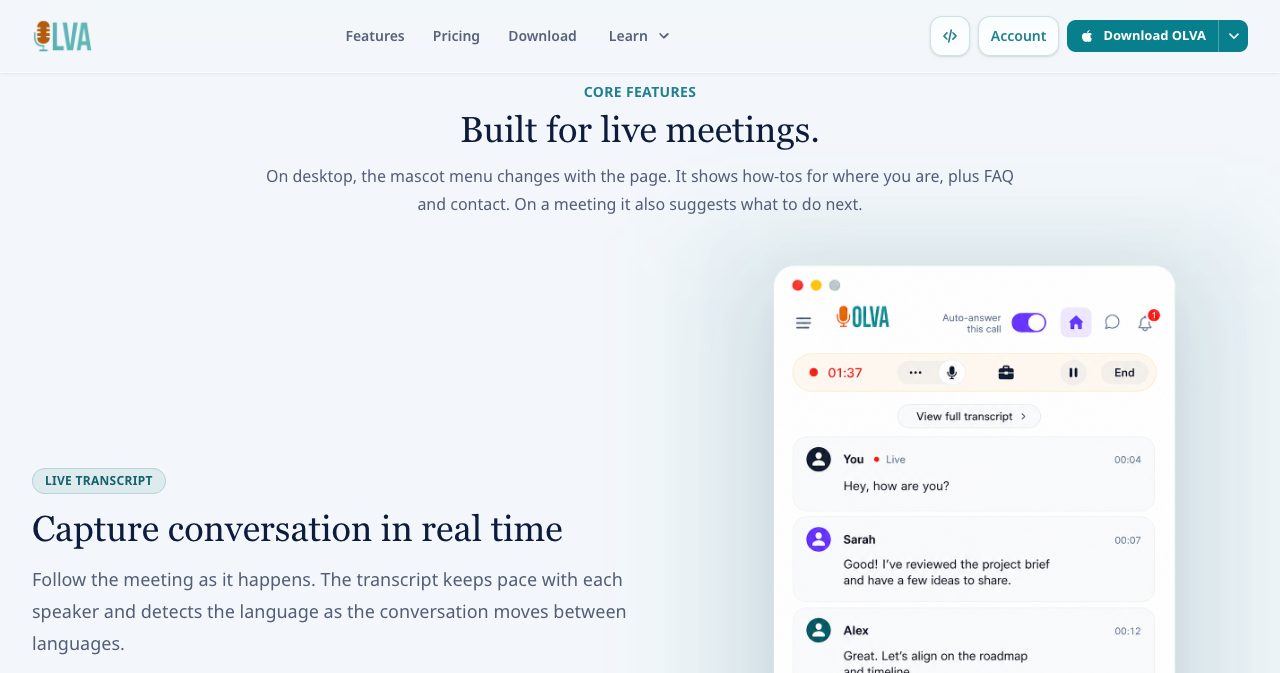
On desktop, OLVA captures your microphone and the system audio together, which is how it hears the other people on the call. Since version 1.8.8 it can also spot a supported Zoom, Teams or Google Meet call and remind you to start, so you're less likely to forget at the top of a busy hour. On iPhone and Android it uses only the microphone. It can't hear audio from other apps, and capture may pause if you switch away or another app takes over the audio, so the mobile apps are meant for conversations in the room.
Since version 2.1.2, a dropped connection no longer ends the meeting, and any question or summary in progress finishes when you're back online.
What does OLVA do during a meeting?
Automatic question detection
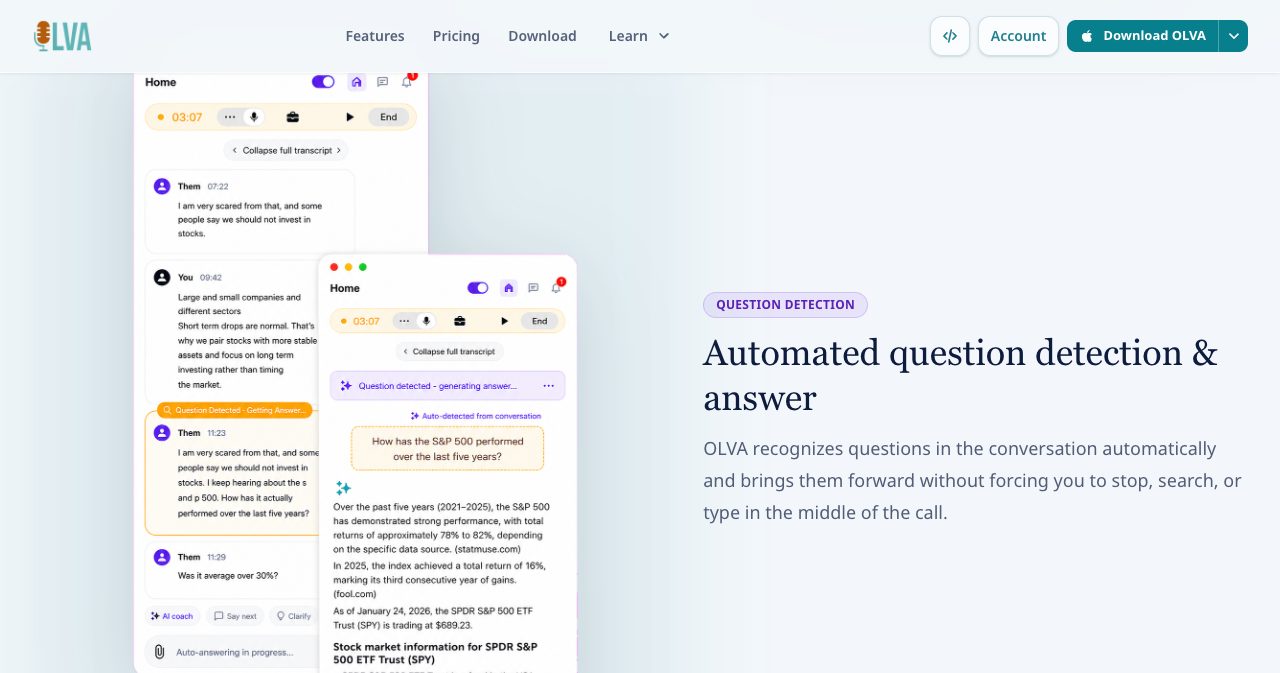
OLVA listens for questions and puts them in front of you as they're asked, without you having to type anything. That's useful on a sales or support call, where the expensive moment is the question you answer weakly because you couldn't think fast enough. Question detection stays on whatever else you change.
Live Q&A and the AI coach
You can ask OLVA about the meeting while you're still in it ("what did they say the budget was?", "what are the main risks here?"), and it answers from the live transcript plus whatever context you've attached. The AI coach goes a step further and suggests what to say next, a follow-up question, a clarification or a recap of the meeting so far, from buttons under the transcript. The homepage example shows the idea well: asked about a Friday launch, it suggests keeping the commitment conditional until QA signs off and gives you a sentence to say.
Live insights
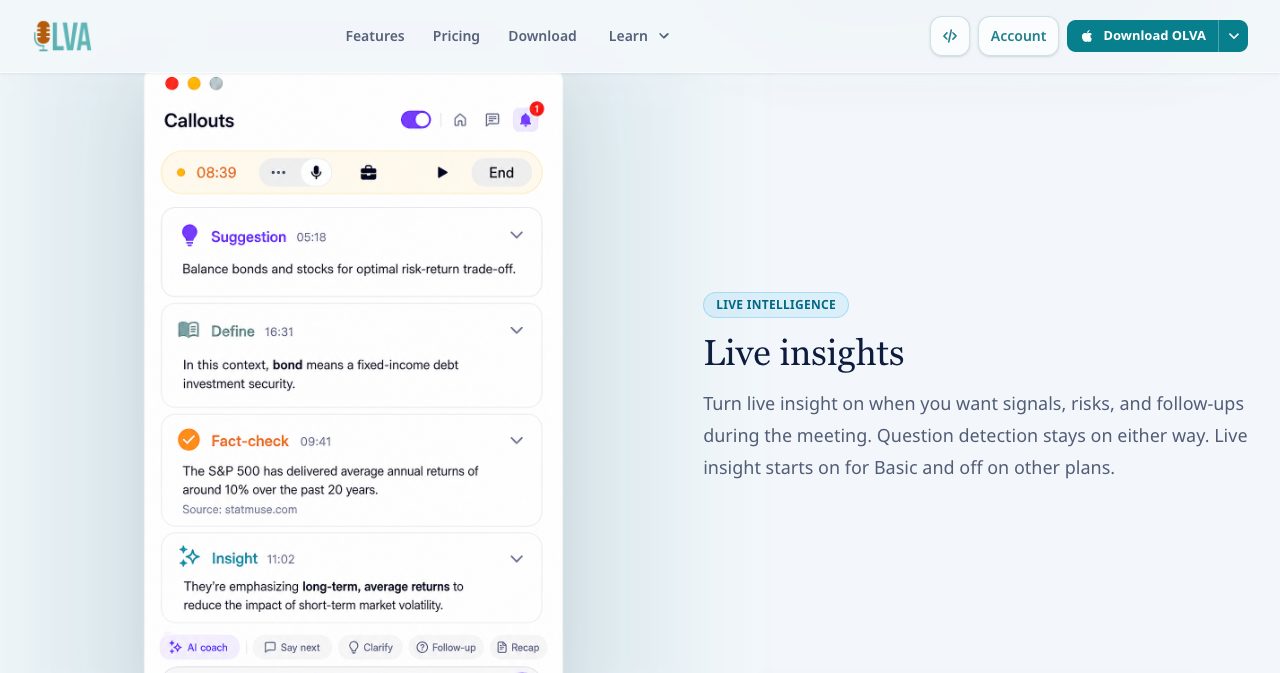
With live insight switched on, OLVA adds signals, risks, follow-ups, fact-checks and definitions of jargon as the conversation moves. It's on by default on the free plan and off by default on the others, and since version 2.1.4 it's a single switch, so you can keep a quiet screen in calls where you only want the transcript and questions.
Reusable meeting contexts
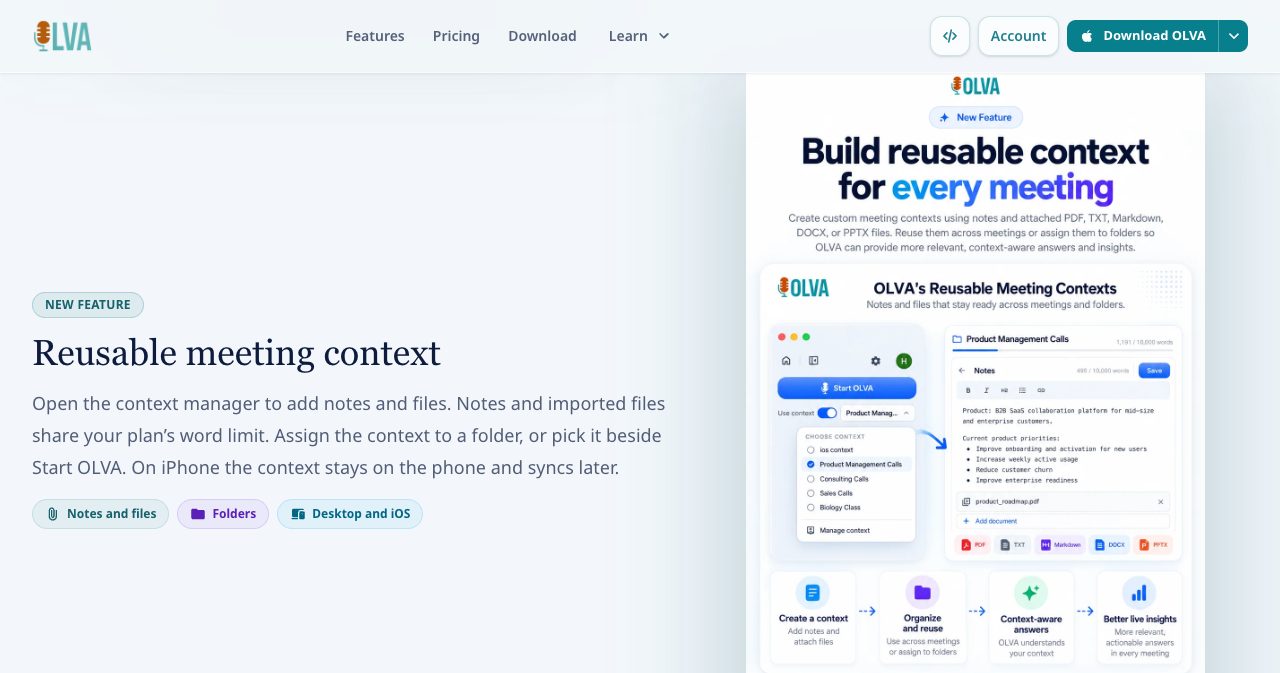
Contexts are what make the answers specific to you. A context holds notes and files (PDF, plain text, Markdown, Word and PowerPoint) about your product, a client, a deal or your role, and OLVA uses it when it answers. You can assign a context to a folder or pick it when you press Start, reuse it across meetings, and on iPhone it stays on the phone and syncs later.
Each plan has a word limit that covers notes and imported documents together: 5,000 words on the free plan, 10,000 on Starter, 20,000 on Plus, 50,000 on Pro and 500,000 on Ultra. A product one-pager, a price list and an objection-handling doc fit comfortably into Plus. A full set of technical documentation or a long contract is where Pro or Ultra earns its price.
Live translation and dual-language mode
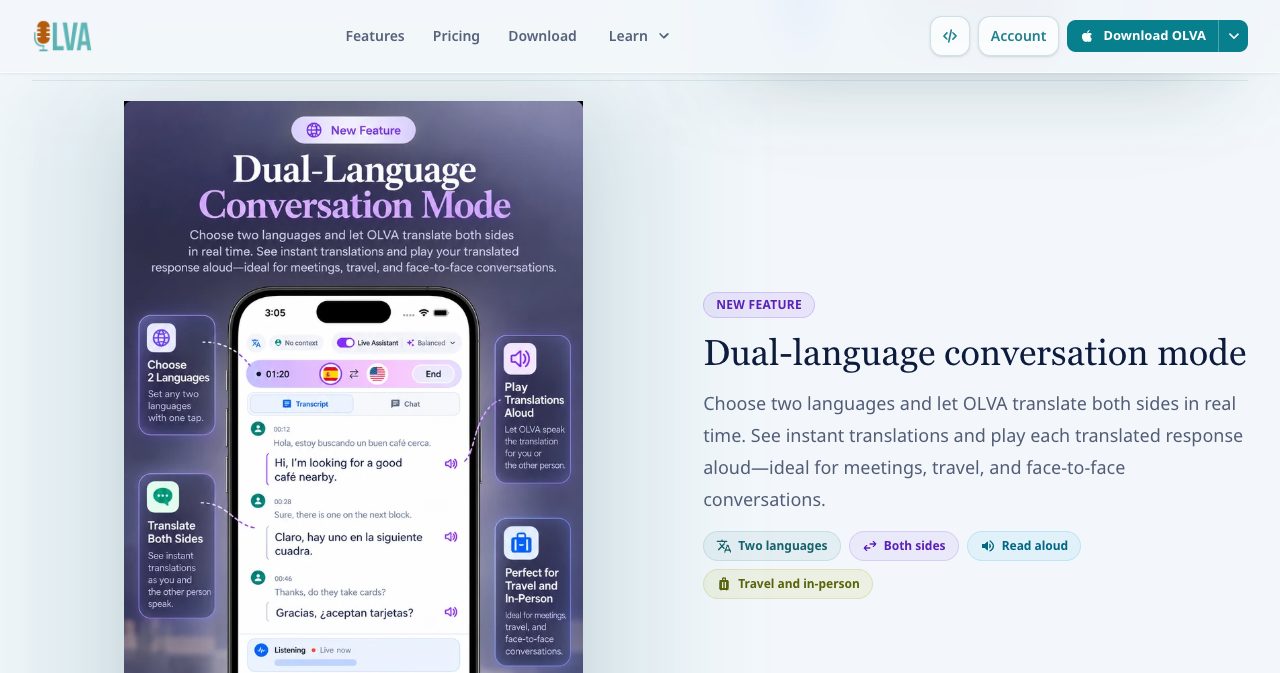
The default speech provider, Soniox, transcribes 60 spoken languages, detects them automatically and lets you select several at once. Live translation is a separate setting: choose an output language, or let OLVA pick, then view the original, the translation or both. Dual-language mode goes further for two-person conversations. You choose two languages, OLVA translates both sides in real time and can read the translation aloud, which helps with client visits, interviews and travel.
What happens after the meeting?
When the call ends, OLVA writes an automatic summary and fuller minutes with action items, decisions, next steps and risks. You can add your own notes and ask follow-up questions, either about one meeting or across all of them, which turns your history into a searchable memory. Since version 1.7.0, details from earlier meetings can also come back into the current one, so a recurring client call starts with what was agreed last time.
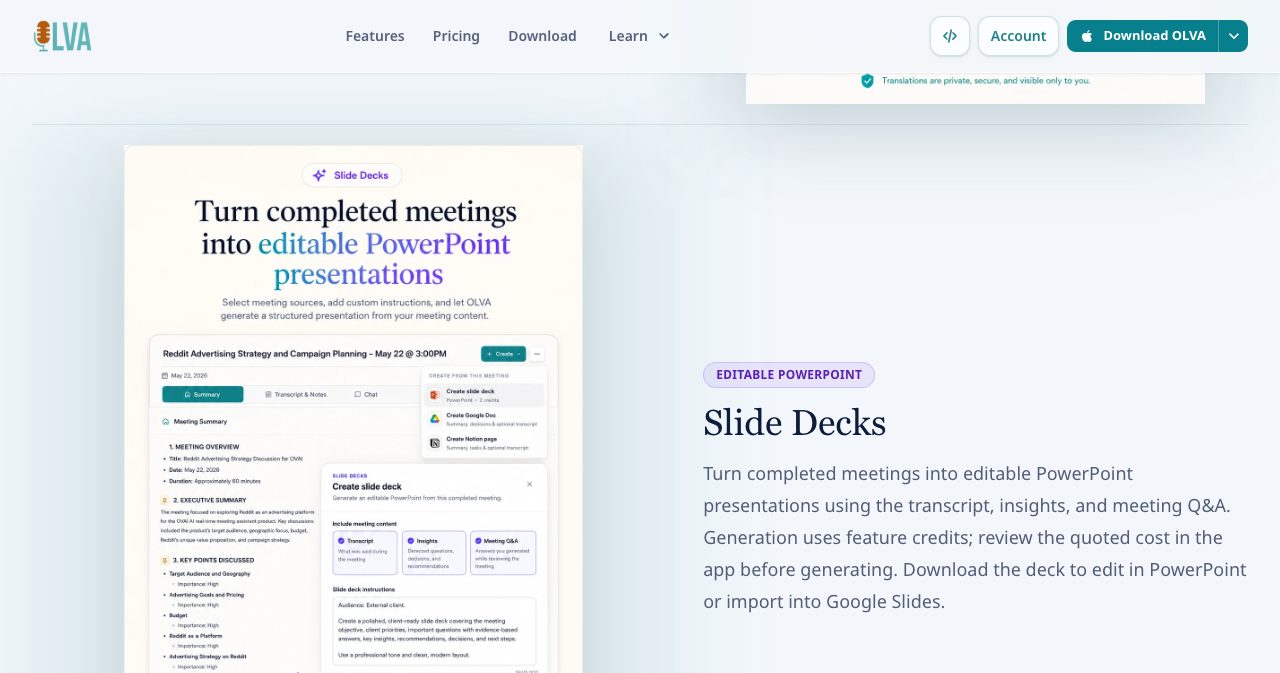
OLVA can also turn a finished meeting into an editable PowerPoint deck, built from the transcript, insights and Q&A. Every plan includes one deck. On Plus, Pro and Ultra you can buy credits for more, and the app shows the cost before it generates anything. You can open the file in PowerPoint or import it into Google Slides.
On Pro and Ultra, transcripts and summaries can go further: native Notion export, Slack and Google Drive integrations, and signed outbound webhooks for developers who want to send meeting output into a CRM or their own workflow. The developer docs include a ready-made Notion webhook workflow.
Does OLVA work for in-person meetings?
Yes, and it's one of the better reasons to pick it. The iOS and Android apps turn your phone into a meeting companion for client visits, classes, doctor's appointments and conversations away from your desk. You follow the transcript, ask OLVA for help in the moment, and review recaps and ask questions later. The same meeting memory is on desktop.
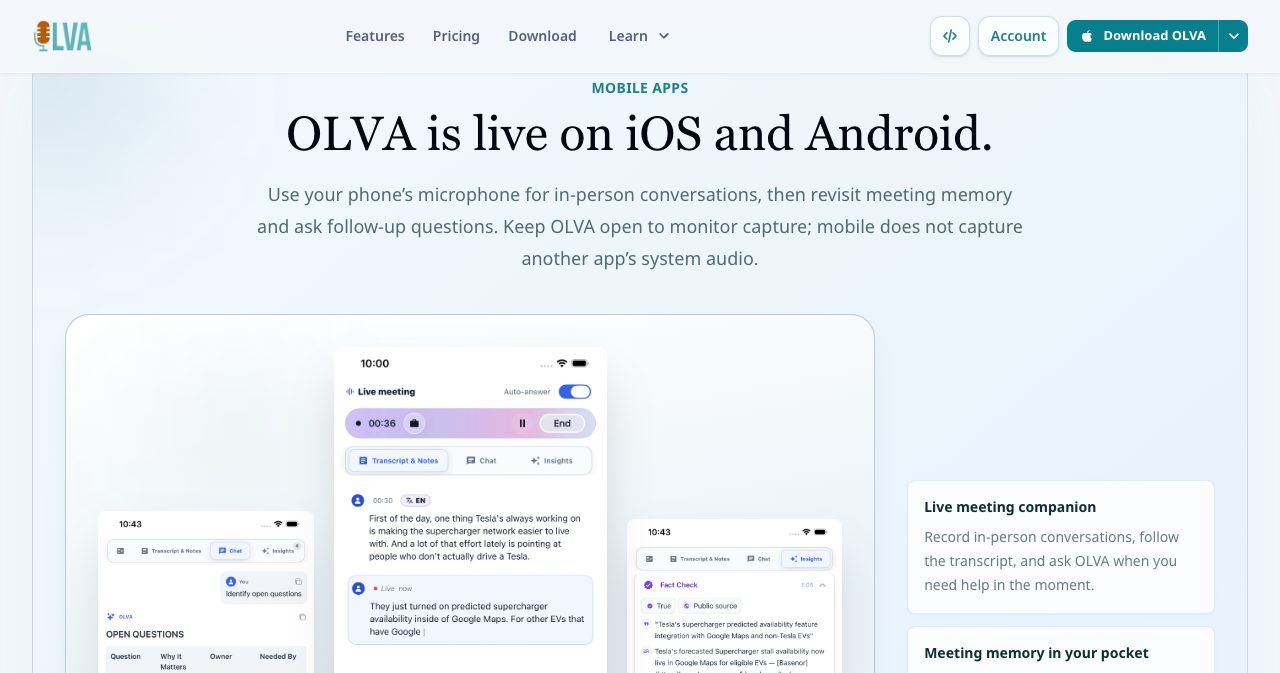
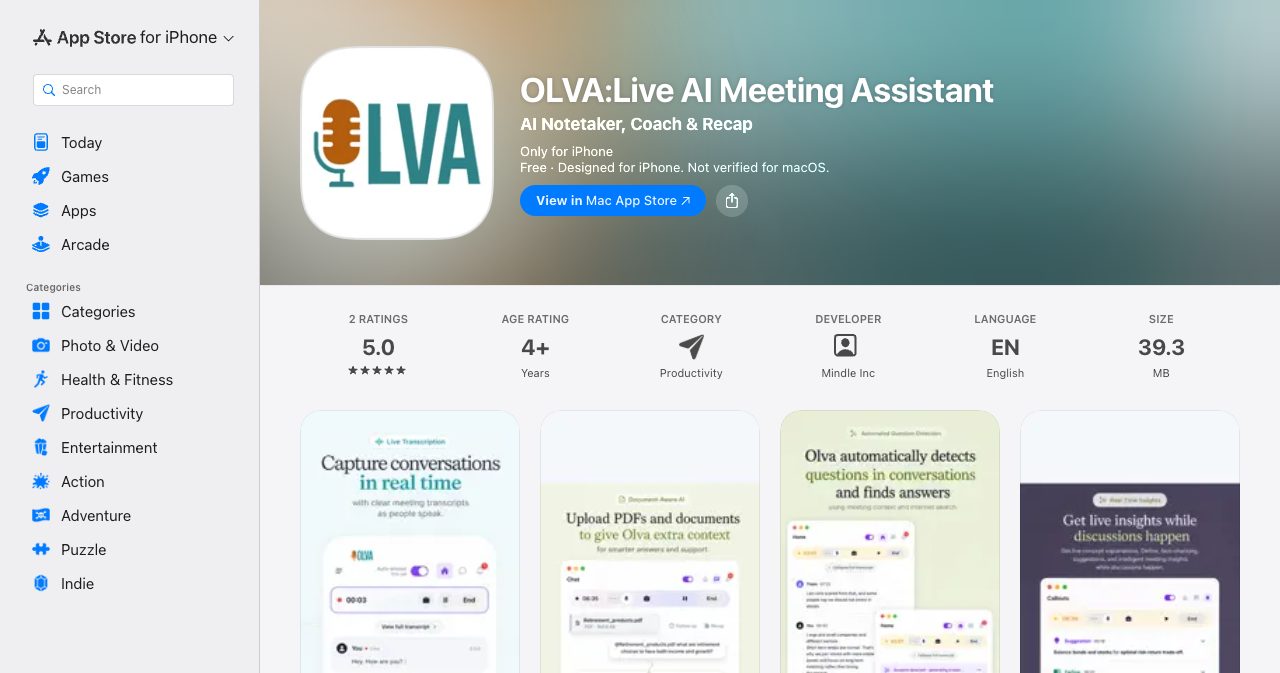
The iPhone app needs iOS 15.1 or later. When we checked, it had a 5.0 rating from two App Store ratings, and the Android app had passed 500 downloads on Google Play. These are early numbers for an app that has been public for a few months.
Can people see OLVA during a screen share?
Bot-free capture keeps OLVA off the participant list, but your screen is a separate question. If you share your whole desktop, the OLVA window could appear in it. Pro and Ultra include a desktop Incognito mode that hides the OLVA window from supported screen-sharing capture.
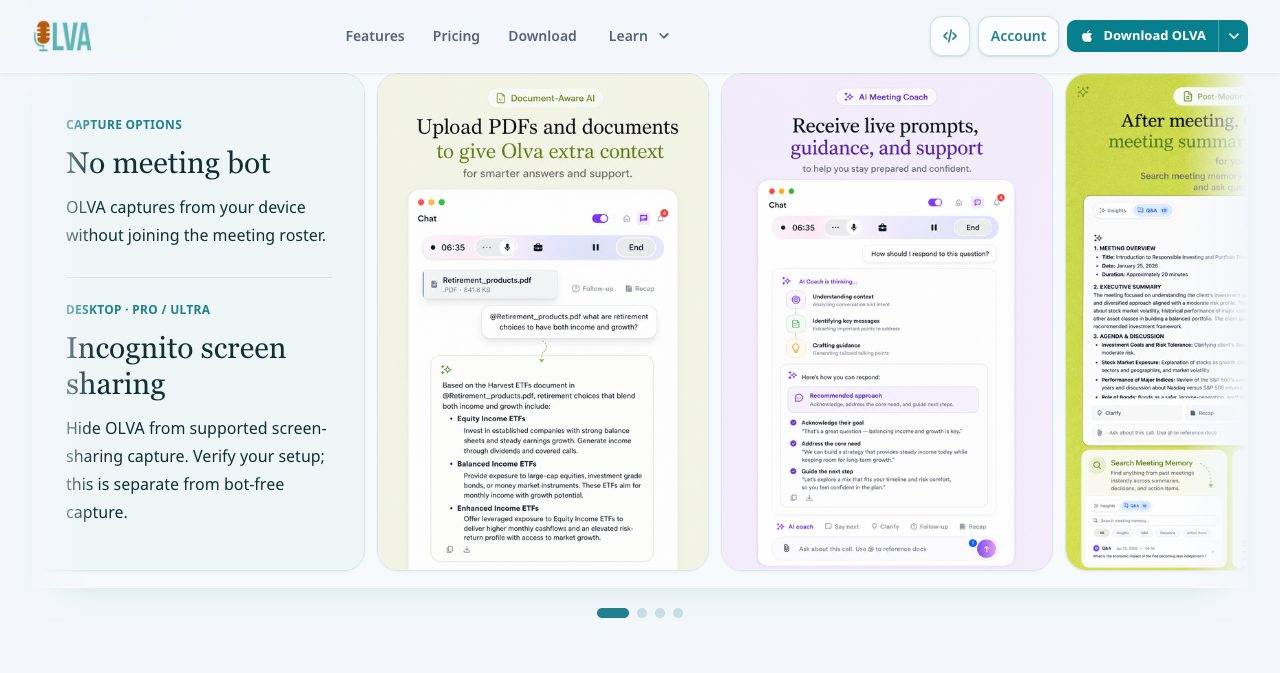
OLVA is careful about this claim, and so should you be. It says Incognito works with supported capture and isn't a guarantee against every capture or detection tool, so do a test share with a colleague before a call where it matters.
A note on etiquette: a bot-free assistant still listens to everyone in the conversation. OLVA says plainly that you're responsible for any notice or consent your meeting needs, and that depends on your company's policy, your clients' contracts and local law. In a job interview, an exam or a negotiation with its own rules, check those rules first. The simplest habit is to say it at the start ("I've got an AI assistant taking notes on my side, is that OK?"). The bot-free design means you don't have to send anything into the call to do that.
How much does OLVA cost?
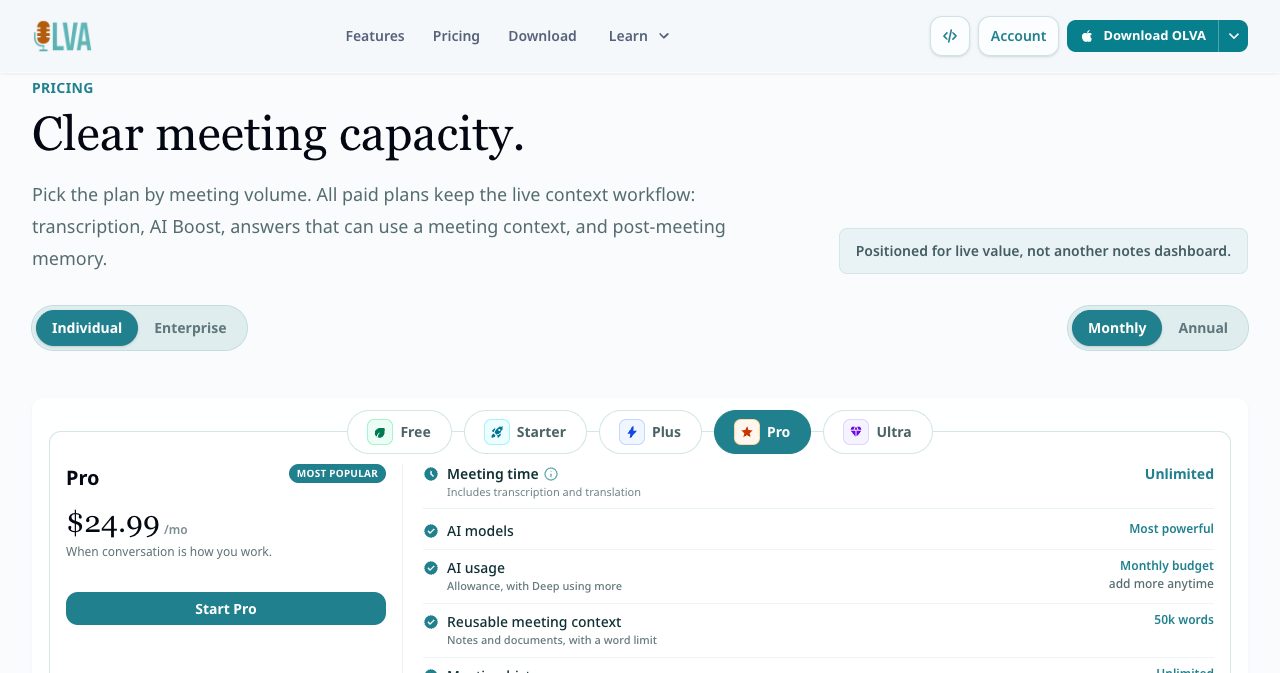
Pricing is set by meeting time, context size and AI usage. Every plan, including the free one, has the same core features: bot-free capture, live transcription with speaker separation, question detection, live answers, the AI coach, insights, translation, in-meeting chat, summaries, minutes, cross-meeting Q&A and meeting folders. Here's how the plans differ on the OLVA pricing table:
| Plan | Monthly | Billed yearly | Meeting time | Context limit | History | AI models |
|---|---|---|---|---|---|---|
| Free | $0 | – | 2 hours in total | 5k words | 1 week | Everyday, trial allowance |
| Starter | $2.99 | – | 2 hours a month | 10k words | 2 months | Everyday |
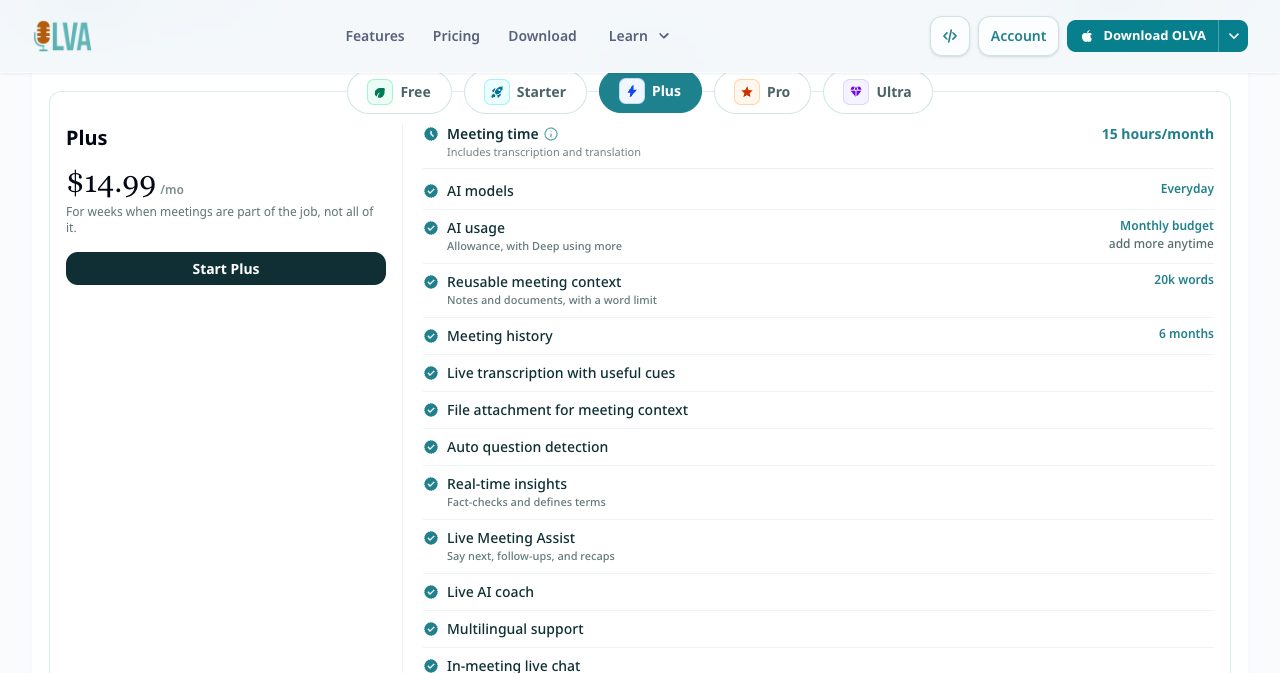
| Plus | $14.99 | $149.90 ($12.49/mo) | 15 hours a month | 20k words | 6 months | Everyday |
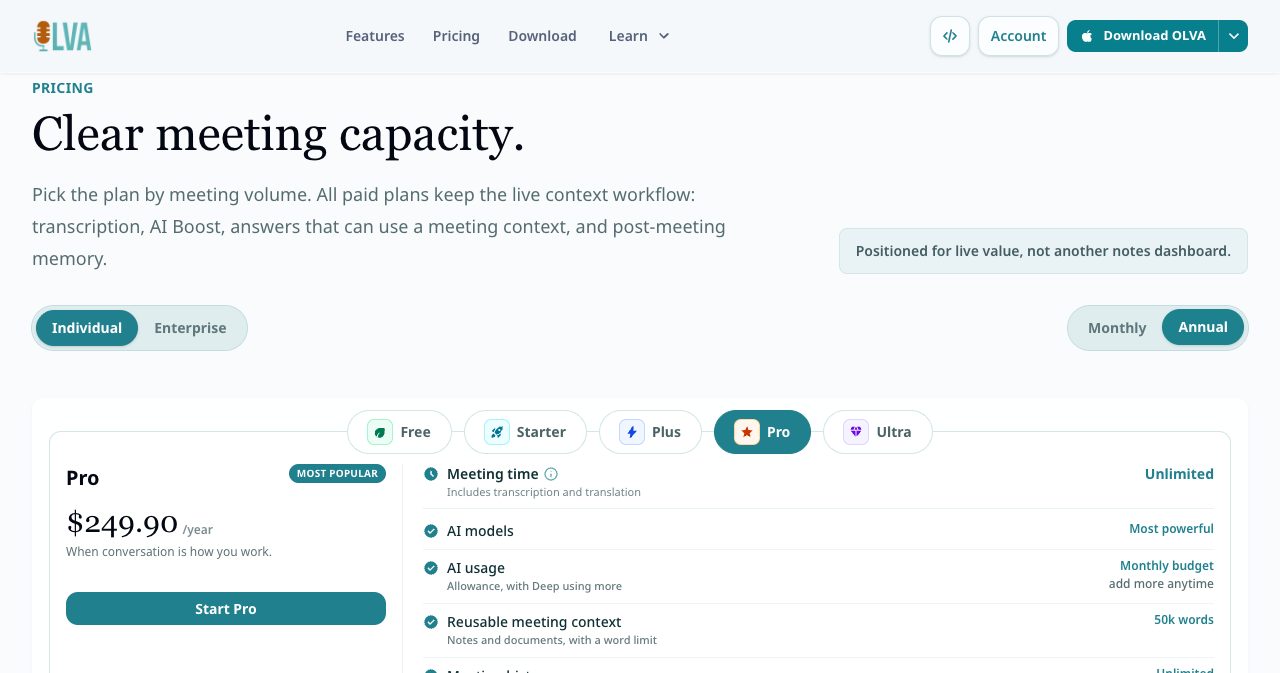
| Pro (most popular) | $24.99 | $249.90 ($20.83/mo) | Unlimited | 50k words | Unlimited | Most powerful |
| Ultra | $49.99 | $499.90 ($41.66/mo) | Unlimited | 500k words | Unlimited | Most powerful, no AI top-ups |
A few details are worth knowing before you choose:
- Live translation counts against the same meeting time as transcription.
- AI usage is a monthly budget. Light and Balanced reasoning work on every plan. Deep reasoning unlocks on Pro and Ultra and uses the monthly allowance faster. You can top up on paid plans, and Ultra never runs out. OLVA's own note says that a stronger model can use up your AI balance before the meeting allowance runs out.
- The calendar-aware meeting workflow starts at Plus.
- Notion, Slack and Google Drive integrations, outbound webhooks and desktop Incognito are Pro and Ultra only.
- Teams and Enterprise plans are quoted by sales and cover team admin, security and compliance.
Paying yearly saves roughly 17 percent on Plus, Pro and Ultra. Pro comes to $249.90 a year, or about $20.83 a month.
Which OLVA plan should you choose?
Starter is a cheap way to keep a light workflow going after the trial, at about one short meeting a week. Plus covers someone with three or four important calls a week. Anyone whose day is mostly calls (an account executive, a customer success manager, a consultant) will hit the 15-hour cap on Plus, and Pro is the plan built for them. It's also the first plan with Deep reasoning, the integrations and Incognito. Ultra makes sense if your contexts are huge, like full product docs or long contracts, or if you lean on Deep reasoning every day and don't want to think about top-ups.
How does OLVA handle privacy?
Meeting tools ask for a lot of trust, so OLVA publishes a product facts page for reviewers and a separate privacy explainer. The short version:
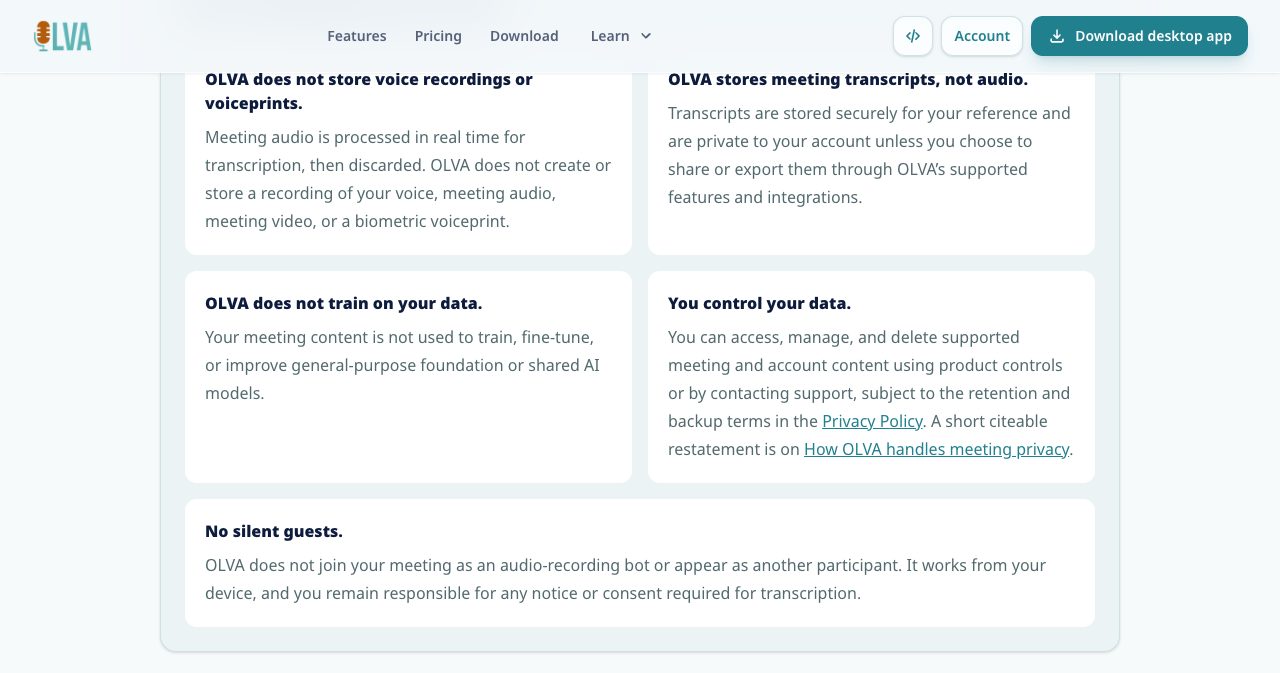
- Meeting audio is streamed in real time to the speech provider (Soniox by default, Deepgram if configured), transcribed and discarded. OLVA doesn't keep voice recordings, meeting video or biometric voiceprints.
- OLVA stores transcripts, metadata, documents, prompts and outputs. They're private to your account unless you share or export them.
- Customer meeting content isn't used to train, fine-tune or improve general-purpose or shared AI models. OpenAI may process the relevant transcript and context to run the AI features you choose.
- You can schedule account deletion from mobile settings, the web account page or the desktop app. OLVA deletes the account and its meeting data after 7 days, and you can cancel during that window. Backups expire on their own cycle.
That's a clearer position than many tools in this category take, and the page is honest about the limits too: AI outputs can be wrong or incomplete, so check them before acting on anything important. If your company has a vendor review process, OLVA also lists its subprocessors and offers Enterprise plans for security and compliance requirements.
How does OLVA compare with Granola, Otter, Fireflies and Fathom?
OLVA's homepage carries its own comparison table, last reviewed in July 2026. It's a vendor's view, but it lines up with how these tools present themselves, and it states where OLVA leads: live insight, the AI coach, question detection, document-aware chat, botless capture by default and live translation.
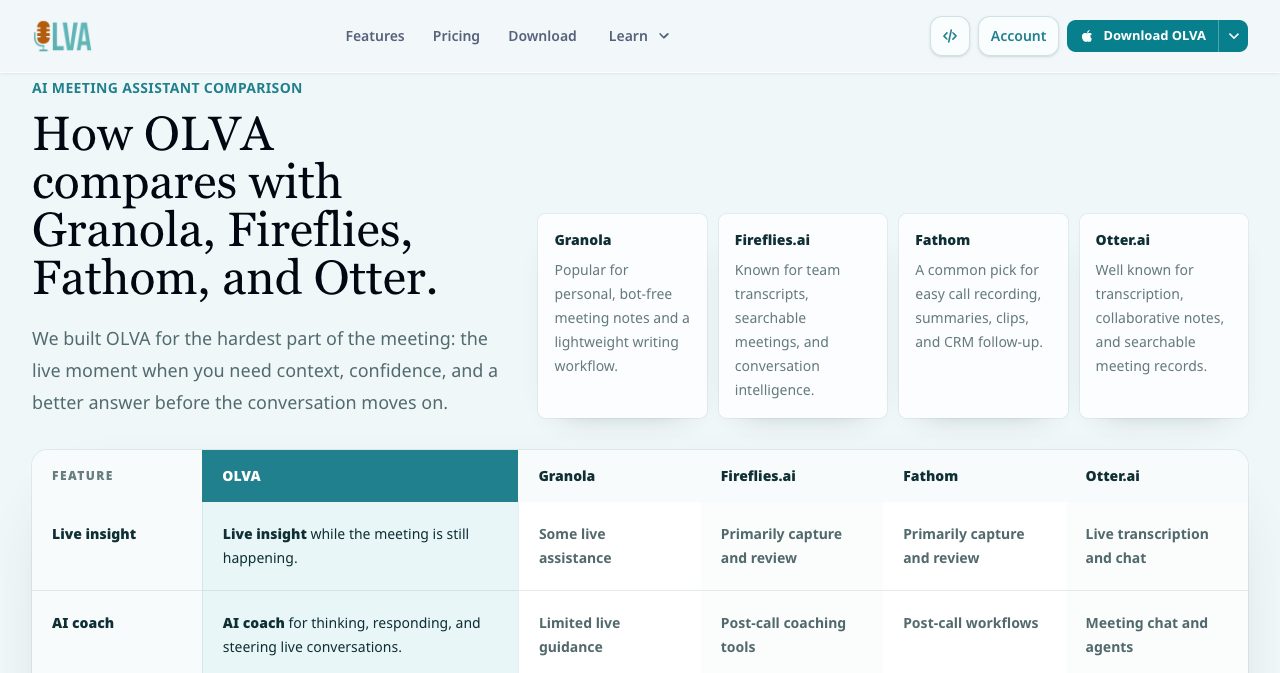
Here's how we'd sum up the choice:
| Tool | How it captures | Where it's strongest | Pick it if |
|---|---|---|---|
| OLVA | On your device, no bot | Help during the call: questions, answers, coaching, translation | You want help in the moment and a private record afterwards |
| Granola | On your device, no bot | Notes you write, improved by AI | You take your own notes and want them polished |
| Fireflies.ai | Bot or other capture options | Team transcripts, search and conversation intelligence | A whole team needs a shared archive and analytics |
| Fathom | Bot or desktop capture | Recording, summaries, clips and CRM follow-up | You want recordings and clips pushed to your CRM |
| Otter.ai | Bot or other capture options | Transcription, shared notes and searchable records | You need shared transcripts across a team |
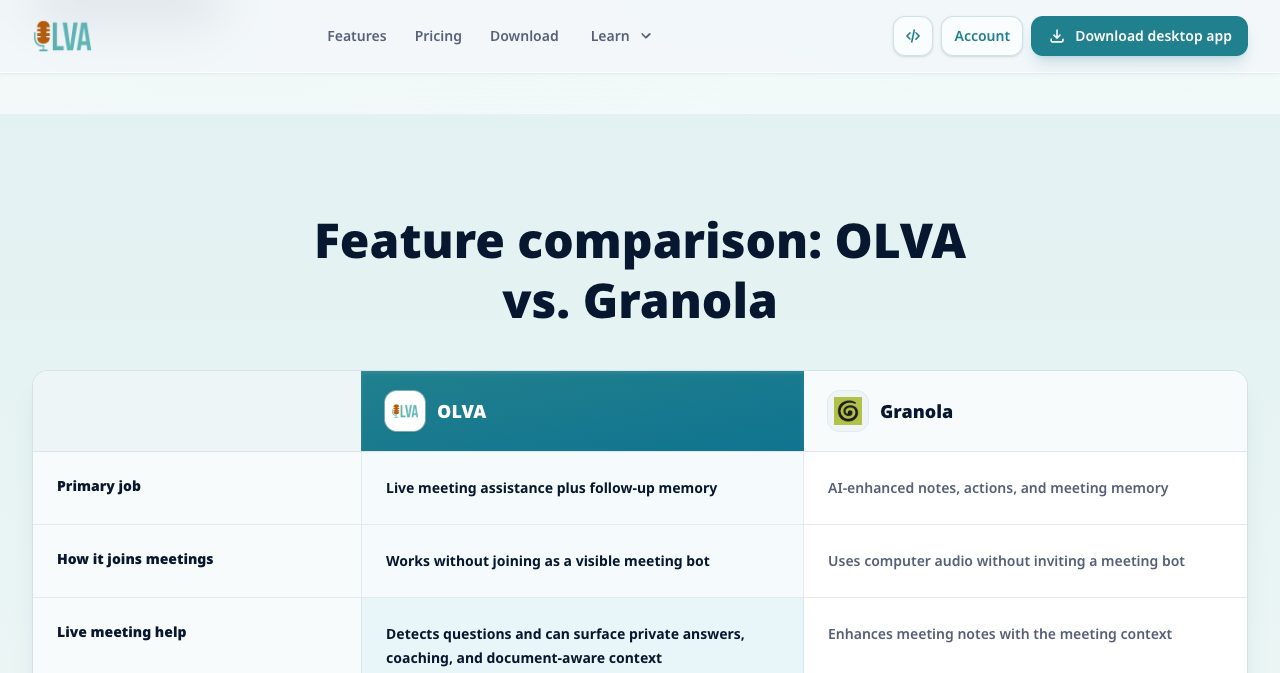
Granola is the closest comparison, since both avoid the bot. OLVA's own OLVA vs Granola page puts it fairly: Granola is built around the notes you take during a meeting, and OLVA is built to help you answer while the conversation is happening. If you rarely get put on the spot, Granola's notes-first workflow may be all you need. If your calls are full of questions you have to answer well and fast, OLVA does more.
To be fair to the others, OLVA is a personal tool first. Fireflies, Otter and Fathom go deeper on shared team libraries, call analytics and CRM sync, and OLVA's integrations (Notion, Slack, Google Drive and webhooks) are mostly on Pro and Ultra. A revenue team that wants managers reviewing every rep's calls will still want a team platform. A rep who wants to sound sharp on each call will get more out of OLVA.
What we liked and what to keep in mind
What we liked:
- It helps during the meeting, which most AI notetakers don't, and question detection works without you lifting a finger.
- No bot on the roster, on every plan, including the free one.
- Answers draw on your own documents through reusable contexts, so they fit your product and your clients.
- It works in the room as well as on calls, with dedicated iOS and Android apps.
- Live translation and dual-language mode are included on every plan.
- The privacy model is clear: no stored audio, no training on your meetings, deletion in 7 days.
- Prices are public and start at $2.99, and unlimited meeting time starts at $24.99 a month.
What to keep in mind:
- Mobile hears only the room. To capture a Zoom or Teams call from both sides, use the desktop app.
- Incognito is Pro and Ultra only and works with supported screen-sharing capture, so test it first.
- Plus caps meetings at 15 hours a month, and heavy users should plan on Pro.
- Extra slide decks need credits after the one each plan includes.
- It's built for one person. Team archives and analytics are thinner than in team-first platforms.
- Reviews are still few (5.0 from five reviews on Product Hunt when we checked), because the product has only been public since mid-2026.
- You're responsible for telling people, and OLVA says so clearly.
Who should use OLVA?
OLVA suits you if you:
- sell, run customer success or consult, and your calls are full of questions you need to answer accurately;
- work in technical or product meetings where a definition, a number or a past decision is worth having on screen;
- meet in more than one language, or with clients and colleagues whose first language isn't yours;
- have plenty of face-to-face meetings and want the same memory for those as for video calls;
- find that a visible recording bot changes how people talk to you.
It suits you less if you:
- mostly need a shared archive of every call for a team to review;
- want call recordings and video clips rather than transcripts;
- rarely get asked questions on calls and only need a summary afterwards.
For live translation that speaks for you in Discord, OBS or a game rather than helping you follow a meeting, see our HaloVoice review.
How to set up OLVA for your first meeting
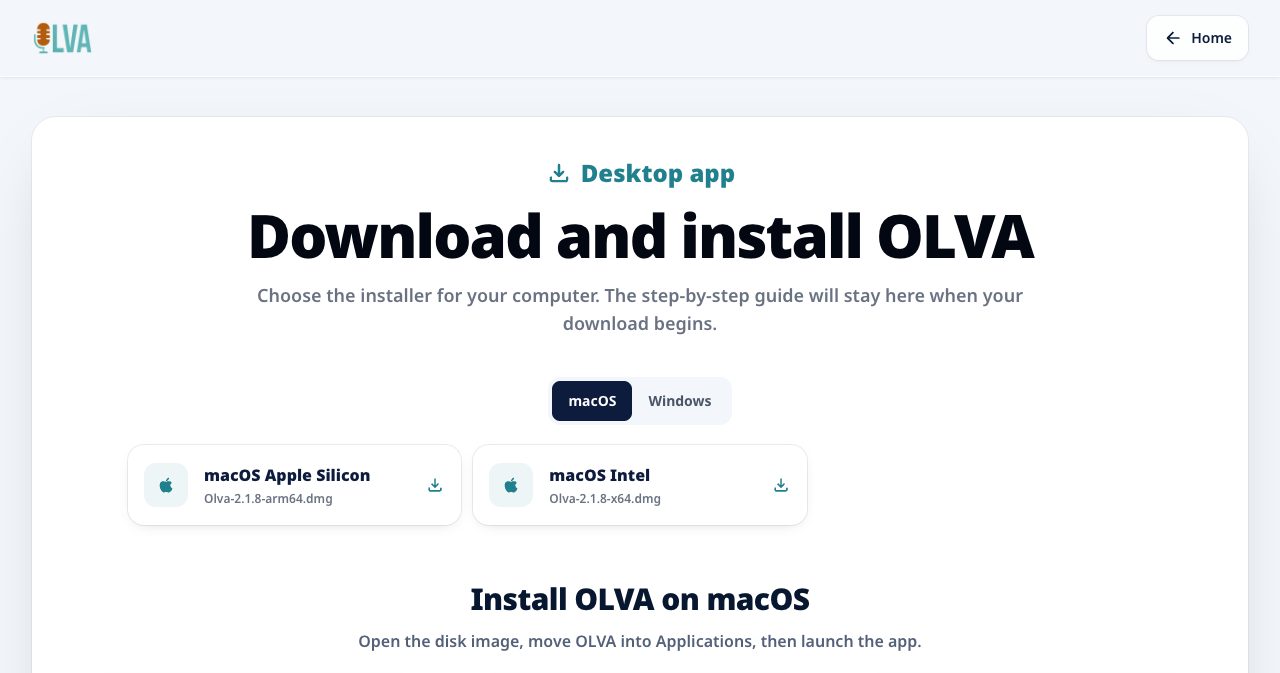
- Download OLVA for macOS (Apple Silicon or Intel) or Windows from the OLVA download page, or get the iOS app or Android app for in-person meetings, then sign in.
- Build a meeting context: add notes and files (PDF, text, Markdown, Word or PowerPoint) about your product, client or role, and assign it to a folder so you can reuse it.
- Start OLVA before the call. On desktop it can spot supported Zoom, Teams and Google Meet calls and remind you to start.
- Join the meeting from your normal app. OLVA follows the transcript, flags questions and drafts answers. Turn live insight on if you want signals, risks and fact-checks too.
- Tell people what you're using, and get whatever consent your meeting, company or local law requires.
- After the call, read the summary, minutes and action items, ask follow-up questions across past meetings, and export to Notion or generate an editable PowerPoint deck if you need one.
Is OLVA worth it?
Yes, if your calls are where the work happens and the hard part is answering well in the moment. Plenty of tools will give you a clean transcript after a call. OLVA is one of the few that helps while the other person is still waiting for your answer, and it does it without a bot in the room. Contexts make the answers specific to your work, the mobile apps cover meetings away from your desk, and translation is included on every plan.
It's still a young product, with a short review history and a feature set that changes most weeks (four releases between October 1 and October 6 alone). The team behind it, though, has a serious machine learning background, the privacy model is clearer than most, and the pricing gives you room to try it properly. The free trial's 2 hours is enough for three or four real calls.
Start with the free OLVA plan on your next important call. If you spend most of your day in meetings, go straight to OLVA Pro for unlimited meeting time, Deep reasoning, the integrations and Incognito.
FAQ
What is OLVA?
OLVA is a real-time AI meeting assistant made by Mindle Inc. in Toronto. It runs as a desktop or mobile app, transcribes the conversation live, detects questions, drafts private answers and coaching from your transcript and documents, and then writes summaries, minutes and action items you can search later.
Does OLVA join my Zoom, Google Meet or Teams call as a bot?
No. OLVA captures audio from your own device, so it never appears on the participant list. On Mac and Windows it hears your microphone and your computer's system audio; on iPhone and Android it uses the phone's microphone. It works alongside Zoom, Google Meet, Microsoft Teams, Slack huddles, Webex and in-person conversations.
How much does OLVA cost?
There's a free plan with 2 hours of meeting time in total. Starter costs $2.99 a month for 2 hours a month, Plus $14.99 for 15 hours, Pro $24.99 and Ultra $49.99, both with unlimited meeting time. Paid yearly, Plus works out to $12.49 a month, Pro to $20.83 and Ultra to $41.66. Teams and Enterprise plans are quoted by sales.
Is there a free version of OLVA?
Yes. The free plan gives you 2 hours of meeting time in total, a 5,000-word meeting context, one week of history and one slide deck, with live transcription, question detection, live answers, the AI coach and post-meeting minutes all included. It's a trial of the full workflow rather than a plan to stay on.
Does OLVA record or store meeting audio?
No. OLVA streams audio to its speech provider (Soniox by default, or Deepgram) for live transcription and then discards it. It doesn't store voice recordings, meeting video or voiceprints. It does store transcripts, documents, prompts and outputs, which stay private to your account unless you share or export them, and it says customer content isn't used to train shared AI models.
Which languages does OLVA support?
The default Soniox speech provider transcribes 60 spoken languages with automatic detection, and you can select several at once. Live translation is a separate setting that can show the original and the translation side by side, and dual-language mode translates both sides of a conversation.
Does OLVA work for in-person meetings?
Yes. The iOS and Android apps use the phone's microphone for face-to-face meetings, client visits and classes, and the desktop app can do the same with your computer's microphone. Mobile can't capture other apps' audio, and capture may pause if you switch away, so keep OLVA open during the conversation.
Can other people see OLVA when I share my screen?
Pro and Ultra include a desktop Incognito mode that hides the OLVA window from supported screen-sharing capture. OLVA says it isn't a guarantee against every capture or detection tool, so test it with your own setup before an important call.
How is OLVA different from Granola, Otter, Fireflies or Fathom?
Most of those tools are built around the record afterwards: notes, transcripts, recordings, team archives and CRM follow-up. OLVA puts its effort into the call itself, with automatic question detection, private document-aware answers, coaching and live translation, and it captures from your device by default. Granola is also bot-free but is notes-first; Fireflies and Otter are stronger on shared team archives and analytics.
Who makes OLVA?
Mindle Inc., a Toronto applied AI company founded around 2018. Its president, Nima Shahbazi, is a Kaggle Competitions Grandmaster and was part of the team that won the $1 million Zillow Prize. OLVA is Mindle's first product, and support is at [email protected].
If you're building a SaaS, an AI tool or a service for founders, SaaSCity is a free, human-reviewed startup directory with a live city map, where your listing is a permanent page that other founders browse.
Get your SaaS in front of founders
List your product on the SaaSCity live city map - a permanent listing, real discovery, and a backlink from a high-DR directory. Free to start; upgrade for a dofollow link and a building on the map.