Build with AI
How to Debloat Android TV and Google TV with Claude Code: The Clean Your TV (tv-vibehack) Guide
A Xiaomi TV showed a sponsored ad before Netflix. One afternoon with Claude Code removed 25 packages over Wi-Fi and replaced the home screen with an Apple TV-style launcher, and the open-source repo behind it passed 3,300 GitHub stars in two days. Here is how Clean Your TV works, which TVs it supports, the exact steps, and how to undo it.

Contents (11)
- Key takeaways
- What is Clean Your TV (tv-vibehack)?
- How does debloating an Android TV with Claude Code work?
- Which TVs does it work on?
- How to debloat your Android TV with Claude Code, step by step
- What changes after debloating?
- Is it safe? Risks and how to recover
- Alternatives to Clean Your TV
- Where the project is going
- What this says about vibe coding
- FAQ
Quick answer: To debloat an Android TV or Google TV with AI, switch on USB debugging on the TV, clone the open-source Clean Your TV repo (it was called tv-vibehack until October 19), and paste its PROMPT.md into Claude Code with your TV model. The assistant connects over Wi-Fi with ADB, backs up the TV, disables ad, telemetry and preload packages with pm disable-user, and installs a small Apple TV-style launcher. Nothing is rooted or uninstalled, and one restore command undoes it.
On October 17, 2026, Gathin (@gathint) posted that he had "vibe coded" his parents' Xiaomi TV in an afternoon. The TV showed a sponsored ad before anyone could reach Netflix. He gave Claude Code the model number. It found the TV on the Wi-Fi, removed 25 Xiaomi packages and wrote a new launcher. "Looks like an Apple TV now lol," he wrote.
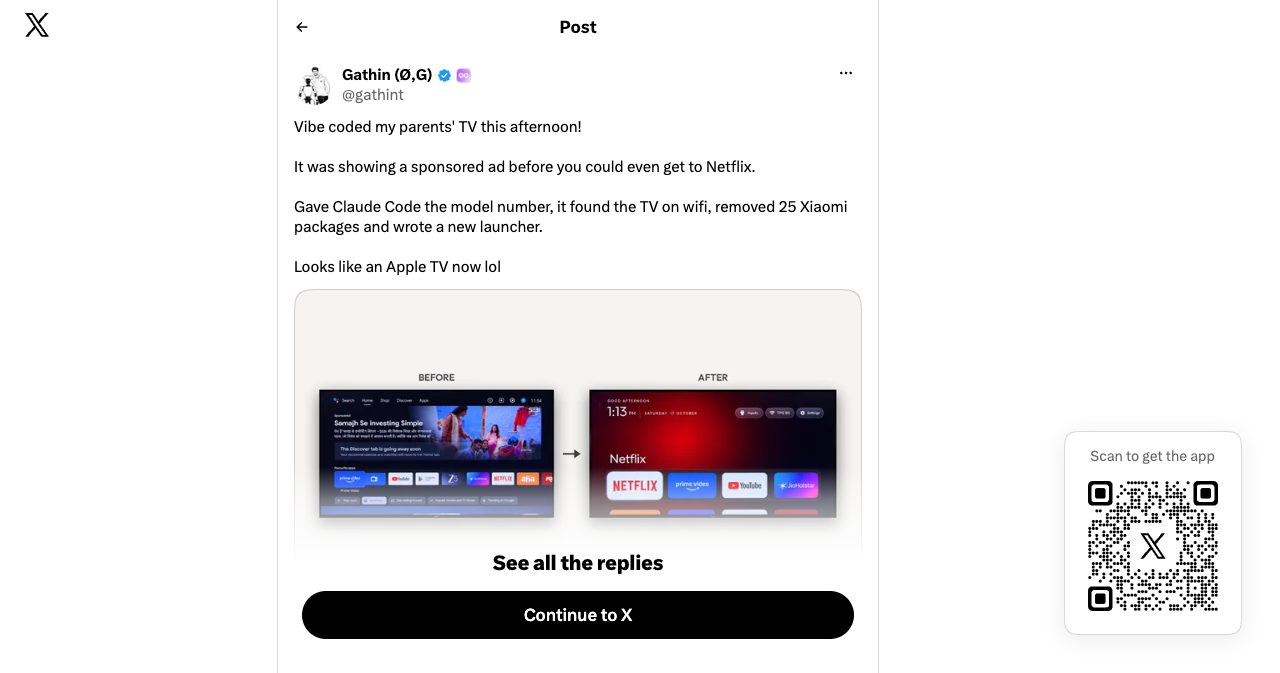
When I checked the post on October 19, it had 4.6 million views, 26,000 likes, 993 reposts, 650 replies and 19,000 bookmarks. The bookmark count says more than the likes. Nineteen thousand people saved it because they have a TV like that at home, or parents who do.
This guide covers what the project does, the TVs it works on, the steps, what people measured afterwards and what goes wrong. I read the repo's README, prompt, troubleshooting notes and model lists, and the contributor reports behind the numbers. All screenshots were taken in Google Chrome on October 19.
A note on where you're reading this: SaaSCity is a launch directory for software, and we have no connection to Clean Your TV or its author. We follow viral Claude Code projects because a lot of what gets listed here starts as one.
Key takeaways
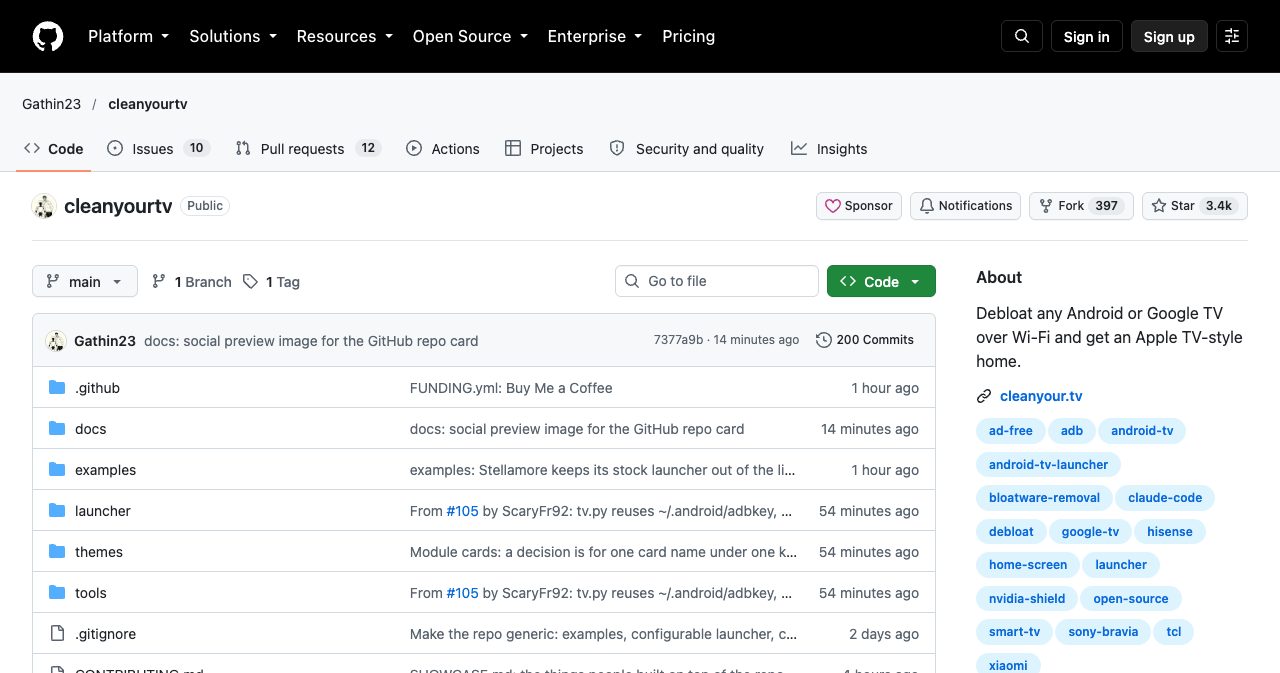
- Clean Your TV is an MIT-licensed repo with a prompt, a pure-Python ADB client, debloat and restore scripts, and a 250 KB launcher. It had 3,378 stars and 397 forks two days after the post.
- It works on Android TV and Google TV sets from Xiaomi, TCL, Sony, Hisense, OnePlus, Philips, NVIDIA Shield, Chromecast with Google TV and others. Fire TV gets the debloat half only. Samsung, LG and Roku are out.
- Packages are disabled, never uninstalled, so the firmware stays intact and a restore script re-enables them.
- The two known traps are disabling the stock launcher too early and the Google TV setup wizard grabbing Home. Both have one-line fixes.
- Turn USB debugging off when you finish.
What is Clean Your TV (tv-vibehack)?
Clean Your TV is an open-source project on GitHub that strips bloatware from Android TV and Google TV sets over Wi-Fi and replaces the stock home screen with a minimal launcher modeled on Apple TV. It ships the prompt a coding assistant follows, the tools it runs, tested lists for 30 TV models and a restore script.
The repo went up on October 17 as tv-vibehack. Two days later it was renamed cleanyourtv, and old links still redirect. It got its own site at cleanyour.tv, built to look like the launcher, with a remote you can click.
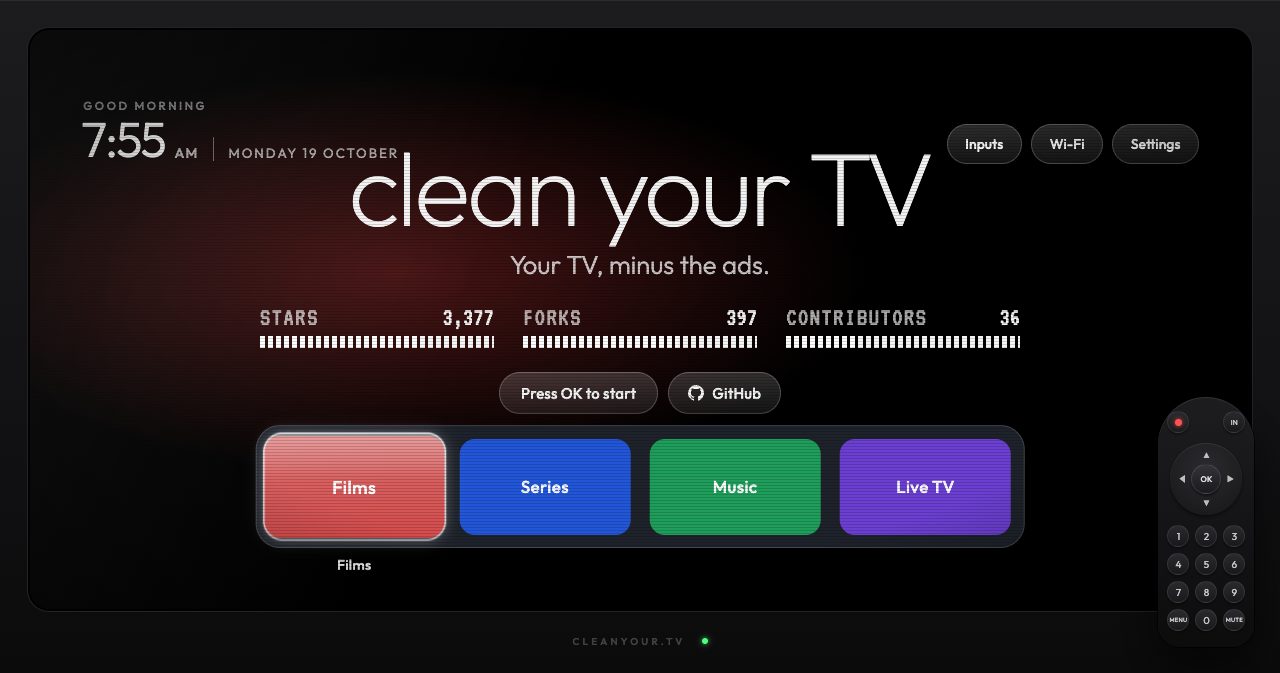
What made it spread is that it answered a common annoyance with something you can run the same evening. Gathin's replies filled with people describing their own TVs, and most of the model lists in the repo came from those replies. By the morning of October 19 the repo had 108 pull requests, 65 of them merged, and a first tagged release.
It wasn't the first project of its kind. In late August, Turkish developer Mert Cobanov published a prompt that had Claude Code clean up his four-year-old Android TV and switch it to FLauncher, and Mac4Ever and other sites picked it up. Clean Your TV went further: it builds its own launcher instead of installing a third-party one, and it collects per-model lists so the next person with the same TV skips the discovery step.
How does debloating an Android TV with Claude Code work?
Android TVs carry the same Android Debug Bridge (ADB) as phones. With USB debugging on, most sets also accept ADB over the network on port 5555. From there it is ordinary Android tooling, and Claude Code is the one typing the commands. The README describes three stages:
- Back up the installed package list and settings.
- Disable the manufacturer's telemetry, ad services, content rows and preloaded apps with
pm disable-user --user 0. A disabled package stays on the system partition. Android just stops running it for that user, which is why it can be switched back on. - Install a small native launcher and make it the default home screen.
Nothing gets flashed, rooted or deleted. OTA firmware images are untouched. The changes live in the user profile, so a restore script or the TV's own Settings, Apps page can reverse them.
What the prompt tells the agent
PROMPT.md is about 90 lines, and most of it is guardrails. It tells the assistant to back up before touching anything, sort packages into groups (manufacturer telemetry, ad and content services, background services, preloads, streaming apps), and never disable the TV's own plumbing: HDMI and tuner input services, the source menu, remote and Bluetooth pairing, the on-screen keyboard, the Play Store and Play Services.
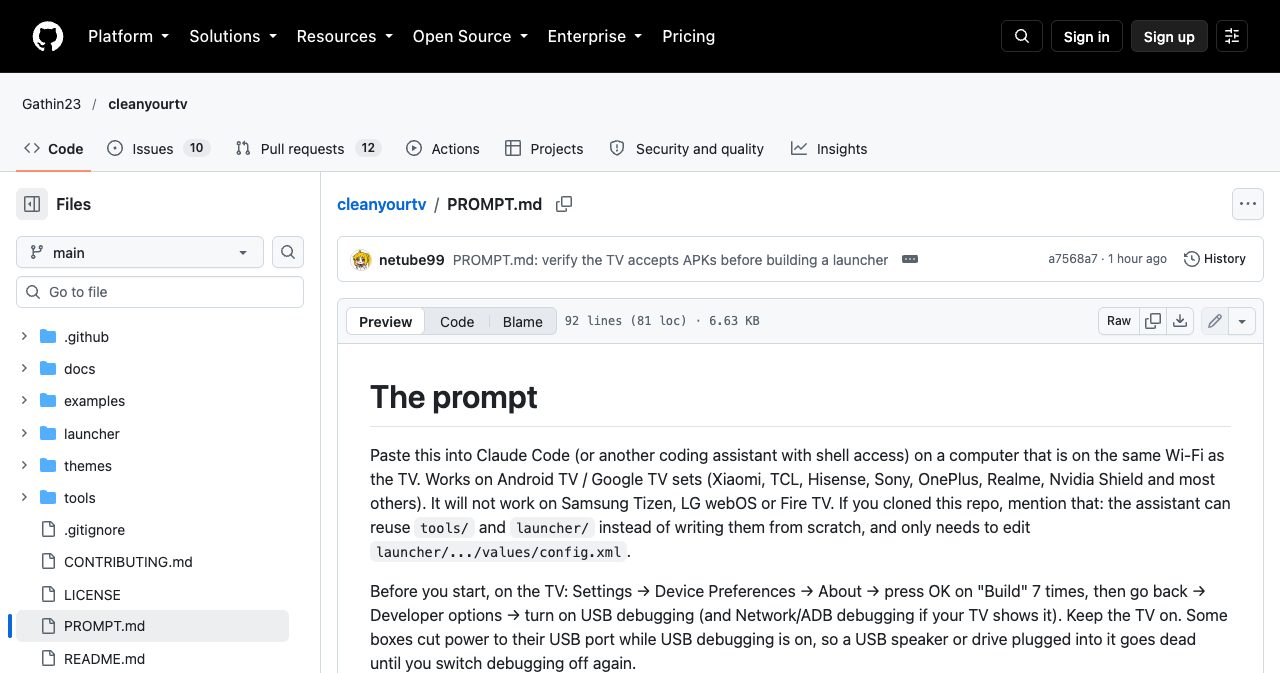
Some of its rules come from things that broke on real TVs. Run pm commands one per shell call, because chained commands can silently stop after the first. Disable in small batches and take a screenshot between them, because a batch can take something important down and you won't know which package did it. If a manufacturer package name doesn't say what it does, check it with dumpsys package or ask the user. Before touching streaming apps, the voice assistant, Chromecast, Miracast or the update service, ask the user with a checklist.
What a debloat list looks like
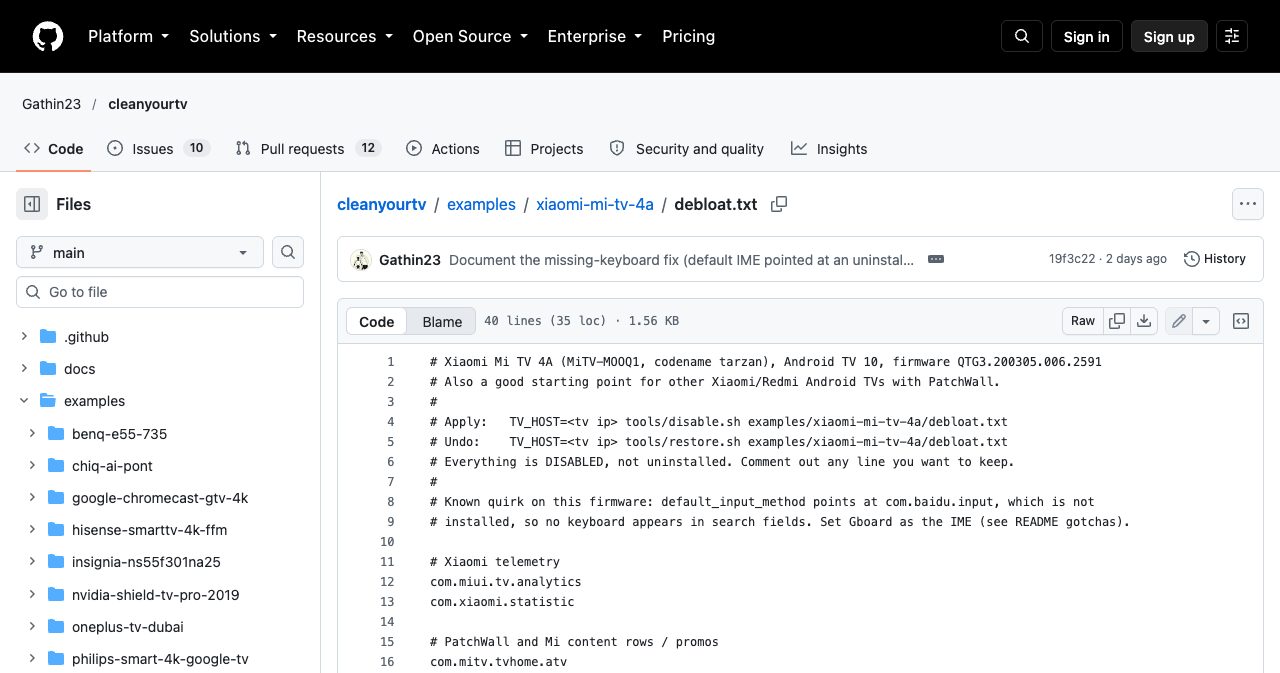
Every tested model has a debloat.txt in examples/. The one for the Xiaomi Mi TV 4A, the original TV, has 21 packages in groups: Xiaomi telemetry (com.miui.tv.analytics, com.xiaomi.statistic), PatchWall content rows and promos, background services like the "TV Manager" cleaner and the Alexa bridge, preloads such as Google Duo, and the stock launcher with its recommendation services. Comments say what each one does and how to undo it.
What the launcher looks like
The launcher (com.gathin.tvhome) is plain Java with AndroidX RecyclerView, built for sets with 1 GB of RAM. It has no blur, no video, no network access and no background services, and the release build installs at about 250 KB.
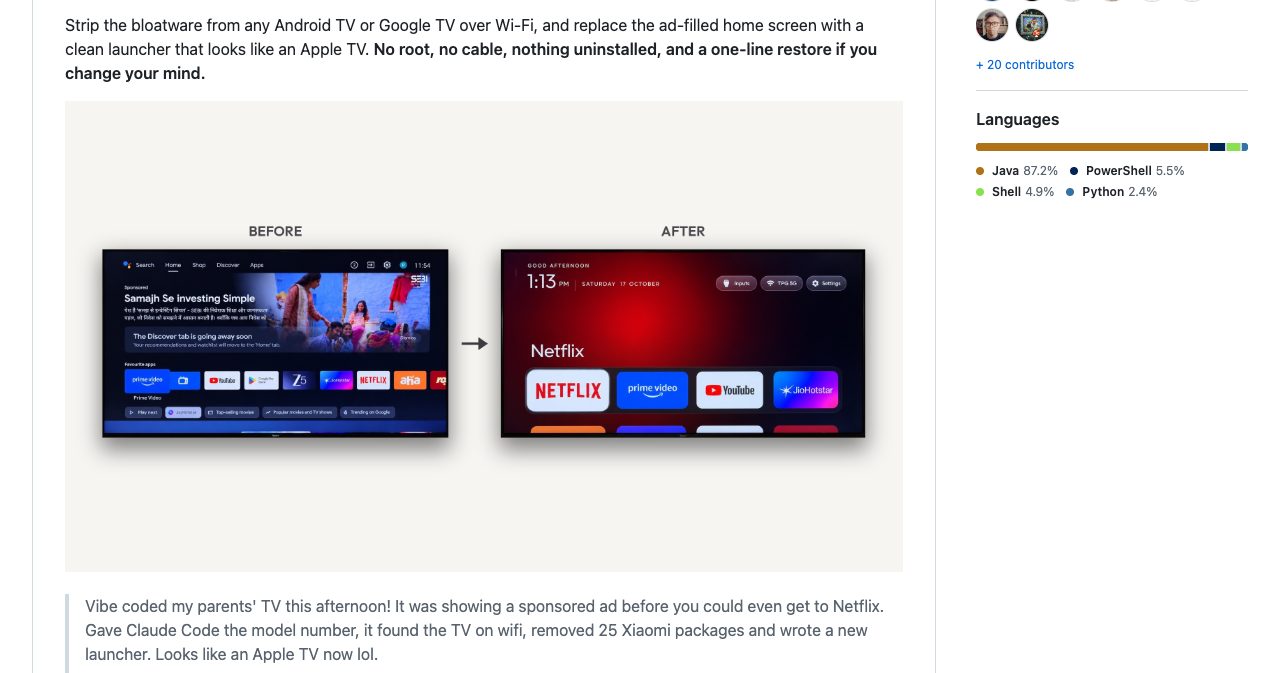
On screen you get:
- A pitch-black home with your four chosen apps in a dock at the bottom, the way Apple TV places them.
- The focused app's name in large type above the dock, with a glow in a colour sampled from its banner.
- All other apps in a grid that slides up when you press Down.
- Frosted buttons for Inputs (HDMI, AV, Live TV), the Wi-Fi network and Settings.
- A greeting, a clock and the date, plus a matching clock screensaver.
Themes change colours, wallpaper, dock and columns without a rebuild. The interface follows the TV's language in English, German, Spanish, Catalan, French, Russian, Simplified Chinese and Thai.
Which TVs does it work on?
Clean Your TV works on anything running Android TV or Google TV. The repo has tested lists for 30 devices, with Xiaomi (8), TCL (7) and Sony (2) the most common, plus BenQ, CHiQ, Chromecast with Google TV, Hisense, NVIDIA Shield, OnePlus, Philips, RCA, SANYO, Stellamore and XGIMI projectors, and two Fire TV sets.
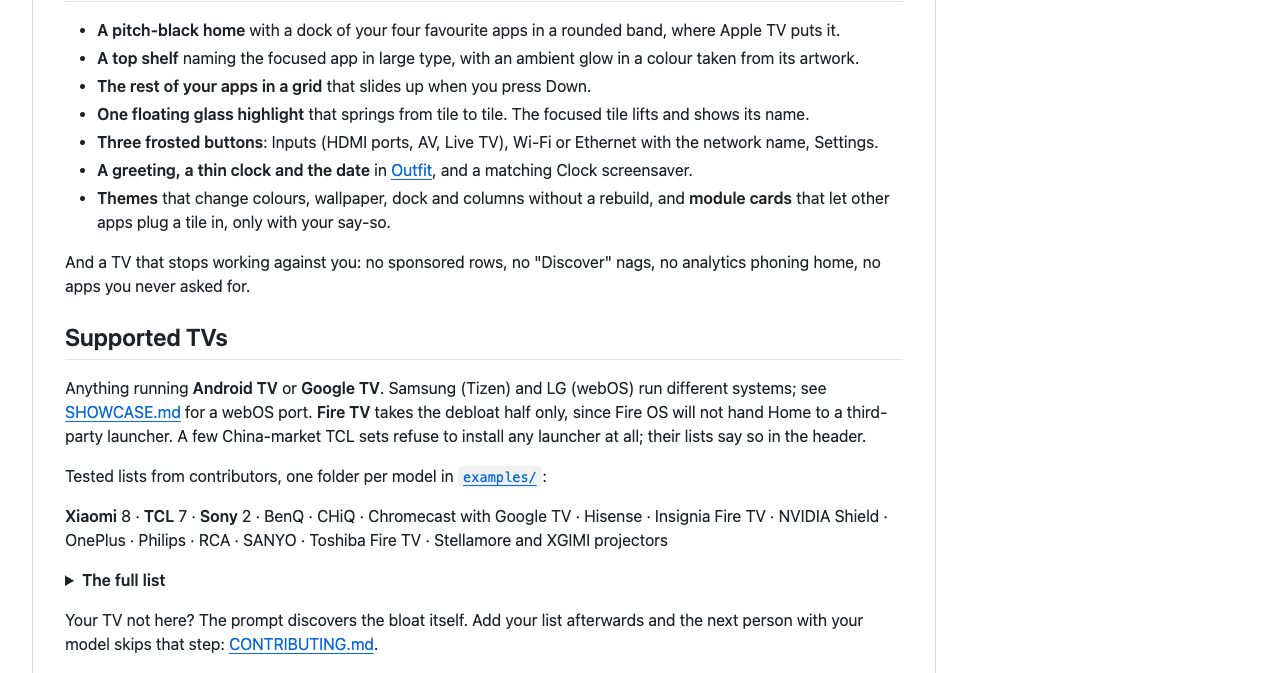
| Platform | Debloat | New launcher | Notes |
|---|---|---|---|
| Android TV (Xiaomi, TCL, Sony, Hisense, Philips and others) | Yes | Yes | The main target. Lists go back to Android TV 9. |
| Google TV (Chromecast with Google TV, OnePlus, newer TCL and Xiaomi) | Yes | Yes | Disable the setup wizard too, see the risks section. |
| Fire TV (Insignia, Toshiba Fire TV Edition) | Yes | No | Fire OS protects Amazon's home packages and ignores the home setting. |
| China-market TCL (for example 55Q10G Pro, ak30a5) | Yes | No | The firmware refuses third-party launchers at install. |
| Samsung Tizen, LG webOS, Roku | No | No | Not Android. A community webOS port is listed in SHOWCASE.md. |
If your model isn't listed, the prompt has the assistant find the bloat itself. You can then send your list back as a pull request (CONTRIBUTING.md has the format).
How to debloat your Android TV with Claude Code, step by step
Expect about an hour the first time, most of it installing build tools. The README says fifteen minutes once those are in place and the assistant works from the repo.
- Check the TV and gather what you need. Confirm it runs Android TV or Google TV. You need a computer on the same Wi-Fi, Python 3, and Claude Code or another assistant with shell access. Building the launcher needs JDK 17 and Android SDK platform 34. On macOS, the README suggests
brew install openjdk@17 android-commandlinetools. - Turn on developer options and USB debugging on the TV. Settings, Device Preferences, About, then press OK on Build seven times. Go back to Developer options and switch on USB debugging, and Network or ADB debugging if you see it. Some boxes, like the Mi Box S, cut power to their USB port while debugging is on, so a USB speaker or drive goes dead until you switch it off.
- Clone the repo and start the assistant in it.
git clone https://github.com/Gathin23/cleanyourtv, then open Claude Code in that folder. With the repo as context, it reusestools/andlauncher/instead of writing them again. - Paste
PROMPT.mdwith your TV model. Fill in the exact model and say you cloned the repo. Ifexamples/has your TV, mention the folder. - Accept the ADB prompt and let it back up the TV. When the assistant connects, the TV asks "Allow USB debugging?". Accept it once. Then let it save the package list, getprop output and settings and write a restore script before any change.
- Answer the checklist and approve disables in small batches. It will ask which apps you use, which four go in the dock, and whether to keep the voice assistant, Chromecast and firmware updates. Read each batch before you approve it.
- Install the launcher, then disable the stock one. The install script starts the new launcher first, disables the stock one, sets Home last, checks where Home resolves and rolls back if it's wrong. On Google TV, also disable
com.google.android.tungsten.setupwraithand add it to your list. - Verify, keep the restore command, and turn USB debugging off. Press Home, open each dock app, switch HDMI inputs and reboot once. Keep your
debloat.txt. Then switch debugging off. The launcher doesn't need it.
On a Mac, adb connect may fail with "No route to host" even though the port is open. Recent macOS treats Google's adb binary as its own app under Local Network privacy and blocks it. That's why the repo ships tools/tv.py, a pure-Python ADB client. On Windows, every script has a PowerShell twin.
Doing it by hand
You don't need an AI assistant to use the repo. If you'd rather run each command yourself, the scripts take your TV's IP address and a list:
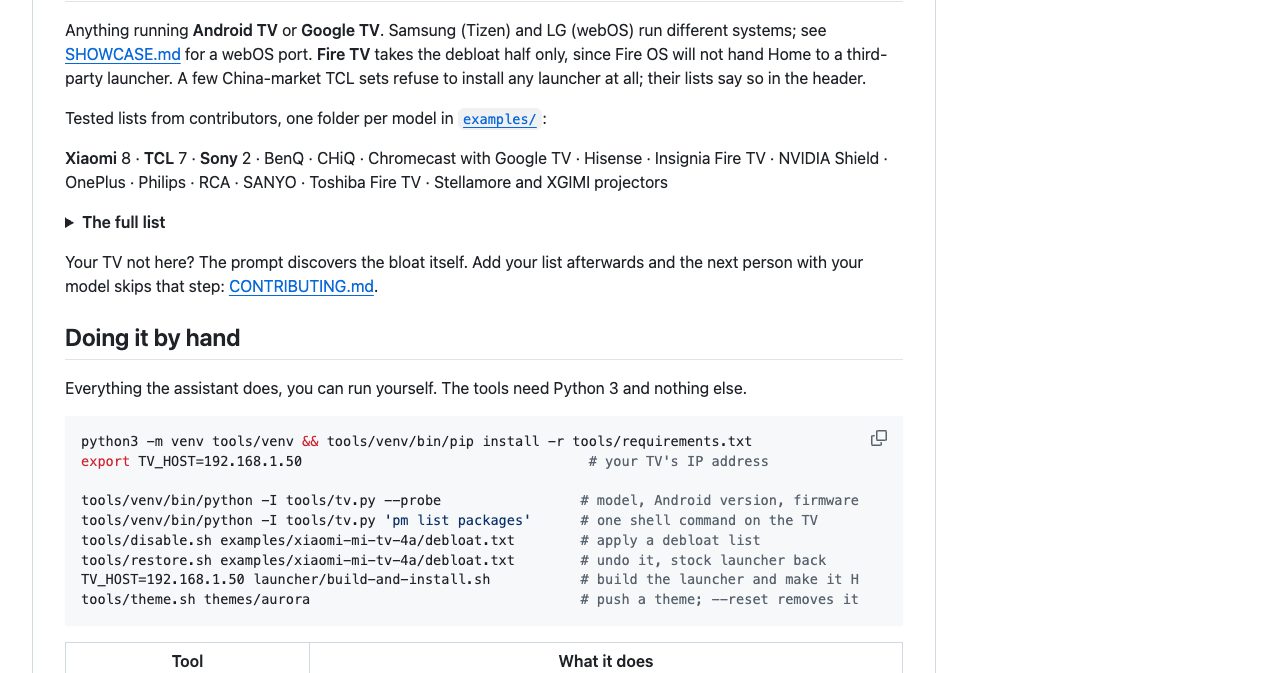
export TV_HOST=192.168.1.50
tools/venv/bin/python -I tools/tv.py --probe            # model, Android version, firmware
tools/disable.sh examples/xiaomi-mi-tv-4a/debloat.txt   # apply a list
tools/restore.sh examples/xiaomi-mi-tv-4a/debloat.txt   # undo it
launcher/build-and-install.sh                           # build the launcher and make it Home
What changes after debloating?
The home screen loses its sponsored banners, "Discover" rows and promo tiles, and the manufacturer's analytics stop running. Memory depends on the TV. Contributors who measured before and after report more free RAM on most sets:
| TV | Before | After | Source |
|---|---|---|---|
| Xiaomi Mi Box S (Android TV 9) | ~770 MB free after boot | 1.15 GB free | PR #44 |
| Xiaomi MiTV-AXSO0 (Android TV 9) | 290 MB free | 357 to 391 MB free | PR #1 |
| Sony KD-55X8509C (Android TV 7) | 1,144 MB used | 991 MB used | Issue #104 |
| TCL 55Q10G Pro, China (Android TV 11) | 1.97 GB available | 2.24 GB available | examples/tcl-q10g-pro |
The Sony report also measured the launchers themselves: about 22 to 26 MB for the new one against 40 to 58 MB for the stock launcher. On the MiTV-AXSO0, all 29 disabled packages stayed disabled across three reboots.
Read these as single-owner reports. Most say the TV was tested for hours or a day, not weeks. The speed gain depends on how much RAM the set had to begin with. A 1 GB TV gains a lot. A 4 GB one gains less.
Streaming apps keep updating through the Play Store, which the prompt never touches. Chromecast keeps working unless you tell it otherwise. The launcher opens apps with standard Android intents, so nothing about Netflix or YouTube changes.
Is it safe? Risks and how to recover
It is low risk if you keep the restore command and follow the order the scripts use. Nothing is flashed or deleted, so the firmware can't be damaged the way a bad ROM flash damages it. What can happen is that you disable something the TV needs and lose a feature, or Home stops working until you re-enable a package.
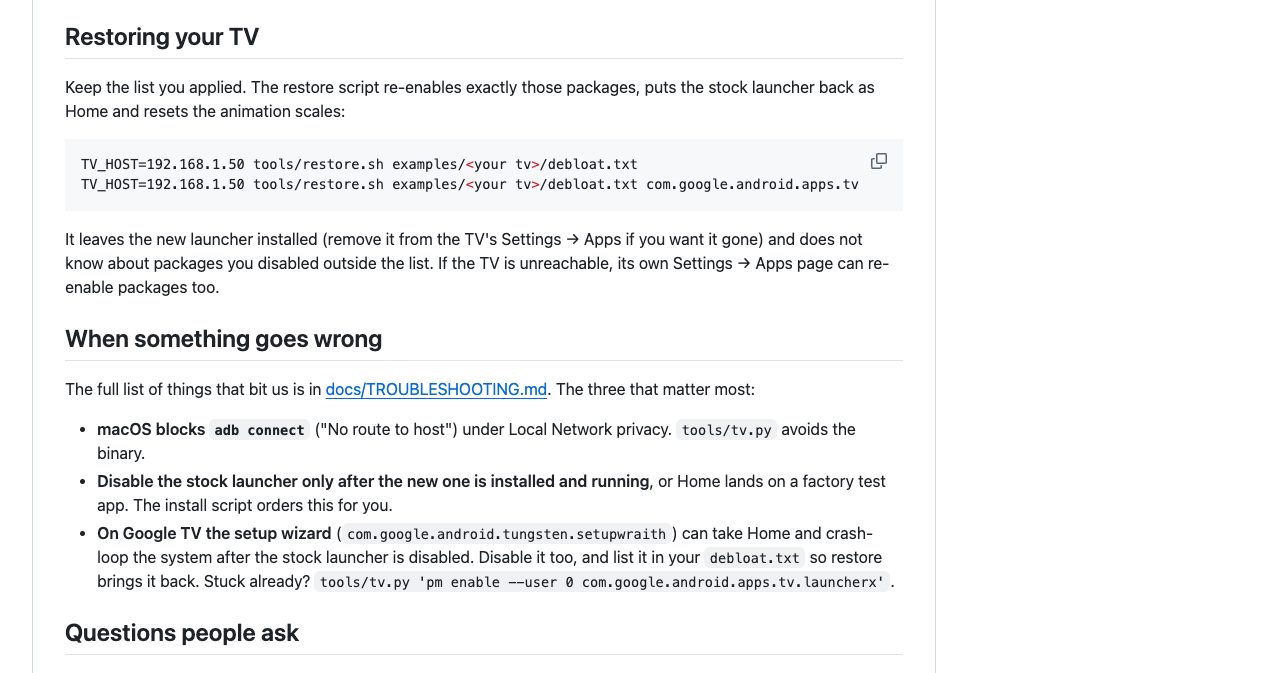
These are the failures documented in the repo's troubleshooting notes:
- Stock launcher disabled too early. Home lands on a factory test app. Launch the new launcher by hand first. The install script now does it in the right order.
- Google TV setup wizard takes Home.
com.google.android.tungsten.setupwraithalso answers the Home intent. On a Xiaomi Google TV 14 set it took Home and crash-loopedsystem_server, and the TV dropped off Wi-Fi every minute. The fix istools/tv.py 'pm enable --user 0 com.google.android.apps.tv.launcherx', then disable setupwraith. Re-enable it before any factory reset. - No keyboard after switching launchers. On some Xiaomi firmware the default input method points at a Baidu keyboard that isn't installed. One
ime setcommand fixes it. - Disabling something load-bearing. Cobanov's guide warns that disabling
com.tcl.suspensionremoved the remote's Inputs button and HDMI switching on his TCL. Keep the vendor's TV app (com.tcl.tv,com.sony.dtv.tvxand so on), which also plays HDMI. - Firmware updates stop. Most lists disable the vendor's update service. That also stops security fixes, so re-enable it now and then.
- Debugging left on. An open ADB port lets any computer you approved run shell commands on the TV. Turn it off.
If ADB can't reach the TV, its own Settings, Apps page can re-enable packages. Factory reset is the last resort. None of the fixes in the troubleshooting notes needs one.
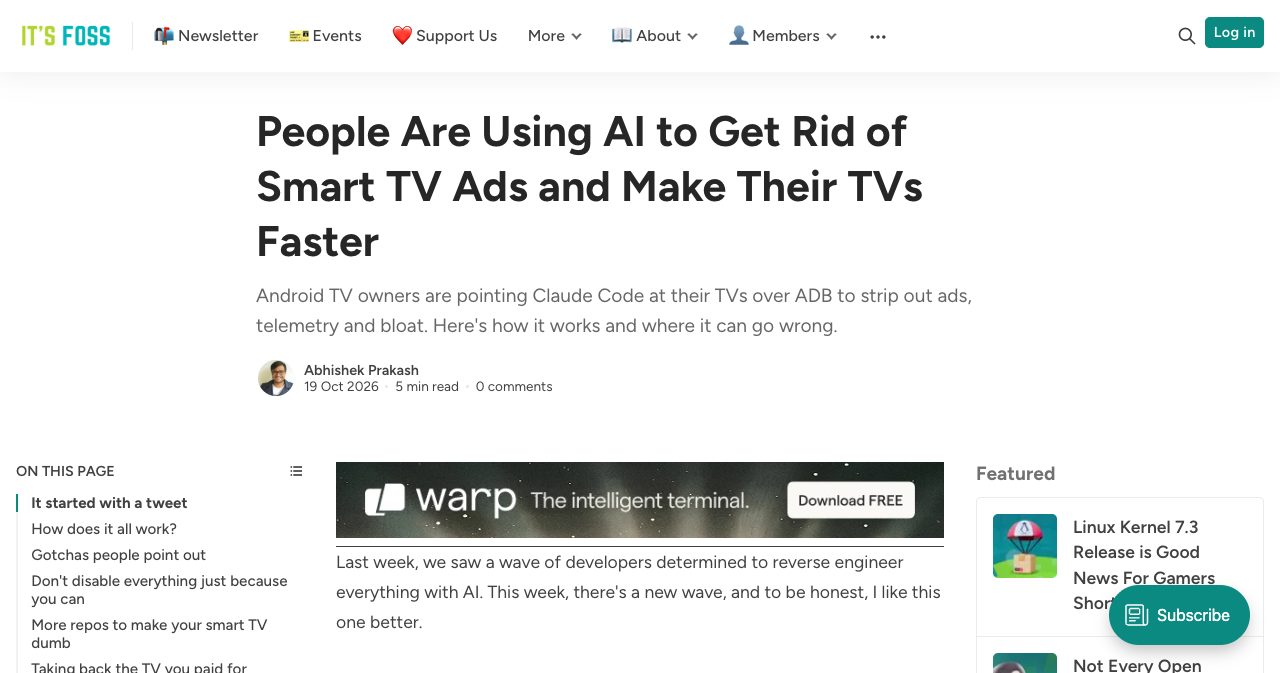
AI is a risk of its own. An assistant can misjudge what an obscure vendor package does. The prompt counters that with small batches, screenshots and checklist questions, but you're the one approving. It's FOSS also noted that some Claude sessions refused requests phrased as "hack my TV", and that asking to remove ads and improve speed, with the model number and package list, works better.
Alternatives to Clean Your TV
Clean Your TV fits if you want both halves, the cleanup and a new home screen, and you're fine building an APK. Other routes:
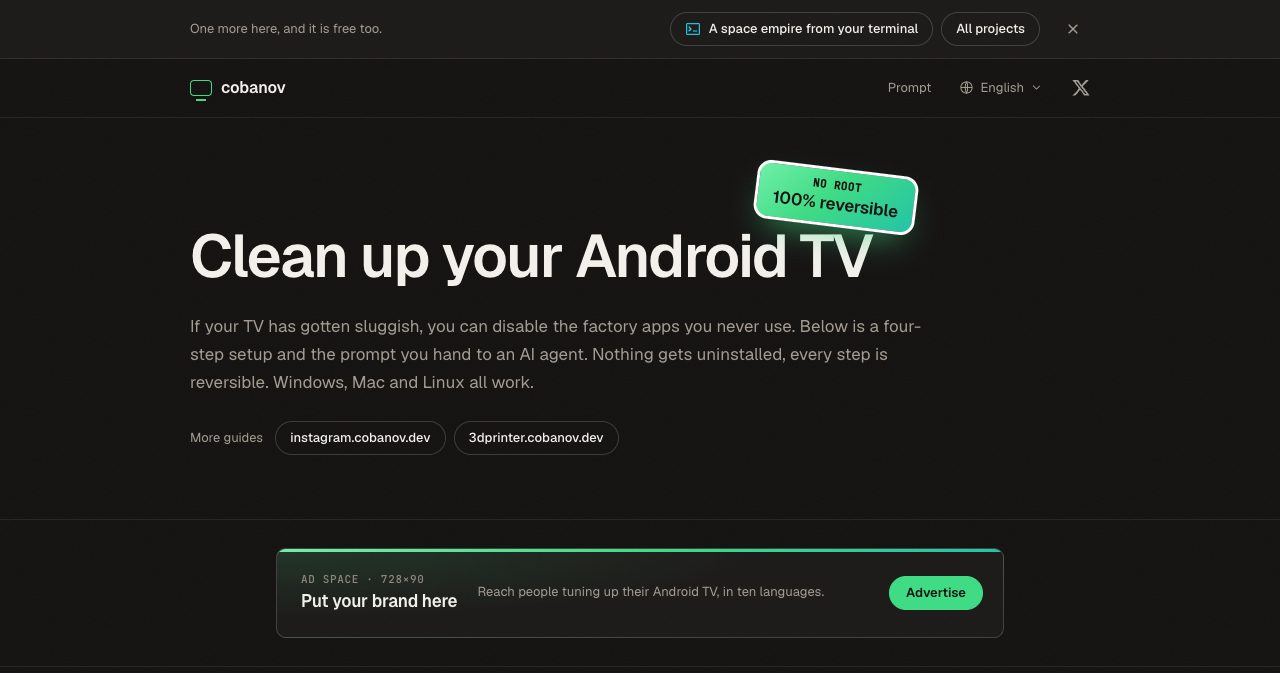
- Mert Cobanov's prompt. A single prompt for Claude Code or Codex that disables at most 10 packages at a time, sets animation scales to 0.5, installs FLauncher and gives you a before and after RAM table. Simpler if you'd rather not build anything.
- dumbtv. A repo It's FOSS covered for Fire TV, which Clean Your TV only half supports. It disables about 65 packages and runs a DNS filter on the TV. Read its agent files before you run them.
- Manual ADB.
adb shell pm disable-user --user 0 <package>per package, with a list you trust. Same result, without an agent. - A ready-made launcher. Projectivy Launcher or FLauncher from the Play Store replace the home screen without touching packages. The ads in the stock launcher go away when you stop using it, but telemetry services keep running.
- DNS blocking. AdGuard DNS or a Pi-hole blocks ad and tracking domains for every device on the network. It doesn't stop the services from running, and it pairs well with any of the above.
Where the project is going
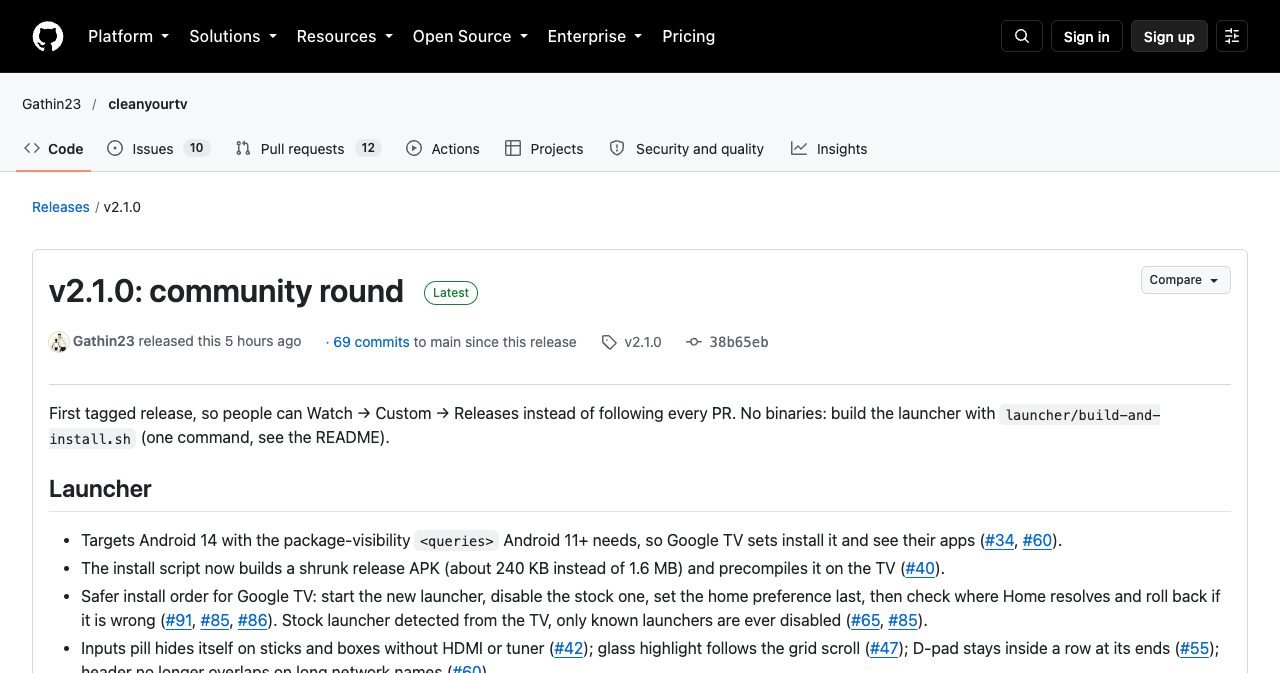
The repo tagged v2.1.0, "community round", on October 19. It targets Android 14 so Google TV sets install it, shrinks the APK from 1.6 MB to about 240 KB, adds the safer install order for Google TV and optional fixes for remotes whose Input or Home keys misbehave. No prebuilt APK is offered. The README says you build it yourself so you control what goes on your TV.
SHOWCASE.md lists what people built on top of it: a Stremio poster shelf, an LG webOS port, a Fire TV fork with a dock, a control center with a sleep timer, and an AirPlay receiver installer for iPhone mirroring. The most useful contribution, the maintainers say, is your TV's debloat list.
What this says about vibe coding
Most viral Claude Code projects so far were software for a screen: a game, a dashboard, a viewer. This one reaches into a device in the living room over the local network, and the code it produced is small enough to read in an evening. The prompt matters as much as the launcher, because it's where the lessons from 30 TVs ended up. Anyone can fork it, and each fork that reports back makes the next run safer.
If you're building in this space, a few related reads on our blog: the Claude Code projects guide, open-source Claude Code repos worth cloning, Claude Code for beginners and the pre-launch security checklist for vibe-coded apps. Built a tool with Claude Code that people can use? List it on SaaSCity.
FAQ
Is debloating an Android TV with Claude Code safe? Can it brick the TV?
Nothing is rooted, flashed or uninstalled. Packages are disabled for user 0 with pm disable-user, so the system image is untouched and a restore script re-enables them. The real risk is disabling something the TV leans on, such as the stock launcher before the new one runs, or the Google TV setup wizard taking over Home and crash-looping. Both have documented one-line fixes, and the TV's own Settings, Apps page can re-enable packages too. Factory reset is the last resort.
Does Clean Your TV work on Samsung, LG, Roku or Fire TV?
No for Samsung Tizen, LG webOS and Roku, which are not Android. A community port rebuilds the launcher as a webOS web app for LG, listed in SHOWCASE.md. Fire TV takes the debloat half only: Fire OS protects Amazon's home packages, so a third-party launcher cannot replace it. The repo has tested Fire OS lists for Insignia and Toshiba sets.
Will Netflix and YouTube still update after debloating?
Yes. The Google Play Store and Play Services are on the prompt's never-disable list, so streaming apps keep updating normally. What usually stops is the manufacturer's firmware update service, which most debloat lists disable. Re-enable it when you want a firmware update.
How do I undo everything?
Run tools/restore.sh with the same debloat.txt you applied, adding the stock launcher package on Google TV (com.google.android.apps.tv.launcherx). It re-enables exactly those packages, sets the stock launcher as Home and resets the animation scales. Remove the new launcher from Settings, Apps if you want it gone. If the TV is unreachable over ADB, re-enable packages from its own Settings, Apps page.
Do I need to know how to code?
No. With the repo as context, the assistant writes and runs the commands, and you mostly accept the ADB prompt on the TV and answer three or four checklist questions. It helps to read each batch before approving it. Everything the assistant does can also be run by hand with the scripts in tools/, which need only Python 3.
Which AI coding assistants work with the prompt?
Any coding assistant with shell access on a computer on the same network as the TV. The prompt was written for Claude Code and says so, and Mert Cobanov's similar guide names Claude Code and Codex. Chat-only assistants without a terminal cannot run ADB commands, so they can explain the steps but not do them.
Does debloating stop TV tracking and ACR?
It disables the tracking packages the lists name, such as Samba TV's ACR service (tv.samba.ssm) on Sony sets, Xiaomi's analytics packages and TCL's BI reporting service. It does not block network traffic, so anything you leave enabled can still report. Pair it with a DNS blocker if you want network-level filtering.
Is it risky to leave USB debugging on?
Yes. An open ADB port on the home network lets any device you approved run shell commands on the TV, and some boxes cut power to their USB port while debugging is on. Switch USB debugging off when you finish. The new launcher does not need it, and you can switch it back on to restore or change things later.
Why did my Google TV start crash-looping or dropping Wi-Fi after the launcher change?
On Google TV, the setup wizard com.google.android.tungsten.setupwraith also answers the Home intent and can take Home once the stock launcher is disabled, crash-looping system_server. Recover with tools/tv.py 'pm enable --user 0 com.google.android.apps.tv.launcherx', then disable setupwraith and list it in debloat.txt so restore brings it back before any factory reset.
How long does it take?
The README says about fifteen minutes when the assistant works from the cloned repo. The first run on the original Xiaomi took an afternoon, without a repo to work from. Building the launcher the first time also needs the JDK and Android SDK installed.
Get your SaaS in front of founders
List your product on the SaaSCity live city map - a permanent listing, real discovery, and a backlink from a high-DR directory. Free to start; upgrade for a dofollow link and a building on the map.